How to Write a LinkedIn Post
Learn how to write a LinkedIn post within the 3,000 character limit, use mentions, emojis and the proofreader, and follow a five part order for the text.

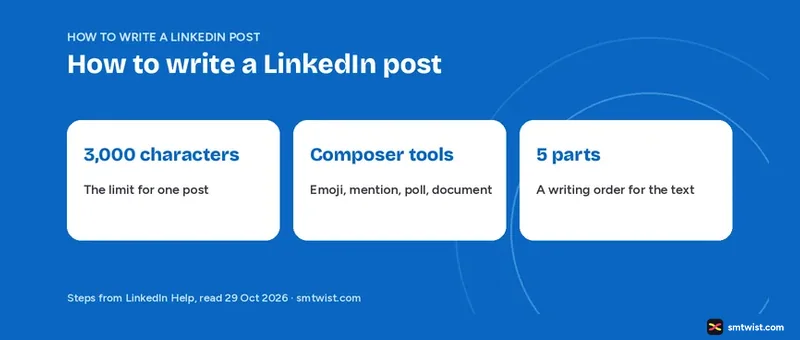
Three choices shape a LinkedIn post, and they are the length, the content and the tools you use while typing. Here is how to write a LinkedIn post with the 3,000 character limit, the icons and mentions that LinkedIn Help describes and a five part order for the text. Click steps for publishing sit in our LinkedIn posting walkthrough and this guide stays on the writing.
Every rule comes from LinkedIn Help, read on 29 October 2026. Every craft tip is marked as our view.
How to Write a LinkedIn Post Within the Character Limit
LinkedIn Help states that a post can contain up to 3,000 characters. For the other counts that apply on LinkedIn, see our LinkedIn character limit guide.
If your text runs past 3,000 characters, Help names a different route. Write it as an article in LinkedIn's Publishing Platform.
Long text is easier to manage in pieces. Help says you can save a draft and continue later, including from another device.
What Goes Into a LinkedIn Post?
LinkedIn Help sets no formula for the text. It gives no rule for hook length, paragraph length or an ideal word count, which makes the next list our view and not a LinkedIn rule. Four things help a reader.
- An opening line that tells the reader at once what the post offers.
- One idea for the whole post, with the proof or detail after it.
- Short paragraphs with a blank line between them, so the text is easy to scan.
- A closing line that asks for one reply or one action.
Help also offers a starting point. Post suggestions appear below the window that opens when you click Start a post. Click one, choose an option and follow the prompts.
Composer Icons That Help You Write
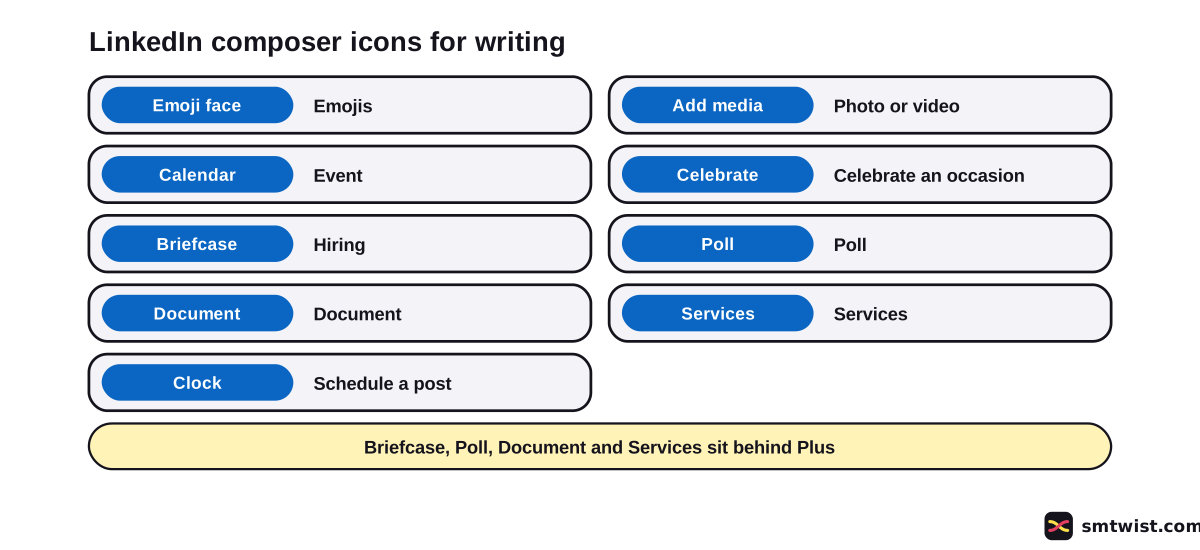
LinkedIn Help names nine icons in the composer, and four of them sit behind the Plus icon for more. The table lists what Help says every icon does.
| Icon | What LinkedIn Help says it does |
|---|---|
| Emoji face | Adds emojis |
| Add media | Adds a photo or video |
| Calendar | Creates an event |
| Celebrate | Celebrates an occasion |
| Briefcase | Posts about hiring |
| Poll | Adds a poll |
| Document | Shares a document |
| Services | Posts about services |
| Clock | Schedules a post |
Polls need their own question and options, which our guide to creating a poll on LinkedIn walks through. The clock icon sets a time for publishing, and scheduling LinkedIn posts covers the timing.
Hashtags and the @ symbol also work in a document description, per the Help article on sharing documents. Help gives no cap on hashtags in a post. Our LinkedIn hashtags guide covers how to use them.
How do You Mention People in a LinkedIn Post?
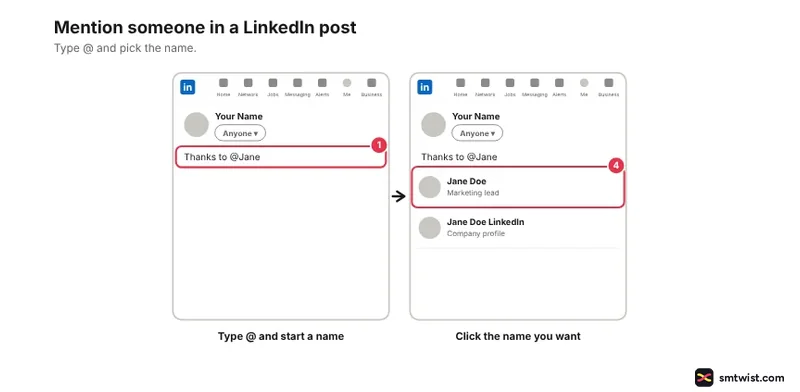
LinkedIn Help gives five steps for a mention.
- Type @ in your post text and start typing a name.
- Read the names that LinkedIn suggests as you type.
- For a common name, add the company, like Jane Doe LinkedIn.
- Click the name you want.
- Keep typing your post.
The mentioned member gets email and app notifications about the post. Members do not need to be your connections. Some members switch mentions off, and LinkedIn tells you when a person cannot be mentioned.
You can edit a post to add a mention later. LinkedIn says it can limit your ability to mention members you are not connected with, and Help gives no number for mentions in one post.
How to Write a LinkedIn Post in Five Parts
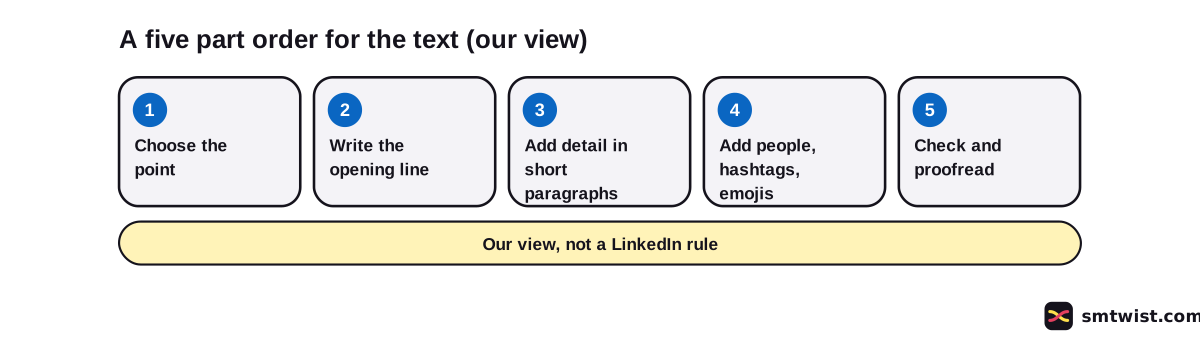
Our view sets this order for how to write a LinkedIn post and LinkedIn does not. Five parts take a post from idea to publish.
- Choose the one point of the post. Try the post suggestions if the idea is not clear yet.
- Write the opening line, which should tell the reader the point before they decide to read on.
- Add the detail in short paragraphs, and stop when the point is made.
- Add people, hashtags and emojis only where they help the reader.
- Check the draft for spelling, length and tone, then read it aloud once.
Settings come after the text. Help lists Who can see your post with Anyone, Connections only or Group, Who can comment with Anyone, Connections only or Off, and a Brand Partnership toggle in the name dropdown. The comment choice has its own steps in how to turn off comments on a LinkedIn post.
The Post Proofreader for Premium Members
LinkedIn has a Post proofreader for members on Premium Career and Premium Business. It works on English drafts only. Whether the paid plans suit you is covered in LinkedIn Premium and is outside this guide. To plan what to write week by week, see how to create a LinkedIn content strategy.
The tool has three options, shown as Review, Shorten and Clarify. Review checks spelling, grammar and punctuation. Shorten makes the text more concise, and Clarify makes it easier to read.
Edits appear inline in your draft, and you accept them one by one before anything changes. The proofreader works on what you wrote and does not write the post for you. These details come from the Help article summarised in our posting guide.
Are There Limits on Posting Volume?
LinkedIn Help says it can reduce the visibility of posts when creation looks excessive and signals inauthentic activity or an automation tool. It also says LinkedIn can cap the number of posts a member publishes over a period, based on behaviour, authenticity signals and verification status.
Verifying your profile can help, or you can try again later. Help gives no number for the limit.
What is Still Unconfirmed?
Publishing a real post to test the icons was outside this work and the label stays Checked. LinkedIn updated its post article three weeks before we read it, and an icon or label can differ on your screen.
LinkedIn Help does not say how many lines show before See more. We give no line count for that reason.
Help also sets no cap on mentions or hashtags and no rule for an ideal post length. A LinkedIn talent blog article on engaging posts appeared in search, but it was blank in our browser. We did not read or cite it.
Where This Guide Fits
Writing is the first half of posting, and the posting rules and formats topic in the LinkedIn section groups it with the format guides.
For another post format, see how to create a LinkedIn carousel. After you publish, LinkedIn impressions explains what the view count means.
Sources
- LinkedIn Help: Post and share updates, read 29 October 2026, the 3,000 character limit, drafts, post suggestions, composer icons, settings and posting limits.
- LinkedIn Help: Mention people in your posts, read 29 October 2026, the mention steps and rules.
- LinkedIn Help: Upload and share documents, read 29 October 2026, hashtags and mentions in a document description.
Checked is the label on this guide. Most facts come from the three Help articles above, the proofreader details come from our posting guide, and we did not publish a post from a live account. Our editorial policy explains the three labels.
FAQ
How do I write a LinkedIn post?
Click Start a post, type your text in the composer and stay under 3,000 characters. Add mentions, emojis or a hashtag as you type, then check the draft before you publish.
How do I start a post in LinkedIn?
Click Start a post on your homepage. A window opens with post suggestions below it, and you can click one, choose an option and follow the prompts instead of starting from a blank box.
How many characters can a LinkedIn post have?
Up to 3,000 characters, says LinkedIn Help. If your text is longer, write an article in LinkedIn's Publishing Platform.
How do I tag someone in a LinkedIn post?
Type @ and start typing the name, then click the name in the suggestions and keep typing. The person gets email and app notifications about the post. A member who has switched mentions off cannot be mentioned.
What are examples of LinkedIn posts?
LinkedIn shows suggestions below the window that opens when you click Start a post. The composer icons also point to formats like a celebration, a hiring post, a poll and a document.
Does LinkedIn say how long a good post should be?
No. LinkedIn Help gives only the 3,000 character limit and sets no rule for hook length, paragraph length or an ideal size. Anything beyond that limit is writing advice and not a LinkedIn rule.
Can I save a LinkedIn post and finish it later?
Yes. LinkedIn Help says you can save a draft and continue later, including from another device.
Can LinkedIn check the spelling in my post?
Yes, for Premium Career and Premium Business members. The Post proofreader works on English drafts and offers Review, Shorten and Clarify. Nothing in the draft changes until you accept an edit.
Can LinkedIn limit my posts?
Yes. In the FAQ view, excessive posting that looks automated can reduce visibility, according to LinkedIn Help. It can also cap the number of posts a member publishes over a period.
 Editor
Written by
Namrata Arora
Namrata Arora is a social media expert with two years of hands on experience on Instagram, Facebook and other platforms. She writes the how to guides on Social Media Twist and tries the steps on a real account for every guide marked Tested.
- Marks every guide Tested or Checked
- Writes about Instagram, Facebook, TikTok
- 43 guides on SMTwist
Guest posts are edited by SMTwist before they go live. Paid or affiliate links are labelled and carry rel="sponsored".