How to Create a LinkedIn Carousel
Learn how to create a LinkedIn carousel as a document post, with the desktop steps, file types, the 100 MB and 300 sheet limits and upload fixes.

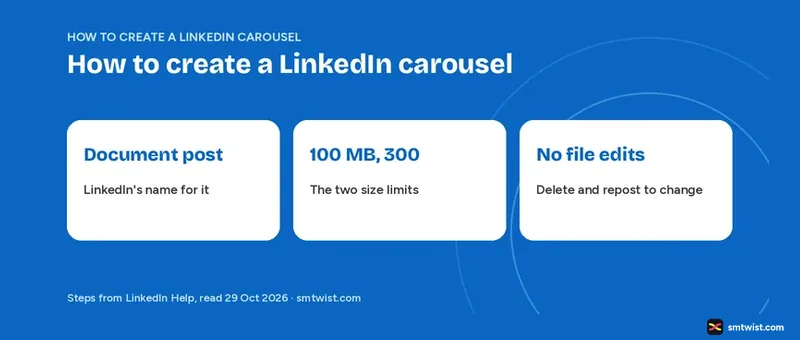
Most people ask how to create a LinkedIn carousel and then look for a button that is not there. Carousels on LinkedIn come from a document, and the job has two parts. You make slides in any slide tool and then upload that file to a post.
Our walkthrough of how to create a LinkedIn carousel covers the desktop upload, the limits and the fixes, all read in LinkedIn Help on 29 October 2026.
How to Create a LinkedIn Carousel on Desktop
LinkedIn Help lets you add a document to a post from your homepage or a group or a company profile. The steps below start from the homepage. Follow these seven steps on a computer. Document posts are one of the tactics in how to increase engagement on LinkedIn.
- Click Start a post in the share box.
- Click More in the pop-up and then the Add a document icon.
- Click Choose file to upload from your computer.
- Select the file. Choose one file only.
- Add a title for the document and click Done.
- Write a description for the post. Hashtags and @ mentions are optional.
- Click Post.
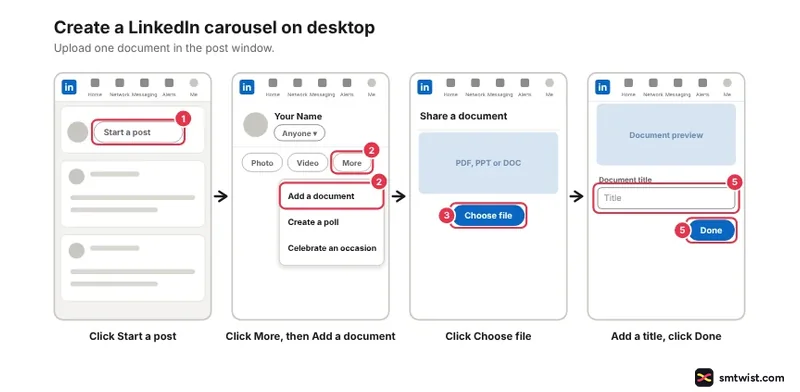
Help shows two cloud options in the same window, Dropbox and Google Drive. A work cloud account can show an alert that needs approval from your admin.
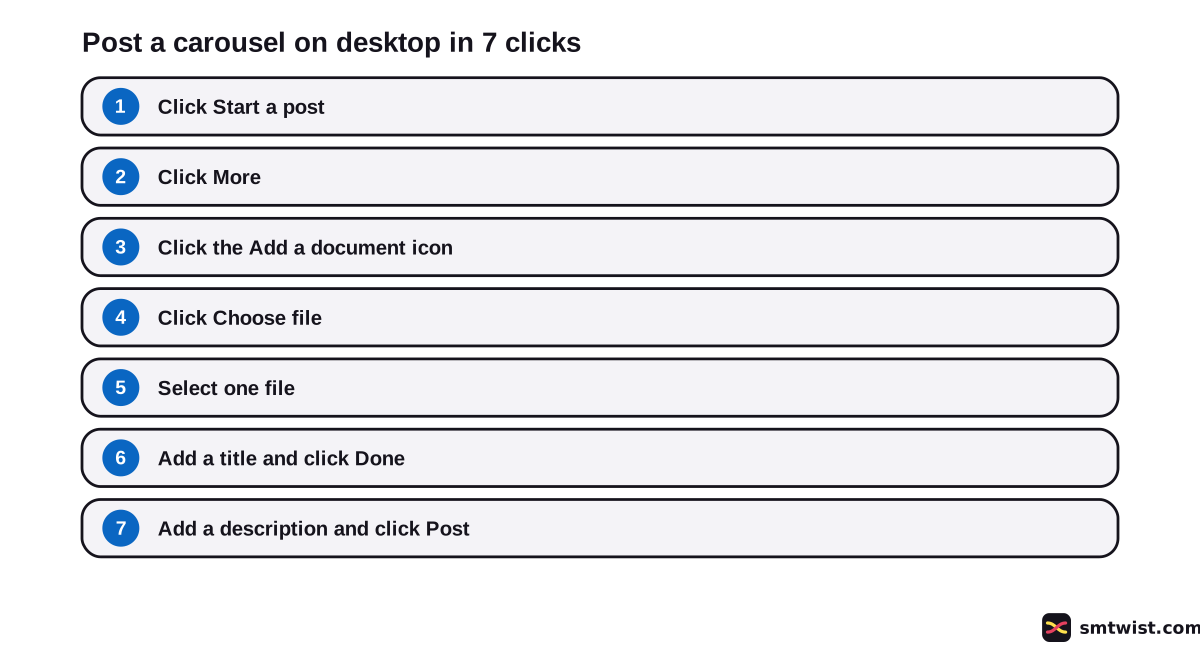
The Document icon also sits in the plus icon menu of the composer, per the post and share updates article. We read only the desktop tab. Mobile steps are not covered here.
Why is a LinkedIn Carousel a Document Post?
LinkedIn Help never says carousel. Its articles talk about documents, and the swipeable slides you see in the feed are a document with a title. Search for the format by its Help name and you find the real rules.
Help suggests topics like career advice, culture stories, insights and trends, event content and knowledge sharing for documents. Text above the document runs to 3,000 characters, and our LinkedIn character limit guide lists the other text limits.
Make the Slides Before You Create a LinkedIn Carousel
The share box has no slide editor. Build the slides in any slide tool and save or export the file as one of the supported types.
We did not test Canva, PowerPoint or any other tool. The steps for how to create a LinkedIn carousel stop at the file, and the design work stays with your own tool.
LinkedIn Help names five file types. Those are PDF, PPT, PPTX, DOC and DOCX. A PDF export is the simplest of the five to check before you post.
Help gives no slide size, no aspect ratio, no font size and no ideal number of slides. Any advice on those numbers comes from designers and tools, not from LinkedIn, and we did not verify it.
LinkedIn Carousel Limits
Six limits come from the two document articles. They apply when you click Done and again when you post.
| Limit | What LinkedIn Help says |
|---|---|
| File size | 100 MB or less |
| Length | 300 or fewer, counted the way a PDF reader counts them |
| File types | PDF, PPT, PPTX, DOC, DOCX |
| Documents per post | One. Help answers "Not at this time" |
| Title | Required |
| Post text | Up to 3,000 characters |
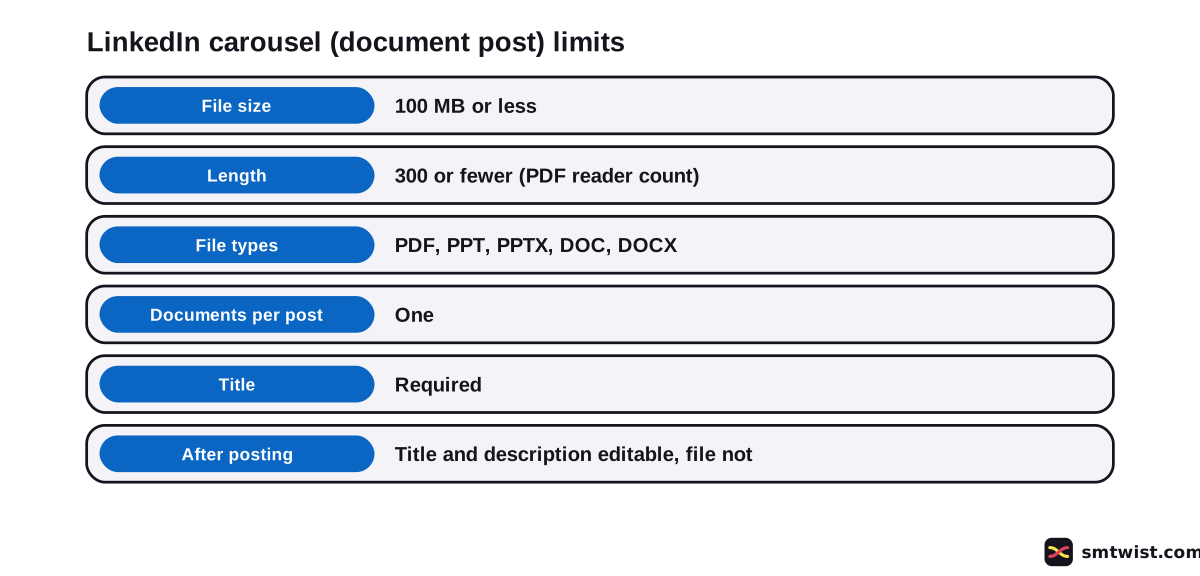
Our cluster guide on LinkedIn posting rules and formats quotes a LinkedIn developer document with 300 slides or sheets and 100 MB. LinkedIn Help gives 300 for the length of the file in its own unit, which is the PDF reader count. We state both and cannot say which one applies to you.
How Many Photos can a LinkedIn Carousel Hold?
There is no photo count. LinkedIn Help counts the length of the document. A slide with one photo and a slide with six photos use the same single unit of the 300.
Keep an eye on the 100 MB total instead. Large photos inside a PPTX or a PDF add up fast, and a file over the limit fails to upload.
Edit, Delete or Download a LinkedIn Carousel
The file in a posted carousel is fixed. LinkedIn Help says you can edit the description of the document or remove the post after upload, and the FAQ adds that you can edit the title. You cannot change or edit the document in the post.
For a changed slide, remove the post and share a fresh one with the updated document. Your uploads are listed in the Activity area of your profile, which is where to find an old carousel for deleting.
Help states that members who can view the post can download the document as a PDF for accessibility. They open it in full screen and click the Download icon in the top right. Leave out anything you do not want copied.
Our guide to writing a LinkedIn post covers the text above the document. The LinkedIn hashtags guide covers the tags in the description.
How do You Fix a Failed LinkedIn Carousel Upload?
Failed uploads send you a notification. Help gives four checks to work through.
- Check that the format is PPT, PPTX, DOC, DOCX or PDF. The FAQ writes PPTS, which looks like a typo for PPTX.
- Check that the file is 100 MB or less.
- Check that the file is 300 sheets or fewer.
- Check that the document has a title.
If all four pass and the upload still fails, the Help articles we read give no further step. Export the slides again as a PDF and try once more.
File weight is the easiest check to miss. Photos pasted into slides at full size inflate the export. Check the saved file size in your folder before you try again.
Before a second try, confirm that the file opens normally on your own computer.
What is Still Unconfirmed?
Nobody here posted a carousel from a live account. That is the reason for the Checked label.
LinkedIn shows both document articles as updated about three years before we read them. A label can differ on your screen.
Help gives no word on reach. If you want to measure how a document post performs, the LinkedIn impressions guide explains the number LinkedIn shows. Help also says nothing about posting a document from the mobile app, and we did not read the mobile tab.
Where This Guide Fits
Document posts belong with the rest of the posting rules and format limits in the LinkedIn section. A plain text update starts with how to post on LinkedIn.
Our editorial policy defines the Checked label.
Sources
- LinkedIn Help: Upload and share documents on LinkedIn, read 29 October 2026, the desktop steps, the file types, the 100 MB and 300 limits and the editing rule.
- LinkedIn Help: Document uploads on LinkedIn FAQ, read 29 October 2026, the failed upload checklist, one document per post and the download route.
- LinkedIn Help: Post and share updates on LinkedIn, read 29 October 2026, the Document icon in the composer and the 3,000 character text limit.
This guide is labelled Checked. Every step was compared with the three Help articles above, and no document was posted from a live account. How we label guides explains the three labels.
FAQ
How do you create a carousel post on LinkedIn?
Click Start a post, click More, click the Add a document icon and choose your file. Add a title, click Done, write the description and click Post.
Is a LinkedIn carousel the same as a document post?
Yes. LinkedIn Help never uses the word carousel and describes the same thing as uploading a document to a post. People call the swipeable result a carousel.
How many photos can I put in a LinkedIn carousel?
LinkedIn Help sets no photo count. The limit is on the document, which is 100 MB and 300 sheets. Every photo you use has to sit on a slide of one file.
What file types does a LinkedIn carousel accept?
PDF, PPT, PPTX, DOC and DOCX. LinkedIn Help writes PPTS in the FAQ and PPTX in the main article. Choose PPTX or PDF to stay clear of the typo.
How big can a LinkedIn carousel file be?
100 MB or less and no more than 300 sheets, says LinkedIn Help. A longer or heavier file fails to upload and sends you a notification.
Can you edit a LinkedIn carousel after posting?
No for the file. You can edit the title and the description, or remove the post. To change a slide, delete the post and create a new one with the updated document.
Can people download my LinkedIn carousel?
Yes. LinkedIn Help says members who can view the post can download your document as a PDF, for accessibility. They view it in full screen, then click the Download icon at the top right.
How can I create a free LinkedIn carousel?
LinkedIn Help mentions no fee for uploading a document. We did not open any design tool. Check the price of the tool you choose to make the slides.
Do carousel posts do well on LinkedIn?
No LinkedIn Help article we read says that carousel posts reach more people than other formats. We found no figure from LinkedIn and give none.
 Editor
Written by
Namrata Arora
Namrata Arora is a social media expert with two years of hands on experience on Instagram, Facebook and other platforms. She writes the how to guides on Social Media Twist and tries the steps on a real account for every guide marked Tested.
- Marks every guide Tested or Checked
- Writes about Instagram, Facebook, TikTok
- 43 guides on SMTwist
Guest posts are edited by SMTwist before they go live. Paid or affiliate links are labelled and carry rel="sponsored".