How to Post on LinkedIn
How to post on LinkedIn from a computer or phone, with the visibility and comment settings, photo and link rules, drafts, edits and limits.

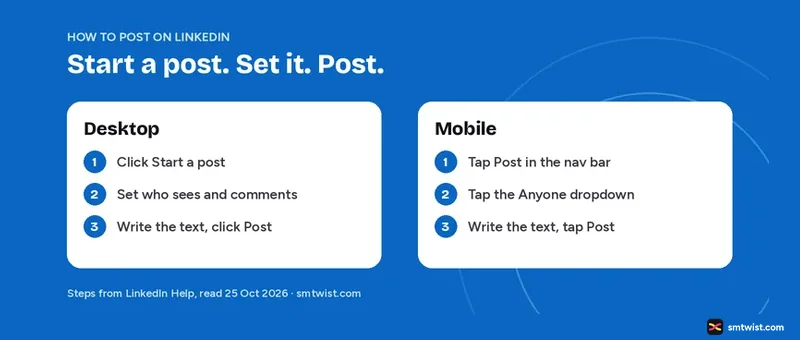
You need an account first, so see how to create a LinkedIn account if you have none. If your profile is still empty, our LinkedIn for beginners plan covers what to add before your first post. You can post on LinkedIn from the share box on a computer or from the Post icon in the app. This guide on how to post on LinkedIn gives the steps for both, the settings in the post window, the photo and link rules and what you can change after you post. Every fact comes from LinkedIn Help, read on 25 October 2026.
How to Post on LinkedIn Step by Step
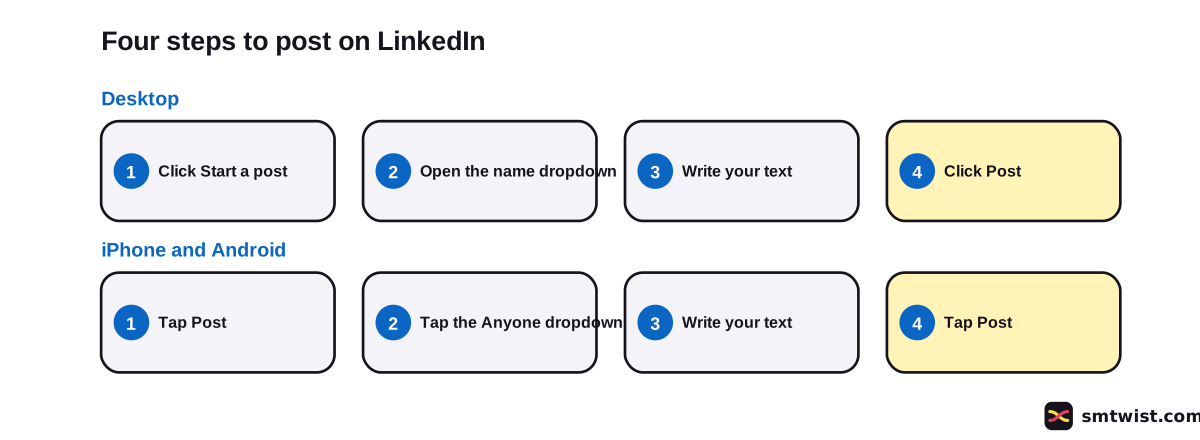
The steps to post on LinkedIn are short, and the dropdown for visibility and comments is part of them. The figure shows both routes.
On Desktop
- Click Start a post in the share box at the top of your LinkedIn homepage.
- Use the dropdown next to your name to set visibility and comment control.
- Type your text in the What do you want to talk about? field.
- Click Post.
On iPhone and Android
- Tap the Post icon in the navigation bar.
- Tap the Anyone dropdown to set who sees the post and who can comment.
- Type your text.
- Tap Post.
How to Create a Post on LinkedIn With More Than Text
You can post on LinkedIn with more than text too. LinkedIn Help lists Video, Photo and Write article as the main icons. The More menu adds a celebration, an event, a hiring note, a poll and a document. Our guides on LinkedIn video and the LinkedIn character limit cover two of these in full.
A post can hold up to 3,000 characters. Text past that belongs in an article. When you comment on your own post, LinkedIn shows an Author tag next to your name.
LinkedIn Post Settings Before You Post on LinkedIn
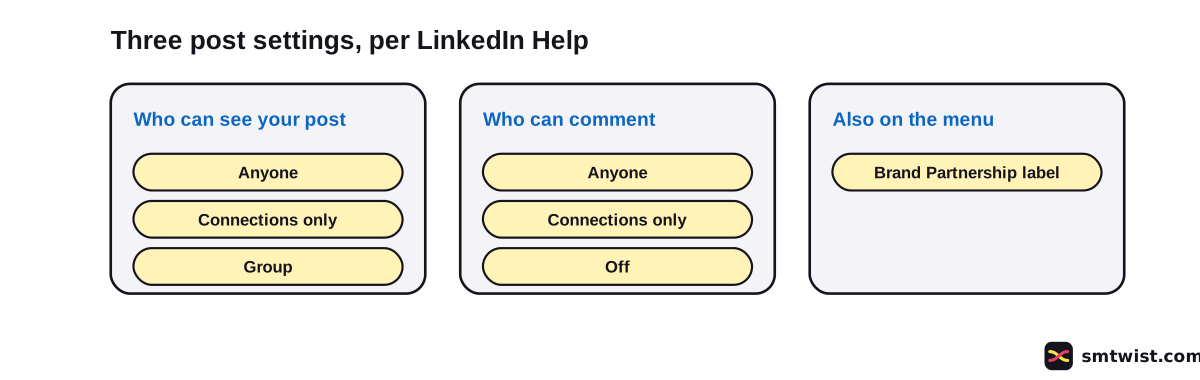
The dropdown next to your name holds two choices, and the figure shows them with the More menu.
| Setting | What LinkedIn Help says |
|---|---|
| Visibility | Choose who you want to share the post with |
| Comment control | Choose who can comment on your posts |
LinkedIn Help adds that members and company profiles can disable comments, and members can limit comments to connections only. A company profile can allow or restrict comments from all members.
How to Post on LinkedIn From a Computer With a Photo
To post on LinkedIn with a photo, click the Photo icon in the share box, then Upload from computer. You can also drag, drop or paste photos into the box. After upload, LinkedIn Help lists these tools: Edit to crop or apply filters, Tag, ALT for alternative text, Duplicate, Delete and Add. Click Next, set the dropdown, add text if you want and click Post.
The photo rules from LinkedIn Help are below.
| Rule | Value |
|---|---|
| Images per post | Up to 20 |
| Size per upload | 5 MB |
| Minimum size | 552 x 276 pixels |
| Recommended width | 1080 pixels |
| Aspect ratio | 3:1 to 4:5 (width:height) |
A photo cannot be resized or edited after you post. Add ALT text before you click Post, because members who use screen readers.
How to Post a Link on LinkedIn
To post a link on LinkedIn, paste it into your text and LinkedIn builds a preview. LinkedIn Help says the share box remembers the content of the last link you shared for three days. If you fix a link's image or title, wait three days before you share the same URL again. From an article you can also share through LinkedIn's share option, which lists Repost to Feed, Send in a message and Copy link.
Drafts, Edits and Deleting a LinkedIn Post
If you are not ready to post on LinkedIn, save the post as a draft. LinkedIn Help says you can continue editing it later, including from another device.
After you post, only the text can be edited. Click the More icon at the upper right of the post, choose Edit post, change the text and click Save. The word Edited appears next to the post. Photos, articles, documents and videos cannot be replaced, and a new URL will not show a new preview image. To change those, delete the post and create a new one. Deleting is done from the same More icon.
Why does My Post on LinkedIn Not Reach Anyone?
LinkedIn Help names one posting limit. If it detects excessive post creation that points to inauthentic activity, or the use of an automation tool, it can limit the visibility of those posts. It does not give a number. Posts can also fall short because a member blocked you or limited comments. To learn how views are counted, read what impressions on LinkedIn mean. For timing a post ahead, read How to Schedule LinkedIn Posts.
What is Still Unconfirmed
We did not find a LinkedIn Help article on collaborative posts or on posting without notifying your followers, so this guide makes no claim about either. LinkedIn Help gives no advice on what makes a post good, and the 95-5 rule and ideal post formats seen in vendor guides have no LinkedIn source. The photo article is about two years old and the edit article about four, so a limit could have changed. We did not post from a test account, so the label on this guide is Checked.
Where This Guide Fits
This guide on how to post on LinkedIn belongs to our LinkedIn Posting Rules and Formats topic, inside the LinkedIn section. Post length is covered in LinkedIn Character Limit, video in LinkedIn Video and timing in How to Schedule LinkedIn Posts.
Sources
- LinkedIn Help: Get started with posting on LinkedIn, read 25 October 2026, the share box and the More menu.
- LinkedIn Help: Post and share updates, read 25 October 2026, the character limit, drafts and posting limits.
- LinkedIn Help: Share photos on LinkedIn, read 25 October 2026, the photo steps and requirements.
- LinkedIn Help: Edit a shared post, read 25 October 2026, what can be edited.
- LinkedIn Help: Save a post as a draft, read 25 October 2026, drafts.
- LinkedIn Help: Delete content you have shared, read 25 October 2026, deleting a post.
- LinkedIn Help on sharing a link from an article, read 25 October 2026, the share options.
The label on this guide is Checked, which means we compared the steps with these sources and have not tried them on an account yet. Read how we label guides.
FAQ
How do I post my first post on LinkedIn?
Click Start a post in the share box at the top of your LinkedIn homepage, or tap the Post icon in the app. Write your text, check who can see it and click or tap Post.
How do I create a post on LinkedIn from my computer?
Click Start a post on your homepage, set visibility and comment control from the dropdown next to your name, type your text and click Post. Icons in the window add photos, video, a document or a poll.
How do I post on LinkedIn with an image?
Click the Photo icon in the share box and upload up to 20 images. Click Next, set the dropdown if you want, add text and click Post. An upload can be 5 MB at most, says LinkedIn Help.
How do I post a link on LinkedIn?
Paste the link into the text of the post and LinkedIn shows a preview. LinkedIn Help says the share box remembers a link's image and title for three days, so a changed preview takes that long to refresh.
How many characters can a LinkedIn post have?
Up to 3,000 characters, says LinkedIn Help. A longer text belongs in an article, which you start with Write article.
Can I edit a LinkedIn post after posting?
Only the text. Click the More icon on the post, choose Edit post, change the text and click Save. The word Edited then appears next to the post.
Can I save a LinkedIn post and finish it later?
Yes. LinkedIn Help says you can save a draft and keep editing it later, including from another device.
How do I post on LinkedIn as a company profile?
A super admin or content admin of a company profile can share updates from the LinkedIn homepage, says LinkedIn Help.
Why is my LinkedIn post getting low reach?
LinkedIn Help says it can limit the visibility of posts when it detects excessive post creation or the use of an automation tool. It gives no other reason.
 Editor
Written by
Namrata Arora
Namrata Arora is a social media expert with two years of hands on experience on Instagram, Facebook and other platforms. She writes the how to guides on Social Media Twist and tries the steps on a real account for every guide marked Tested.
- Marks every guide Tested or Checked
- Writes about Instagram, Facebook, TikTok
- 13 guides on SMTwist
Guest posts are edited by SMTwist before they go live. Paid or affiliate links are labelled and carry rel="sponsored".