LinkedIn Video: Limits, Formats and How to Post
LinkedIn video length, size and format limits from LinkedIn Help, plus how to post a video, add captions and fix an upload that fails.

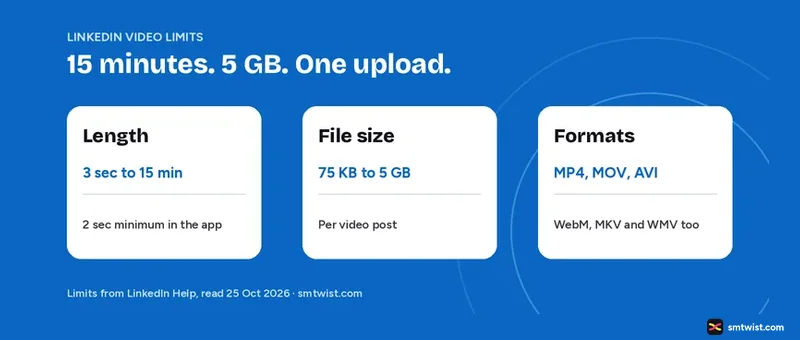
LinkedIn video follows set limits for length, size and format, and the limits change by where you post. This guide lists the rules for a member post, a company profile video and a video ad, then the steps to post, caption and fix an upload. Every fact comes from LinkedIn Help, read on 25 October 2026.
LinkedIn Video Length, Size and Format Limits
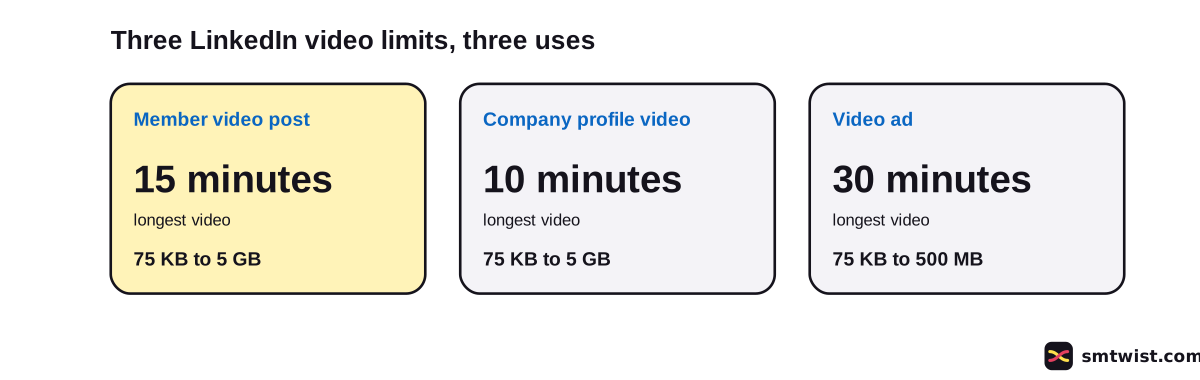
The limits for LinkedIn video depend on the use. A member post gets 15 minutes, a company profile video gets 10 and an ad gets 30. The table shows the first two, and the figure shows all three.
| Limit | Member video post | Company profile video |
|---|---|---|
| Length | 3 seconds to 15 minutes | 3 seconds to 10 minutes |
| Minimum from the app | 2 seconds | Not stated |
| File size | 75 KB to 5 GB | 75 KB to 5 GB |
| Resolution | 256x144 to 4096x2304 | 256x144 to 4096x2304 |
| Aspect ratio | 1:2.4 to 2.4:1 | 1:2.4 to 2.4:1 |
| Frame rate | 10 to 60 fps | 10 to 60 fps |
| Bit rate | 192 Kbps to 30 Mbps | 192 Kbps to 30 Mbps |
LinkedIn Video Ad Limits
A LinkedIn video ad is a separate format. LinkedIn Help lists 3 seconds to 30 minutes, 75 KB to 500 MB, MP4 with H.264 or VP8 and a frame rate below 30 fps. In-stream ads can last up to 90 seconds. Our LinkedIn Ad Formats and Objectives topic covers the rest.
Which Video Formats Work on LinkedIn?
For a member post, LinkedIn Help lists these file types on desktop, iPhone and Android.
- MP4, MOV, AVI, WebM, MKV and WMV
- VC1, MPEG, MPEG2 and MPEG1VIDEO
- DVVIDEO, QTRLE and TSCC2
LinkedIn Help warns that a ProRes file can upload but cannot be processed, and an unsupported type gives an error. The company profile list is different. It names MP4, MPEG-4, MKV, WebM, WMV2, WMV3, FLV and ASF among others, and says LinkedIn dropped AVI, QuickTime and MOV there. That article is about four years old, so check it before you rely on it.
How to Post a Video on LinkedIn
You can post a LinkedIn video from the share box on desktop or from the app. Both routes let you set who sees it and who can comment.
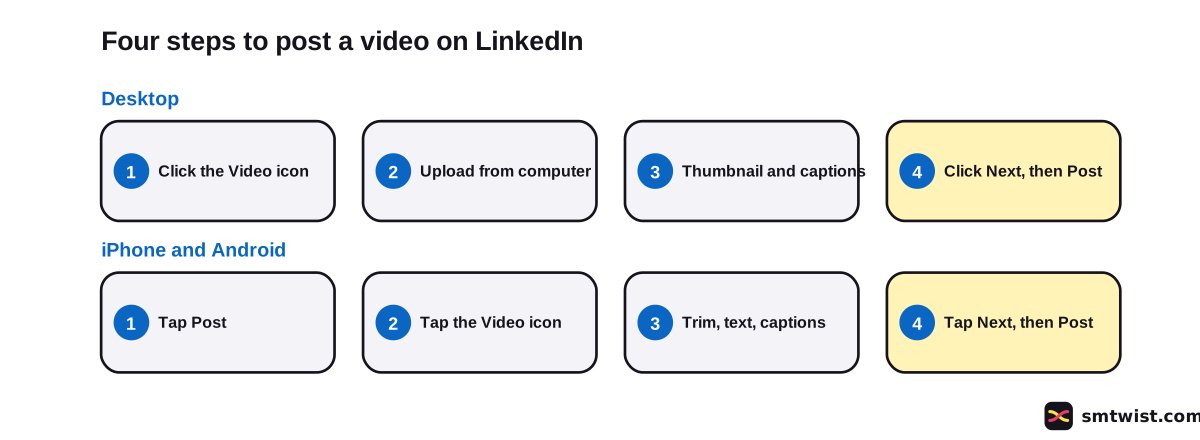
On Desktop
- Click the Video icon in the share box at the top of your LinkedIn homepage. You can also drag, drop or paste a video into the box.
- Click Upload from computer and choose a file.
- Add a Video thumbnail and Captions if you want them.
- Click Next.
- Use the dropdown next to your name to set visibility and who can comment.
- Type your text in the What do you want to talk about? field, which is optional.
- Click Post.
On iPhone and Android
- Tap Post on the upper right.
- Tap the Video icon and choose a video from your camera or gallery.
- Trim the start and end, add stickers or text and set captions if you want them.
- Tap Next on the upper right.
- Tap the Anyone dropdown to set visibility and comment control.
- Type your text, which is optional, and tap Post.
How to Add Captions to a LinkedIn Video
LinkedIn video has auto captions for every member and company profile. After you select the video, switch on Add auto captions. You can also switch on Review captions before viewers can see them, then click Done.
On desktop you can upload your own caption file instead. After you post, a banner under the post says the captions were added or are ready for review. To fix them later, click the More icon on the post and choose Edit captions.
LinkedIn Help names 10 languages for auto captions. They are English, Spanish, Portuguese, French, German, Italian, Indonesian, Turkish, Arabic and Dutch. For a scheduled video, the captions are ready for review only after the video posts.
Why Won't Your LinkedIn Video Upload?
LinkedIn Help ties most upload failures to the file or the device. Work through these checks.
- Check the file type and limits. An unsupported type gives an error, and a ProRes file cannot be processed.
- Stay in the app on iPhone. LinkedIn Help says the upload can stall if the app moves to the background. After processing starts, you can use other apps.
- Move iCloud videos to your phone. LinkedIn Help says videos stored on iCloud are not supported in the mobile app.
- Use other apps on Android. An Android upload continues in the background, and you get a notification when the video is ready.
Video Safe Zones and Autoplay
Keep main elements, text and logos away from the edges of your video. LinkedIn Help calls this the safe zone, because the LinkedIn interface can cover the edges.
Viewers can switch autoplay off. On desktop, click the Me icon, choose Settings & Privacy, open Account preferences, click Autoplay videos and switch the toggle. LinkedIn Help says there is no toggle for the loop on videos under 30 seconds. You also cannot post straight to the immersive video feed, because LinkedIn chooses those videos itself.
What is Still Unconfirmed
LinkedIn Help gives no ideal length for a video, so the 30 to 90 second advice in vendor guides has no LinkedIn source. Google's AI Overview said the limit is 15 minutes on desktop and 10 on the mobile app. LinkedIn Help states 15 minutes for member posts and changes only the minimum between desktop and app. The troubleshooting article is about two years old and the company profile article about four, so a limit can have moved. We did not upload a video on a live account, so the label on this guide is Checked.
Where This Guide Fits
This guide to LinkedIn video belongs to our LinkedIn Posting Rules and Formats topic, inside the LinkedIn section. For the basic posting steps, read How to Post on LinkedIn. For text limits, read LinkedIn Character Limit. To plan a post for later, read How to Schedule LinkedIn Posts.
Sources
- LinkedIn Help: Share videos on LinkedIn, read 25 October 2026, the steps and the requirements.
- LinkedIn Help: Video sharing troubleshooting, read 25 October 2026, the file types and upload problems.
- LinkedIn Help: Auto captions for videos on LinkedIn, read 25 October 2026, the caption steps.
- LinkedIn Help: Manage video autoplay settings, read 25 October 2026, the autoplay toggle.
- LinkedIn Help on video specifications for company profiles, read 25 October 2026, the company profile limits.
- LinkedIn Help: Video ads advertising specifications, read 25 October 2026, the video ad limits.
The label on this guide is Checked, which means we compared the steps with these sources and have not tried them on an account yet. Read how we label guides.
FAQ
How long can a LinkedIn video be?
A member video post can be up to 15 minutes, says LinkedIn Help. The minimum is 3 seconds from desktop and 2 seconds from the mobile app. A company profile video is capped at 10 minutes.
What is the maximum LinkedIn video size?
5 GB for a member video post and for a company profile video. The minimum is 75 KB. A LinkedIn video ad is limited to 500 MB, says LinkedIn Help.
Can I post a 10 minute video on LinkedIn?
Yes. A member video post can last up to 15 minutes, so 10 minutes fits. LinkedIn Help also lists 10 minutes as the cap for company profile videos.
What video format does LinkedIn accept?
LinkedIn Help lists MP4, MOV, AVI, WebM, MKV, WMV and several others on desktop, iPhone and Android. A ProRes file can upload but cannot be processed.
Why can't I post a video to LinkedIn?
Check the file type and the limits first, because LinkedIn Help says an unsupported type gives an error. On iPhone, stay in the LinkedIn app until the upload finishes. Videos stored on iCloud are not supported, so move them to your phone.
Is a 3 minute video too long for LinkedIn?
No. LinkedIn Help sets the limit at 15 minutes, so 3 minutes fits. Vendor guides prefer shorter videos, but LinkedIn Help gives no ideal length.
How do I add captions to a LinkedIn video?
After you select the video, switch on Add auto captions. You can also switch on Review captions before viewers can see them. LinkedIn Help says auto captions cover 10 languages.
How do I switch off video autoplay on LinkedIn?
Click the Me icon, choose Settings and Privacy, open Account preferences, click Autoplay videos and switch the toggle off. LinkedIn Help says there is no toggle for looping.
Can I post to the full-screen video feed on LinkedIn?
No. LinkedIn Help says you cannot add or post videos directly to the immersive video feed. LinkedIn chooses videos for it by quality and relevance.
 Editor
Written by
Namrata Arora
Namrata Arora is a social media expert with two years of hands on experience on Instagram, Facebook and other platforms. She writes the how to guides on Social Media Twist and tries the steps on a real account for every guide marked Tested.
- Marks every guide Tested or Checked
- Writes about Instagram, Facebook, TikTok
- 13 guides on SMTwist
Guest posts are edited by SMTwist before they go live. Paid or affiliate links are labelled and carry rel="sponsored".