How to Schedule LinkedIn Posts
How to schedule LinkedIn posts on desktop and mobile. See the 10 minute to 3 month range, company profile rules and how to edit or delete a post.

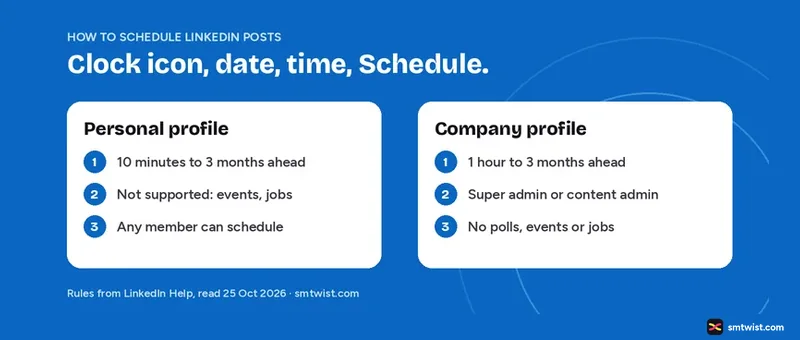
Schedule LinkedIn posts when you want a post to go live at a set time without being online. This guide gives the steps for desktop and mobile, the rules for a company profile and the way to view, edit or delete a scheduled post. Every step comes from LinkedIn Help, read on 25 October 2026.
How to Schedule LinkedIn Posts
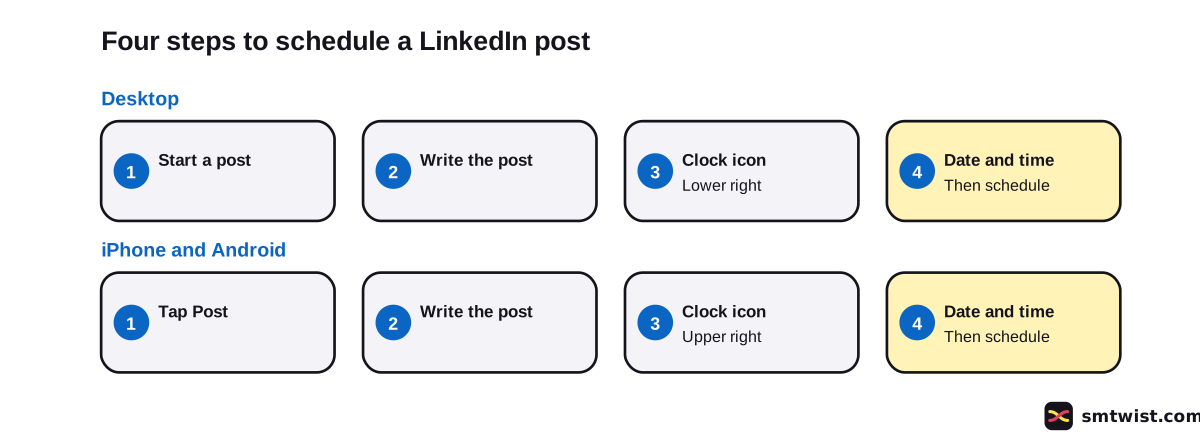
You can schedule LinkedIn posts from the post window on desktop and in the app. Both routes use the clock icon, and both give you a date and time to set.
On Desktop
- Click Start a post at the top of your LinkedIn homepage.
- Type your post in the What do you want to talk about? field.
- Click the clock icon in the lower right corner of the window.
- Select a date and time. You can choose from the dropdown or type an exact time.
- Click Next. The date and time appear above the post.
- Click Schedule. A confirmation appears on the lower left.
On iPhone and Android
- Tap Post in the navigation bar.
- Type your post in the Share your thoughts field.
- Tap the clock icon in the upper right corner.
- Select a date and time in the Schedule window.
- Tap Next and then tap Schedule.
What can You Schedule on LinkedIn?
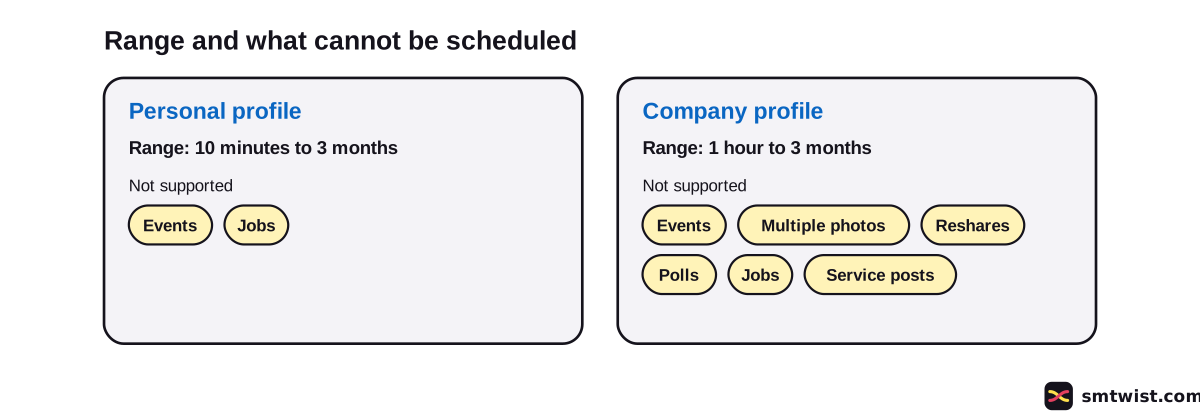
You can schedule LinkedIn posts for a personal profile or a company profile, and the rules differ. The table shows what LinkedIn Help lists for both.
| Item | Personal profile | Company profile |
|---|---|---|
| Who can schedule | Any member | Super admin or content admin |
| Range | 10 minutes to 3 months ahead | 1 hour to 3 months ahead |
| Not supported | Events and jobs | Events, multiple photos, reshares, polls, jobs and service posts |
| Time input | 30 minute dropdown or an exact time | 30 minute dropdown or an exact time |
| Promote before it posts | Not stated | Not possible in Campaign Manager until published |
How to Schedule LinkedIn Posts for a Company Profile
A company profile schedules from the admin view, and only a super admin or a content admin can do it. LinkedIn Help says the post publishes at the set time automatically, and the same rule covers a newsletter article.
- Go to your company profile admin view.
- Open the posts item in the left menu and click Start a post.
- Click the clock icon in the lower right to open the Schedule post window.
- Choose a date and time between one hour and 3 months ahead, then click Next and Schedule.
After you schedule a company post, LinkedIn Help lists four actions. You can post it now, edit the text, modify the schedule or delete it. You can also view, edit, reschedule and delete posts scheduled by other admins.
One rule saves work. If an admin leaves the company profile, LinkedIn Help says the posts that admin scheduled move to the admin who removed them.
How to View, Edit or Delete a Scheduled LinkedIn Post
Open the post window first. If posts wait in the queue, the clock icon shows a badge with their number, says LinkedIn Help.
- Click Start a post on desktop, or tap Post on mobile.
- Click the clock icon.
- Click View all scheduled posts on desktop, or tap View all on mobile.
- Click a post to preview it.
To change a post, click the More icon in the upper right and choose Modify schedule or Edit post. To remove it, click the Delete icon next to the post and confirm. LinkedIn Help says a deleted company post cannot be recovered.
If you change your mind before you schedule, click Edit next to the time above the post and clear the time. Then click Post to publish at once or close the window to discard the draft.
Which Time Zone does a Scheduled LinkedIn Post Use?
LinkedIn Help says scheduled times convert to UTC based on your device time zone settings. The dropdown moves in 30 minute steps, and you can type a specific time instead. A reschedule of a company post also uses your location for the time, says LinkedIn Help.
Some vendor results list 5 minute steps. LinkedIn Help lists none, so check your own dropdown before you plan a post to the minute.
Can You Schedule LinkedIn Posts for Free?
LinkedIn Help names no fee and no Premium requirement for native scheduling in the articles we read. The clock icon is part of the post window, which how to post on LinkedIn walks through. For video, see LinkedIn video. Outside schedulers exist, but LinkedIn Help does not cover them, so this guide stays with the built-in tool.
What is Still Unconfirmed
LinkedIn Help gives no cap on how many posts you can queue, and no reason when the queue looks empty. It gives no ideal time to post, so we make no claim on timing. The personal steps were updated about two weeks before 25 October 2026, and the company steps about 11 months before. We did not schedule a post on a live account, so the label on this guide is Checked. Menu names move between app versions, so compare every step with your own screen.
Where This Guide Fits
This guide on how to schedule LinkedIn posts belongs to our LinkedIn Posting Rules and Formats topic, inside the LinkedIn section. Learn the basic steps in How to Post on LinkedIn. Check the length of your text in LinkedIn Character Limit. To read what happens after a post goes live, see What Are Impressions on LinkedIn.
Sources
- LinkedIn Help: Schedule posts, read 25 October 2026, the steps, the range and the time zone rule.
- LinkedIn Help on scheduled company posts, read 25 October 2026, the company profile rules.
- LinkedIn Help on rescheduling a company post, read 25 October 2026, the reschedule steps.
- LinkedIn Help on deleting a scheduled company post, read 25 October 2026, the delete steps.
The label on this guide is Checked, which means we compared the steps with these sources and have not tried them on an account yet. Read how we label guides.
FAQ
Can you schedule LinkedIn posts?
Yes. LinkedIn has a built-in clock icon in the post window. LinkedIn Help says you can schedule a post from 10 minutes to 3 months ahead, and events and jobs are not supported.
How far ahead can you schedule a LinkedIn post?
Up to 3 months ahead. A personal profile can schedule from 10 minutes out, and a company profile can schedule from one hour out, says LinkedIn Help.
How do I find my scheduled posts on LinkedIn?
Open the post window and click the clock icon, then click View all scheduled posts. On mobile, tap Post, tap the clock icon and tap View all. LinkedIn Help adds that the clock icon shows a badge with the number of queued posts.
Can you edit or delete a scheduled LinkedIn post?
Yes. Open your scheduled posts, click the More icon and choose Modify schedule or Edit post. The Delete icon next to the post removes it after you confirm.
Can you schedule LinkedIn posts for free?
Yes, as far as LinkedIn Help shows. It lists no fee and no Premium requirement for the built-in clock icon. Third party tools sit outside LinkedIn Help, so we make no claim about them.
Can you schedule a poll, event or job post on LinkedIn?
No for events and jobs, says LinkedIn Help. A company profile also cannot schedule polls, multiple photos, reshares or service posts.
Which time zone does a scheduled LinkedIn post use?
Your device time zone. LinkedIn Help says scheduled times convert to UTC based on your device settings, so check the clock on your phone or laptop.
Why can't I see my scheduled LinkedIn posts?
LinkedIn Help gives no reason for a missing queue. It says the clock icon shows a badge with the number of scheduled posts, so no badge points to an empty queue. Company posts sit in the company profile admin view.
 Editor
Written by
Namrata Arora
Namrata Arora is a social media expert with two years of hands on experience on Instagram, Facebook and other platforms. She writes the how to guides on Social Media Twist and tries the steps on a real account for every guide marked Tested.
- Marks every guide Tested or Checked
- Writes about Instagram, Facebook, TikTok
- 13 guides on SMTwist
Guest posts are edited by SMTwist before they go live. Paid or affiliate links are labelled and carry rel="sponsored".