How to Turn Off Comments on a LinkedIn Post
Learn how to turn off comments on a LinkedIn post on desktop and mobile, before or after sharing, with the Anyone, Connections only and No one options.

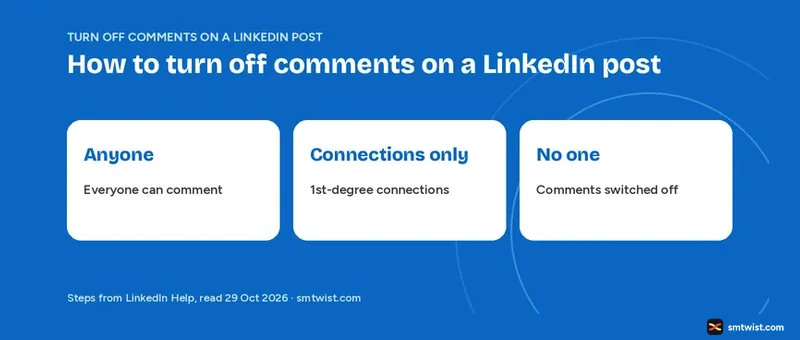
You can switch comments off before you share a post or after it is live, on desktop and in the mobile app. LinkedIn calls the control Comment control and gives three choices, Anyone, Connections only and No one.
Our guide on how to turn off comments on a LinkedIn post covers the steps on both devices, what happens to comments already there and where articles and company profile posts differ. Seven Help articles read on 29 October 2026 are the source of every step below.
How to Turn Off Comments on a LinkedIn Post on Desktop
You set the control in the post window before you share or in the post menu once it is live. LinkedIn saves the choice as your default for future posts. Look at it every time you start a draft.
Here are the five steps before sharing.
- Click Start a post at the top of your LinkedIn homepage.
- Click the dropdown beside your profile name.
- Click Comment control.
- Choose Anyone, Connections only or No one.
- Click Save.
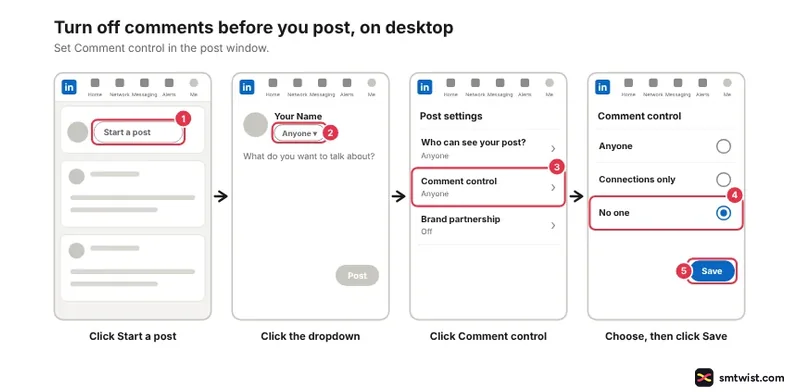
Write the post and share it as usual.
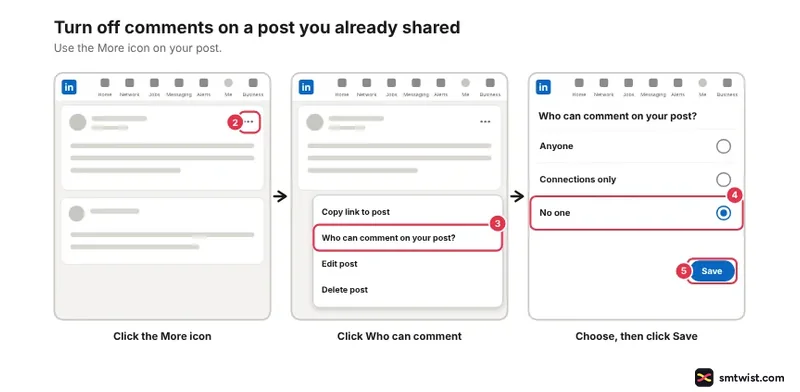
Five more steps change a post that is already live.
- Go to the post.
- Click the More icon on the upper right of the post.
- Click Who can comment on your post?
- Choose one of the three options.
- Click Save.
Turn Off Comments in the LinkedIn Mobile App
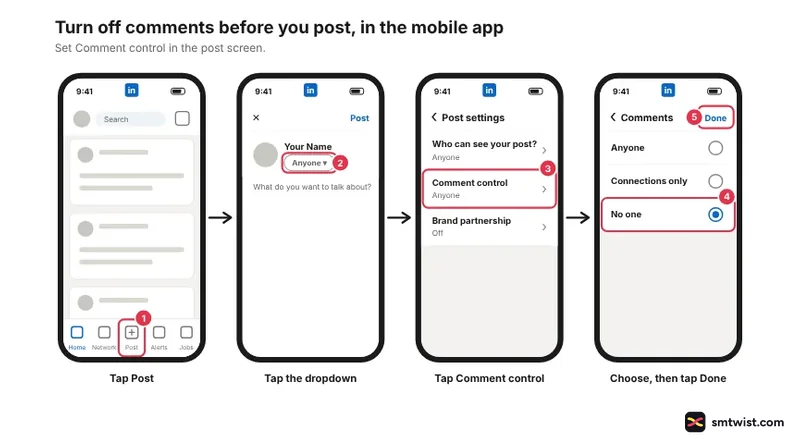
Here is how to turn off comments on a LinkedIn post in the app, with five taps before sharing. LinkedIn Help shows one Mobile tab and does not name iOS or Android separately.
- Tap Post in the navigation bar.
- Tap the dropdown next to your profile photo.
- Tap Comment control.
- Choose Anyone, Connections only or No one.
- Tap Done.
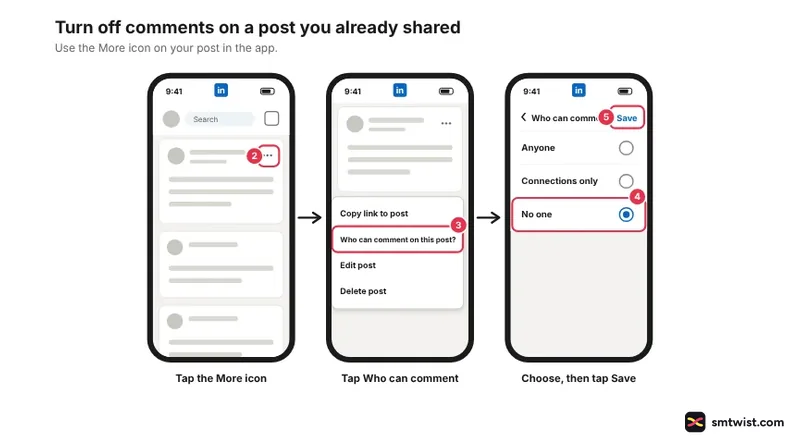
For a post that is already live, follow these five taps.
- Go to the post.
- Tap the More icon on the upper right of the post.
- Tap Who can comment on this post?
- Choose one of the three options.
- Tap Save.
If you have not written the post yet, the steps for posting on LinkedIn cover the post window.
Anyone, Connections Only or No One
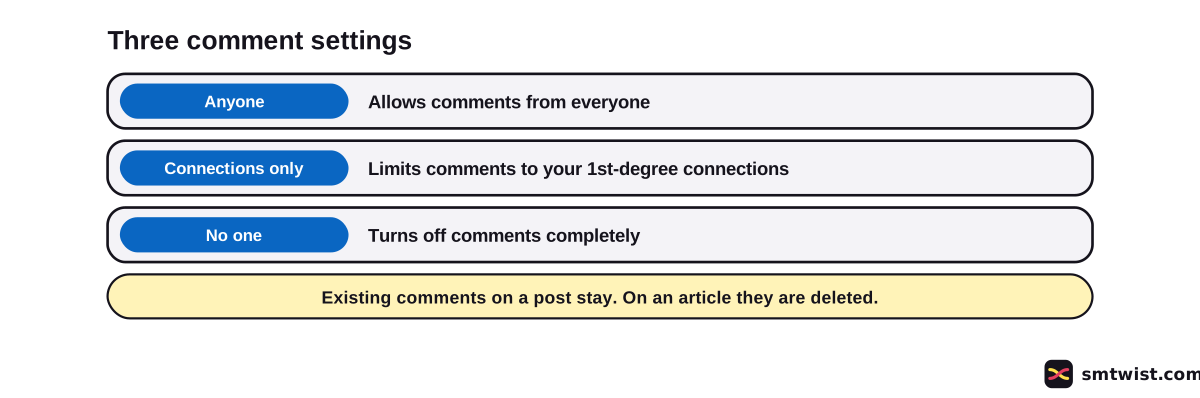
Three options appear in the menu, and the table gives the wording LinkedIn Help uses for each.
| Option | Who can comment | LinkedIn Help wording |
|---|---|---|
| Anyone | Everyone | Allow comments from everyone |
| Connections only | Your 1st-degree connections | Limit comments to your 1st-degree connections |
| No one | Nobody | Turn off comments completely |
Under Connections only, a member who is not a 1st-degree connection cannot comment, says the Help article on commenting. Members can also stop another member or company profile from commenting by blocking them, and block someone on LinkedIn is the separate tool for that.
What Happens to Comments Already on the Post?
Nothing happens to them when you turn off comments on a LinkedIn post this way. LinkedIn Help says existing comments are not deleted when you turn off comments on a post.
Two other tools sound close but do different jobs.
Hiding a comment with I don't want to see this hides it from you only, and others are not told.
Deleting removes the comment, along with its likes and replies. Our guide on how to delete a comment on LinkedIn has the steps.
If the problem is unwanted promotions under a post, deleting spam comments on LinkedIn fits better than switching comments off for everyone.
How Articles Differ From Posts
Articles follow their own Help article, and the result is stricter. Disabling comments on an article deletes all existing comments. Re-enabling later does not bring the deleted ones back.
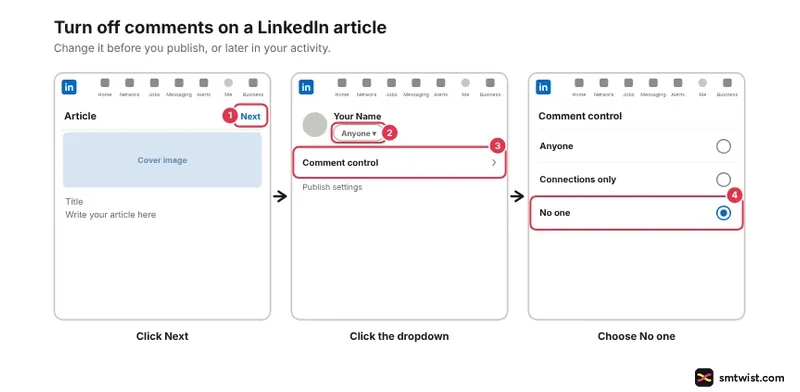
Before you publish, follow these four steps on desktop.
- Click Next at the upper right after you finish writing.
- In the pop-up window, click the dropdown next to your name.
- Click Comment control.
- Choose Anyone, Connections only or No one.
For an article you already published, follow these four steps.
- Find the article in your recent activity or in the publishing tool.
- Click the Comments settings icon below the article.
- Select No One.
- Click Save Changes.
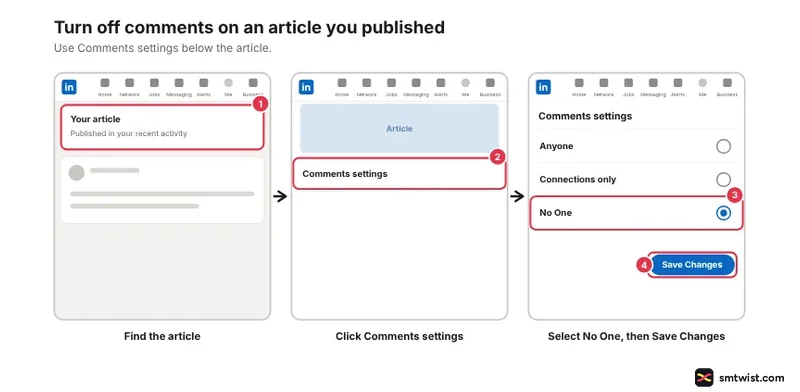
Disabling comments on an article is unavailable in the LinkedIn mobile app, says Help. Use a computer for articles.
Turn Off Comments on a Company Profile Post
A super admin or content admin can switch comments off for a company profile post. The two Help articles are two and four years old at our reading, which makes the menu names less certain than the personal post steps.
For a new company post on desktop, follow these seven steps.
- Switch to the admin view as a super admin or content admin.
- Click the company posts option in the left menu.
- Click Start a post.
- Click your company name.
- Click Comment control.
- Select No One.
- Click Save.
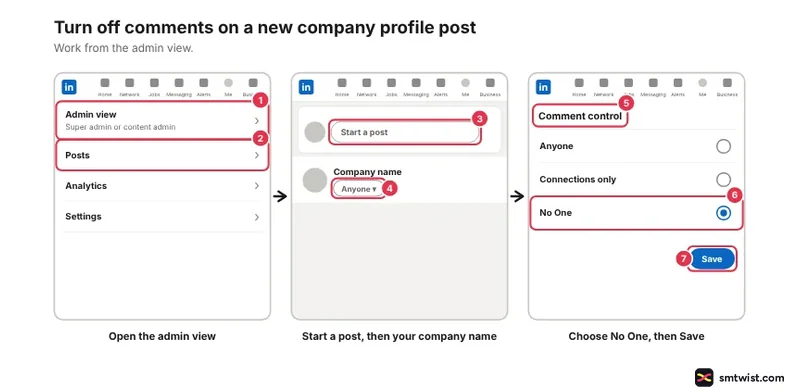
On iOS the Help article lists the same idea with taps. In the admin view, tap Dashboard at the upper left, choose the company posts option, tap Post, tap Anyone, tap Comment control, tap No one and tap Done.
The older article treats an existing company post as a desktop job. Follow these seven steps.
- Enter the admin view as a super admin or content admin.
- Click View as member at the top.
- Scroll the feed to the post.
- Click the More icon at the upper right of the post.
- Click Who can comment on this post?
- Select No One from the dropdown.
- Click Save.
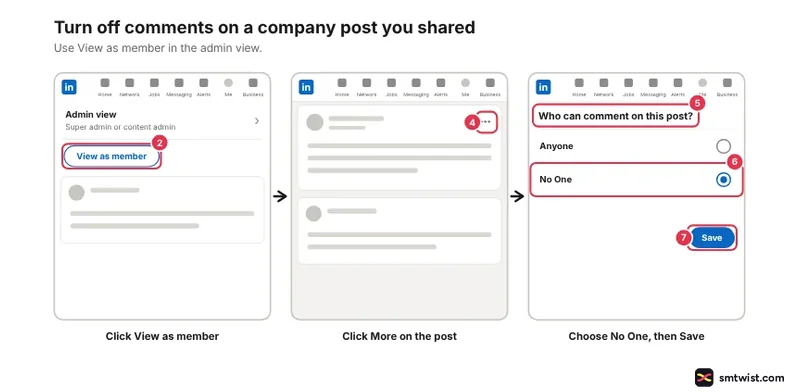
Help also says an admin can switch comments on or off at any time after a company post is created, in the member view. The older article describes that member view route.
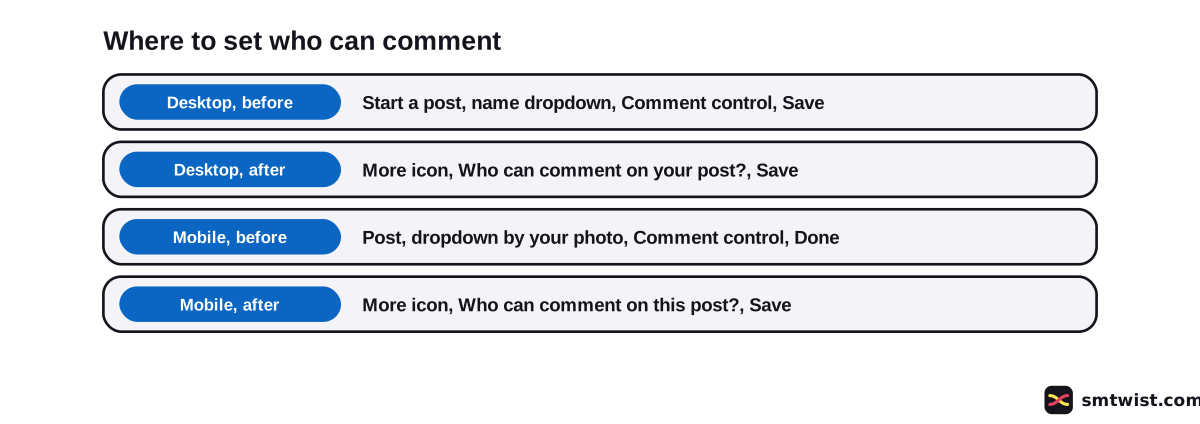
Why does the Menu Read Differently on Desktop and Mobile?
One Help article spells the menu two ways. Desktop reads Who can comment on your post? and mobile reads Who can comment on this post?.
The mobile route before sharing ends with Done, while the other three end with Save. Use the More icon of the post, not the one on a single comment.
How do You Turn Comments Back On?
Open the same menu and choose Anyone or Connections only. LinkedIn Help says you can change the setting after sharing but has no separate section for switching comments back on.
For an article, open Comments settings, select Anyone or Connections only and click Save Changes. Comments deleted when you disabled them stay deleted.
What is Still Unconfirmed?
Nobody on our team changed a setting on a real profile. The label is Checked for that reason. Your screen can show other wording than the Help text.
Seven points have no answer in the articles we opened.
- Whether No one hides replies or only blocks new ones.
- Whether newsletters have their own comment setting. A search for a newsletter article found none.
- Whether company profile posts offer Connections only. Only No One is described.
- Whether Android matches iOS or the mobile tab for company profile posts.
- What viewers see when comments are off.
- Whether the setting exists on reposts, videos and events.
- How sponsored posts work. They have their own Help article that we did not open.
Hiding your own comments from other people is a different request that we left out.
Where This Guide Fits
Knowing how to turn off comments on a LinkedIn post is one part of moderation. The LinkedIn comments and moderation tools topic groups it with the other comment tools, inside the LinkedIn section.
Still planning the text? Start with writing a LinkedIn post. Read the editorial policy for the meaning of Checked.
Sources
- LinkedIn Help: Turn off and limit comments on posts, read 29 October 2026, the three options, the desktop and mobile steps and the saved default.
- LinkedIn Help: Manage comments on articles, read 29 October 2026, the article steps and the rule that disabling deletes comments.
- LinkedIn Help: Turn off comments on a new company profile post, read 29 October 2026, the admin roles and the desktop and iOS steps for new posts.
- LinkedIn Help: Turn off comments on an existing company profile post, read 29 October 2026, the desktop steps through the member view.
- LinkedIn Help: Comment on posts and reply to a comment, read 29 October 2026, what a disabled or connections only setting means for the commenter.
- LinkedIn Help: Hide comments in LinkedIn posts, read 29 October 2026, how hiding a comment differs from turning comments off.
- LinkedIn Help: Delete comments in your LinkedIn feed, read 29 October 2026, how deleting a comment differs from turning comments off.
Seven Help articles back the steps above. We did not test the setting on a live account, so the label is Checked, as the editorial policy defines it.
FAQ
Can I turn off comments on a LinkedIn post?
Yes. LinkedIn Help lets you choose Anyone, Connections only or No one for your posts. No one turns comments off completely.
Can I turn off comments after I have posted?
Yes. Open the post, click or tap the More icon at the upper right and choose the comment option in that menu. Pick No one and click Save.
How do I turn on comments on a LinkedIn post?
Open the same menu and choose Anyone or Connections only again. LinkedIn Help says you can change the setting after sharing, and it has no separate section for switching comments back on.
What does Connections only mean on LinkedIn?
It limits comments to your 1st-degree connections. LinkedIn Help adds that a member who is not a 1st-degree connection cannot comment on that post.
Does turning off comments delete the comments already on my post?
No. LinkedIn Help says existing comments are not deleted when you turn off comments on a post. Articles work differently, because disabling comments on an article deletes all existing comments.
How many comment settings does LinkedIn offer?
Three. They are Anyone, Connections only and No one, and your last choice is saved as the default for future posts.
Can I turn off comments on a LinkedIn article from the mobile app?
No. LinkedIn Help says disabling comments on an article is unavailable in the mobile app. Use desktop.
Can I turn off comments on a company profile post?
Yes. A super admin or content admin can do it on desktop, and for new posts on iOS too. The steps start in the admin view and end with No One and Save.
How do I remove a comment that is already on my LinkedIn post?
Turning comments off does not remove it. Click the More icon on the comment, click Delete and confirm. LinkedIn Help says likes and replies on that comment are removed too.
 Editor
Written by
Namrata Arora
Namrata Arora is a social media expert with two years of hands on experience on Instagram, Facebook and other platforms. She writes the how to guides on Social Media Twist and tries the steps on a real account for every guide marked Tested.
- Marks every guide Tested or Checked
- Writes about Instagram, Facebook, TikTok
- 43 guides on SMTwist
Guest posts are edited by SMTwist before they go live. Paid or affiliate links are labelled and carry rel="sponsored".