How to Create a Poll on LinkedIn
How to create a poll on LinkedIn from your desktop homepage, with the 140 and 30 character limits, option counts, durations and who sees your votes.

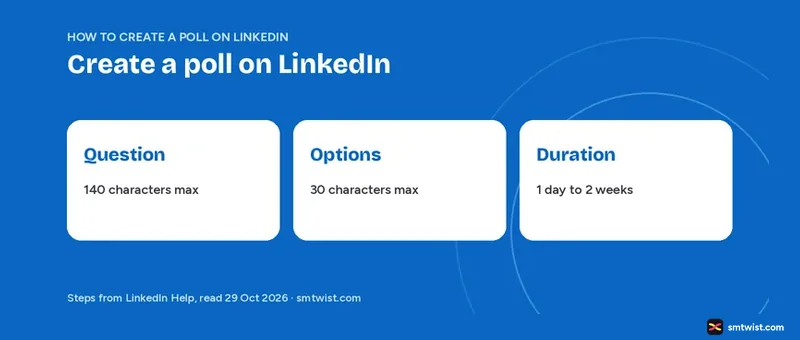
You can create a poll on LinkedIn from your homepage in a few clicks, but the limits are tight, with 140 characters for the question and 30 for every option. Below is how to create a poll on LinkedIn on desktop, with the option count that differs by device, the duration choices and the privacy rules. Every fact comes from three LinkedIn Help articles read on 29 October 2026.
How to Create a Poll on LinkedIn on Desktop
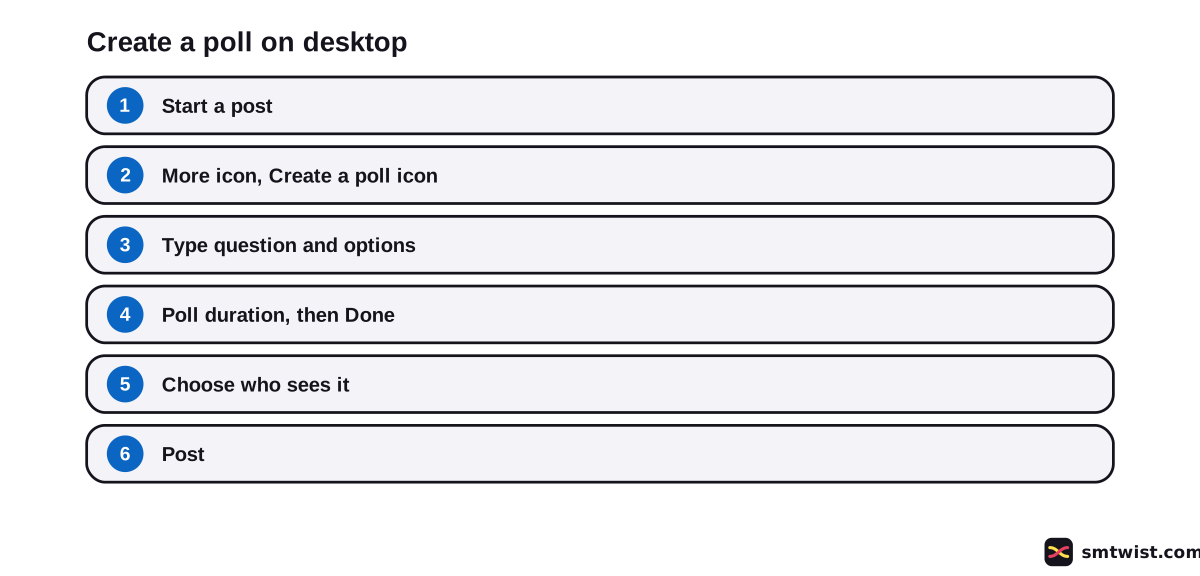
Every poll starts as a post, which makes the first click the one in our guide to posting on LinkedIn. Follow these eight steps on a computer.
- Click Start a post at the top of your LinkedIn homepage.
- In the post pop-up, click the More icon.
- Click the Create a poll icon.
- In the Create a poll pop-up, type your question and fill in the options. Click +Add option for another one.
- Choose Poll duration from the dropdown.
- Click Done.
- Use the dropdown next to your name to choose who sees the poll.
- Click Post.
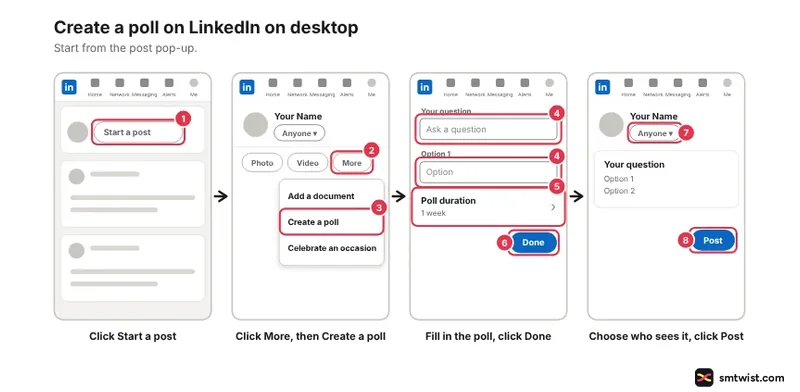
Two extra controls sit in the same pop-up. Use the Edit icon to change the poll before you post and type extra text in the optional What do you want to talk about? field.
Polls work on mobile too, says LinkedIn Help. We read the desktop steps in full and did not read the mobile tab. Mobile steps are left out for that reason.
Limits to Know Before You Create a Poll on LinkedIn
Five parts of a poll have a fixed limit or a default. LinkedIn Help states them across the polls overview and the Polls FAQ.
| Part | Limit | Default |
|---|---|---|
| Question | 140 characters | None |
| Option text | 30 characters | None |
| Options | 2 to 4, or up to 5 on iOS | None |
| Duration | 1 day, 3 days, 1 week or 2 weeks | 1 week |
| Visibility | Chosen by the author | Anyone |
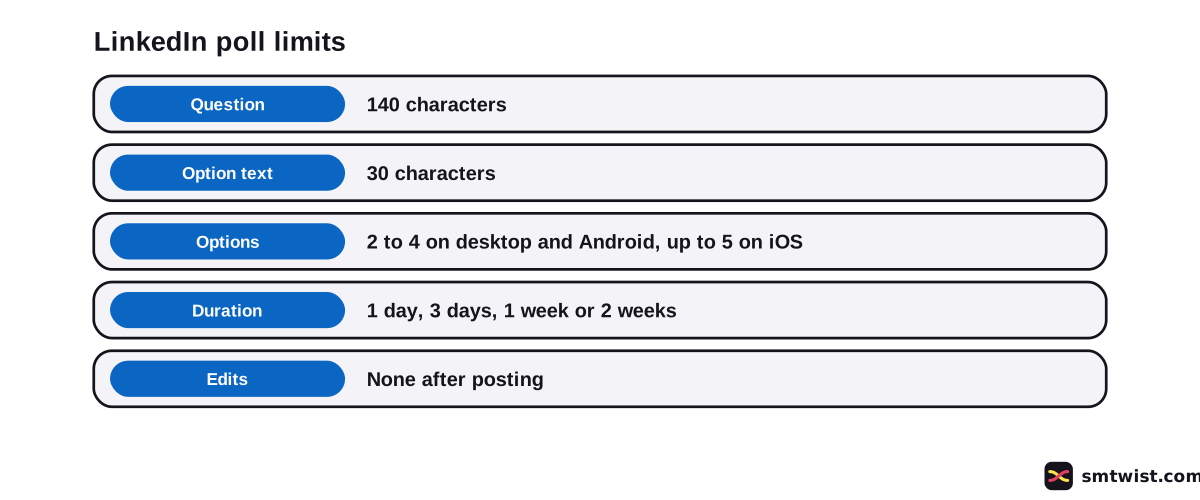
Count characters before you type. Our LinkedIn character limit guide lists the poll limits next to the limits for posts and comments.
How Many Options can a LinkedIn Poll Have?
Two Help articles give two answers, and both are stated here with their dates. Create LinkedIn Polls, marked three years old, asks for at least two options and allows up to four. The Polls FAQ, marked 11 months old, says up to four on desktop and the Android app and up to five on the iOS app.
Check what your screen allows when you click +Add option. We could not confirm whether the iOS limit of five covers every iOS version.
Who Sees Your LinkedIn Poll and Your Votes?
The author chooses who sees the poll, and the default is Anyone. Votes are not private from the author, and that matters more than the results screen suggests.
Five visibility rules come from LinkedIn Help.
- The author sees who voted and how every person voted, plus the totals as percentages and votes per option.
- A voter sees the percentages once they vote.
- Anyone eligible to see the post sees the percentages after the poll closes.
- A company profile poll lets all of its admins see who voted. In a Group poll only the author sees votes.
- Voting does not put the poll in your Activity section.
LinkedIn also says it cannot promise that an author will not share your vote. Treat a vote like a comment under your name.
The author gets an in-app notification for the first vote and for later votes. Switch it off in the setting named Responses to your posts, comments and polls. Your connections are notified when you create a poll.
Can You Edit or Delete a LinkedIn Poll?
You can edit before you post and never after. The Create LinkedIn Polls article shows an Edit icon in the pop-up. The Polls FAQ says a poll cannot be edited once it is created, and we read the two as one rule.
You can delete a poll. A closed poll cannot be reopened, which means a wrong question needs a new poll. Four controls cover votes.
- The author can vote in the poll and can remove that vote.
- Voters can change or remove a vote with Undo until the poll closes.
- After the poll closes a voter can remove a vote with Remove vote.
- A member casts one vote at a time. If you remove your vote before the close you can vote again.
What You Cannot Ask in a LinkedIn Poll
Authors must follow LinkedIn's Do's and Don'ts and the Professional Community Policies. LinkedIn Help names seven kinds of sensitive data that are off limits in a poll.
- Race
- Ethnic origin
- Religious, political or philosophical beliefs
- Sexual orientation
- Health
- Trade union membership
- Precise geolocation
You can report offensive polls, and how to report someone on LinkedIn shows the report routes. A brand survey looks like a poll but works differently. No personal information is shared with the sponsoring advertiser.
How to Create a Poll on LinkedIn for a Company Profile or Group
The route is the same, but you start from the homepage of the company profile or the Group. LinkedIn Help says you need to be an admin of it. Super admins of a company profile can create polls and can vote for the company profile.
Choose this route when the question belongs to a brand or a community and not to you. The votes then follow the admin and author rules above. Knowing how to create a poll on LinkedIn for a company profile also means knowing who can see the answers.
Writing a Poll Question That Fits the Limits
A poll question has 140 characters at most. Put the background in the post text and keep the question to one idea. Our guide to writing a LinkedIn post covers that text.
If your answers need more than 30 characters, the poll is the wrong format. Explain the answers in a LinkedIn carousel and ask the question in a short poll after it. To judge how far a poll travelled, read what impressions on LinkedIn mean.
What is Still Unconfirmed
No poll was posted on a live account for this guide. The guide therefore gets the Checked label. Your screen can show different wording.
The mobile steps are not covered because we did not read that tab. The Help articles do not say whether the iOS limit of five applies to every iOS version. They also say nothing about how polls rank in the feed.
Where This Guide Fits
Poll rules sit in the LinkedIn section next to the posting rules and formats topic, which points here for the option counts by device.
New to posting? Read the basics of using LinkedIn as a beginner first. Our editorial policy defines what Checked means.
Sources
- LinkedIn Help: Create LinkedIn Polls, read 29 October 2026, the desktop steps and the two to four option range.
- LinkedIn Help: LinkedIn Polls, read 29 October 2026, visibility, duration choices, who sees votes and the sensitive data note.
- LinkedIn Help: LinkedIn Polls FAQ, read 29 October 2026, the character limits, option counts by device, editing, votes and notifications.
This guide is labelled Checked. We compared every step and limit with the three Help articles above and did not post a poll on a live account. How we label guides explains the three labels.
FAQ
How do I create a poll on LinkedIn?
Click Start a post on your homepage, click the More icon and click the Create a poll icon. Type the question and the options, choose a Poll duration, click Done and click Post.
Does LinkedIn have a polling feature?
Yes. LinkedIn Help says you can create polls on both mobile and desktop. Members and admins of company profiles or Groups can post one.
How many characters can a LinkedIn poll be?
The question has a limit of 140 characters and every option has a limit of 30. LinkedIn Help lists both limits in its Polls FAQ.
How many options can a LinkedIn poll have?
Two to four options, says the Create LinkedIn Polls article. The newer FAQ says up to four on desktop and Android and up to five on the iOS app.
How long can a LinkedIn poll stay open?
One day, three days, one week or two weeks. The default is one week.
Can you edit a LinkedIn poll after posting?
No. LinkedIn Help says a poll cannot be edited once it is created. You can delete it and the author can edit it only before posting.
Can people see how I voted in a LinkedIn poll?
Yes. The poll author sees your vote. For a company profile poll the admins see it, and LinkedIn says it cannot promise that an author will not share a vote.
Can you ask anything in a LinkedIn poll?
No. LinkedIn Help puts sensitive data off limits, including health, political beliefs and religious beliefs. You can report offensive polls.
Does LinkedIn tell my connections when I create a poll?
Yes. LinkedIn Help says your connections are notified when you create a poll. Voting in someone else's poll does not show it in your Activity section.
 Editor
Written by
Namrata Arora
Namrata Arora is a social media expert with two years of hands on experience on Instagram, Facebook and other platforms. She writes the how to guides on Social Media Twist and tries the steps on a real account for every guide marked Tested.
- Marks every guide Tested or Checked
- Writes about Instagram, Facebook, TikTok
- 43 guides on SMTwist
Guest posts are edited by SMTwist before they go live. Paid or affiliate links are labelled and carry rel="sponsored".