How to Optimize Your LinkedIn Company Page
How to optimize your LinkedIn company page: logo and cover sizes, custom button, featured posts, verification and admin roles, from LinkedIn Help.

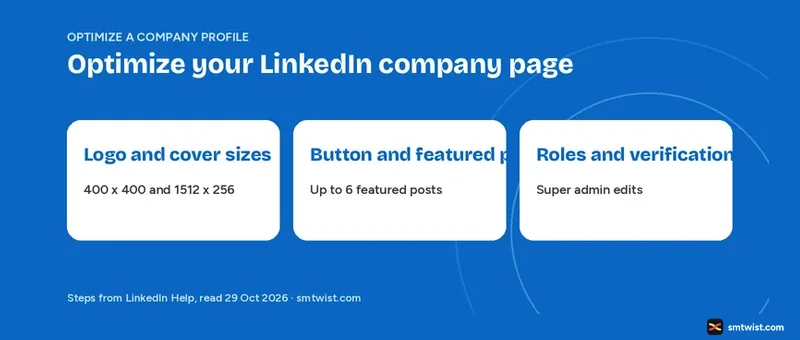
Complete LinkedIn company profiles are built from a short list of parts, and LinkedIn Help gives every part its own editor and its own role. This guide on how to optimize your LinkedIn company profile lists the parts with the numbers LinkedIn Help states. It covers the company profile only and not your personal profile.
LinkedIn Help uses its own word for a company profile in menus and titles. Button names below are described in plain words for that reason. Without a company profile yet, create the company profile first, then return here.
How to Optimize Your LinkedIn Company Profile Starts With Roles
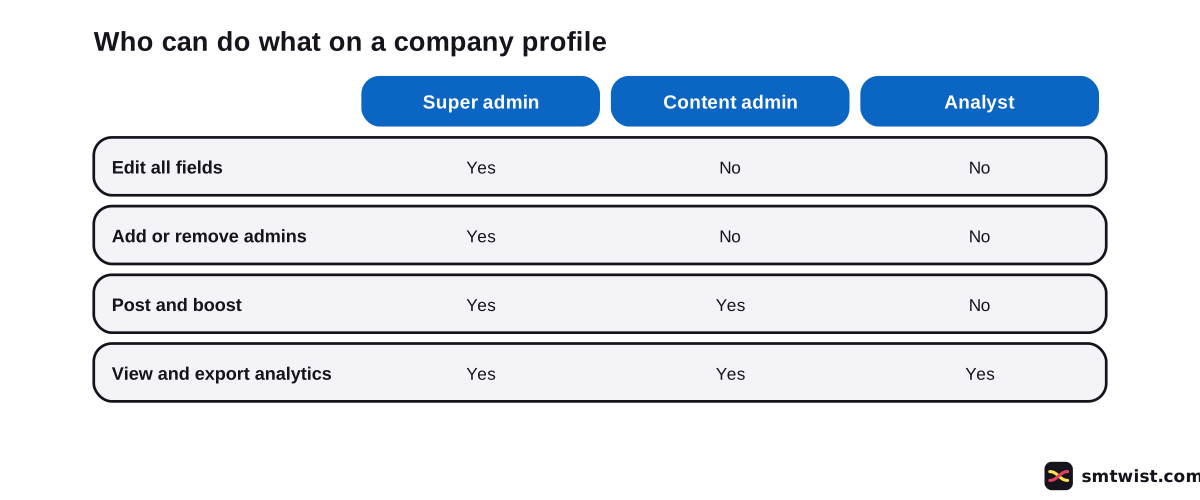
A super admin alone can change most fields, which makes your role the first check. LinkedIn Help names three content roles that are super admin, content admin and analyst. Three paid media roles also exist for Sponsored Content, Lead Gen Forms and landing destinations.
| Action | Super admin | Content admin | Analyst |
|---|---|---|---|
| Edit all fields | Yes | No | No |
| Add or remove admins | Yes | No | No |
| Post and boost | Yes | Yes | No |
| View and export analytics | Yes | Yes | Yes |
LinkedIn Help gives two answers on posting. The company profile FAQ (8 months old on the day we read it) says only super admins edit and post. The roles article (1 year) and the permissions table (1 month) let content admins post, and the newest source wins here. The follower side is covered in how to get more followers on LinkedIn, and search is covered in LinkedIn SEO.
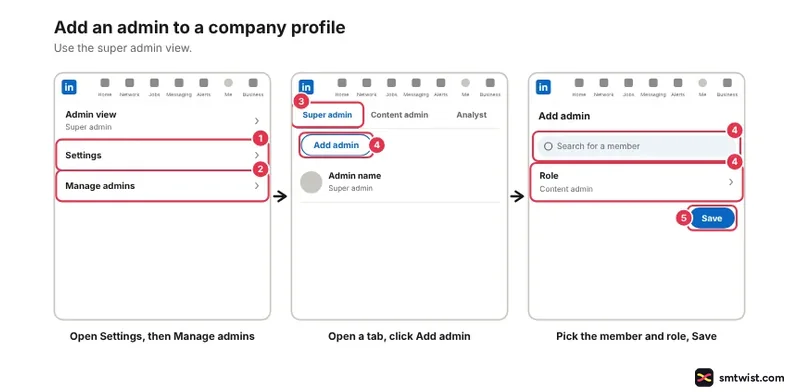
Only a super admin adds admins. Five steps cover it.
- Open the super admin view and click Settings in the left menu.
- Click Manage admins.
- Open the admins tab for the role type you want.
- Click Add admin, search for the member, select them and choose a role.
- Click Save.
The member must be a first, second or third degree connection or a follower and cannot be blocked either way. Every person gets one admin role but can have several paid media roles. LinkedIn support cannot replace or remove admins for you.
What Sizes do the Logo and Cover Image Need?
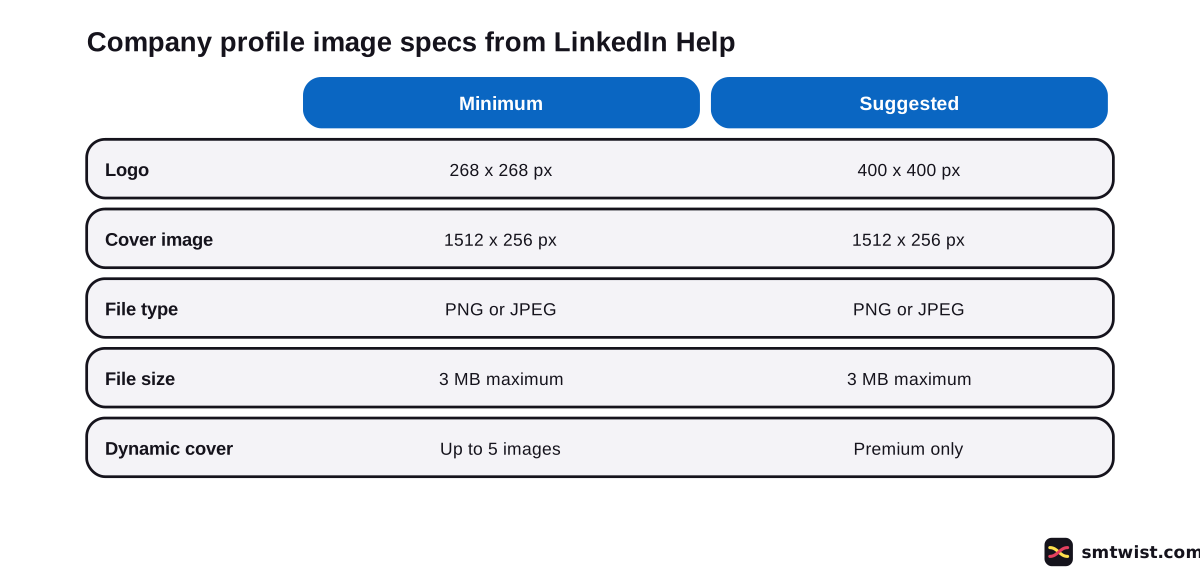
Image rules are the first practical step in how to optimize your LinkedIn company profile, and the numbers come from LinkedIn Help (2 months old on the day we read it). Every image must be a PNG or JPEG of 3MB or less.
| Image | Minimum | Suggested |
|---|---|---|
| Logo | 268 x 268 px | 400 x 400 px |
| Cover image | 1512 x 256 px | 1512 x 256 px |
LinkedIn Help advises a high resolution JPEG over a PNG for the sharpest result. The logo shows on light and dark backgrounds and a transparent logo shows on a white background.
A cover is trimmed on some screens. Keep text short and move important details away from the edges and the lower right corner.
To change the logo, open the super admin view and the edit option and then the info tab. Click the Edit icon on the current logo, choose the image and click Save. Once uploaded, a logo can only be replaced and cannot be left empty.
How to Optimize Your LinkedIn Company Profile Details
Ten sections are named in LinkedIn Help as the ones to fill in when you edit.
- Industry
- Company size
- Overview
- Description
- Logo
- Commitments
- Website URL
- Location, where you can add several and mark one as primary
- Custom button
- Work email verification
Industry, company size and overview are mandatory for the Invite to follow feature. Locations in the same area are grouped on the map.
Super admins reach every one from the admin view. On mobile the route starts at the dashboard in the upper left corner.
Two LinkedIn Help articles, both updated 1 year before reading, link complete company profiles to a gain in weekly views. One hedges the figure and the other states it flatly. We cannot confirm either and make no reach claim here.
Help gives no character limit for the tagline or the about text in the articles we could read. The Help names overview and description but does not name the tagline as a section. Check the edit screen for any limit it shows.
Custom Button and Premium Features
Setting the button takes six steps for a super admin.
- Open the super admin view and click the edit option on the left.
- Open the Buttons tab.
- Switch on the Custom button toggle.
- Type the Button name and the URL.
- Switch on Increase button visibility if you want it.
- Click Save.
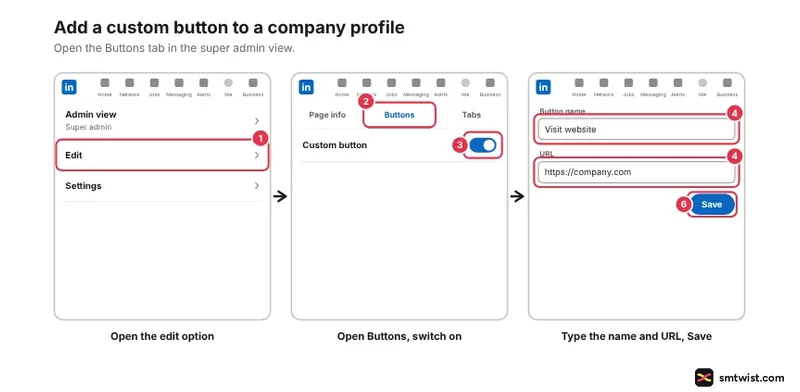
LinkedIn Help lists ten button names. They are Visit website, Contact us, Learn more, Sign up, Register, Give, Volunteer, Request demo, Buy now and Request services. Request demo needs a published flagship product and Request services needs a service you offer.
The articles differ on cost. The older one (1 year) ties the button to Premium, while the newer one (6 months) says free company profiles can add it and see clicks in the visitor summary. Free profiles show it only in the More menu, and LinkedIn is rolling the feature out gradually so your account could lack it.
Premium sits outside the free steps of how to optimize your LinkedIn company profile, and it moves the button to the top of the profile, to feed posts and to search result cards. The Premium plan article was updated 3 months before we read it.
Help lists ten Premium features and a super admin must subscribe.
- Verification
- A list of who visited the company profile
- Auto invites for engaged members
- Invites to followers of similar company profiles
- Custom button
- Custom testimonial
- A credibility feature
- Dynamic cover images
- Request services button
- Gold LinkedIn IN logo
Without Premium you can invite only first degree connections. Dynamic covers work on desktop only and take a single image or a slideshow of up to five images. For the personal subscription see is LinkedIn Premium worth it.
What are Featured Posts on a Company Profile?
A super admin can feature up to six posts. They sit in a Featured section at the top of the Home tab. Job, event and targeted posts cannot be featured.
Use the edit option on the left to open the Featured tab. Click Manage featured and click Select under a post. You can also click the More icon on a post and choose Feature.
New to posting there? The LinkedIn posting guide covers writing and publishing.
Who is Eligible for Verification, and How Long does It Take?
Verification is offered to eligible company profiles only, and the super admin requests it on desktop. LinkedIn Help (3 weeks) bases eligibility on engagement and a commercial relationship. Engagement means posting regularly and responding to members, and a commercial relationship means Ads, Jobs or Premium.
The request takes five steps.
- Click Settings in the left menu.
- Open Verification controls.
- Click Verify workplace and then Get started.
- Enter the legal business name and website URL and then the business address.
- Click Submit after proving ownership of the website.
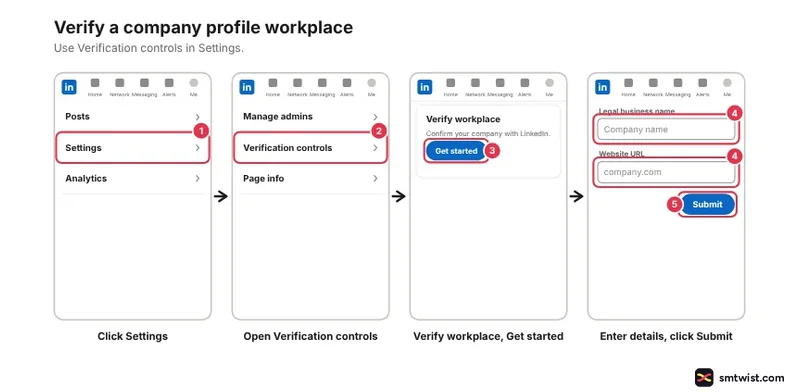
Timing differs between articles. One says up to 48 hours depending on your domain provider and the FAQ (3 months) says up to ten days.
The FAQ also says a free trial of Premium does not qualify. After approval, super admins can switch on work email verification for employees.
Today's Actions and AI Suggestions
Today's actions sits on the dashboard for super admins and content admins. Suggestions refresh daily and the Cancel icon removes one. The area appears only when suggestions exist, and the article is 2 years old so labels could have changed.
The AI suggestion tool opens from Today's actions, the edit option, analytics or the Premium features. Click the AI suggestion button, review the suggestions, edit them and save. LinkedIn Help warns that suggestions are sometimes wrong.
How to Optimize Your LinkedIn Company Profile When Help is Silent
Three hashtag Help articles returned a 404 error on 29 October 2026. Hashtag steps and limits are therefore not confirmed here.
Help only shows that associating a hashtag is a super admin permission. For personal posts see our LinkedIn hashtags guide.
Tagline and about limits are also not stated in the Help we read. No step was tried on a live account and that sets the Checked label. Your screen could show a different label or step.
Where This Guide Fits
Company profile setup is one topic inside LinkedIn Marketing for Business in the LinkedIn section. That hub also lists the paid reach options.
Read the editorial policy for what Checked means.
Sources
- LinkedIn Help: Complete your company profile, read 29 October 2026, the sections to fill in and the 30% weekly views wording.
- LinkedIn Help: Image specifications for company and career profiles, read 29 October 2026, logo and cover sizes, file type and the 3MB limit.
- LinkedIn Help: Change the logo image, read 29 October 2026, the logo upload steps and the replace rule.
- LinkedIn Help: Edit your company profile or sub profile, read 29 October 2026, where super admins edit the details.
- LinkedIn Help: Add a custom call-to-action button, read 29 October 2026, the custom button steps and where it shows.
- LinkedIn Help: Custom call-to-action options, read 29 October 2026, the ten button names.
- LinkedIn Help: Differences in call-to-action buttons for free and Premium company profiles, read 29 October 2026, the newer wording for free profiles.
- LinkedIn Help: Premium Company plan, read 29 October 2026, the list of Premium features.
- LinkedIn Help: Add dynamic cover images, read 29 October 2026, desktop only and up to five images.
- LinkedIn Help: Feature a post, read 29 October 2026, the six post cap and the steps.
- LinkedIn Help: Request verification for a company profile, read 29 October 2026, eligibility, steps and the 48 hour wording.
- LinkedIn Help: Company profile verification FAQ, read 29 October 2026, the ten day wording and the trial rule.
- LinkedIn Help: Admin view features, read 29 October 2026, the dashboard and the left menu.
- LinkedIn Help: Today's actions, read 29 October 2026, who sees the suggestions and how they refresh.
- LinkedIn Help: AI powered suggestions for your company profile, read 29 October 2026, the AI suggestion steps and the roles that can use them.
- LinkedIn Help: Admin roles, read 29 October 2026, the role descriptions.
- LinkedIn Help: Admin role permissions, read 29 October 2026, the permissions table.
- LinkedIn Help: Company profile FAQs, read 29 October 2026, the older wording on who can edit and post.
- LinkedIn Help: Add admins, read 29 October 2026, who can add admins and the steps.
Steps and numbers here match the Help articles above, so the label is Checked. No company profile on a live account was edited. Read the editorial policy for the full label list.
FAQ
What should a LinkedIn company profile include?
LinkedIn Help lists industry, company size, overview, description, logo, commitments, website URL, location, a custom button and work email verification. Industry, company size and overview are required for the Invite to follow feature.
What size should a LinkedIn company logo be?
268 x 268 px is the minimum and 400 x 400 px is the suggested size. The file must be a PNG or JPEG of 3MB or less.
What size is a LinkedIn company cover image?
1512 x 256 px. LinkedIn Help gives that number as both the minimum and the suggested size, in a PNG or JPEG of 3MB or less.
How many posts can you feature on a LinkedIn company profile?
Six. A super admin features them from the left menu edit option or from the More icon on a post. Job, event and targeted posts cannot be featured.
Can a content admin edit a LinkedIn company profile?
No. The newest LinkedIn Help permissions table gives editing of all fields to the super admin only and lets content admins post, boost and manage events and jobs. An older FAQ says only super admins edit and post, but the table is newer.
How long does LinkedIn company verification take?
Up to 48 hours in one LinkedIn Help article and up to ten days in another. The first figure is tied to proving website ownership with your domain provider. The verification controls screen should confirm the time for your account.
Is the custom button on a LinkedIn company profile free?
Help gives two answers. The newer article says free company profiles can add the button but it shows only in the More menu. Premium moves it to the top of the profile and onto feed posts and search results.
Where do you start with how to optimize your LinkedIn company profile?
Start with your role, because only a super admin edits most fields. Then upload the logo and cover and fill in the sections LinkedIn Help lists.
What is the character limit for a LinkedIn company tagline or about section?
The LinkedIn Help articles we could read state no number for either. Tagline appears as an optional field in the iOS create form and overview is listed as a section to fill in. Check the edit screen for any limit it shows.
 Editor
Written by
Namrata Arora
Namrata Arora is a social media expert with two years of hands on experience on Instagram, Facebook and other platforms. She writes the how to guides on Social Media Twist and tries the steps on a real account for every guide marked Tested.
- Marks every guide Tested or Checked
- Writes about Instagram, Facebook, TikTok
- 43 guides on SMTwist
Guest posts are edited by SMTwist before they go live. Paid or affiliate links are labelled and carry rel="sponsored".