LinkedIn SEO: How to Optimize Your Profile and Posts
LinkedIn SEO explained from LinkedIn Help: how people search orders profiles, which keywords to use, public profile settings and what to avoid.

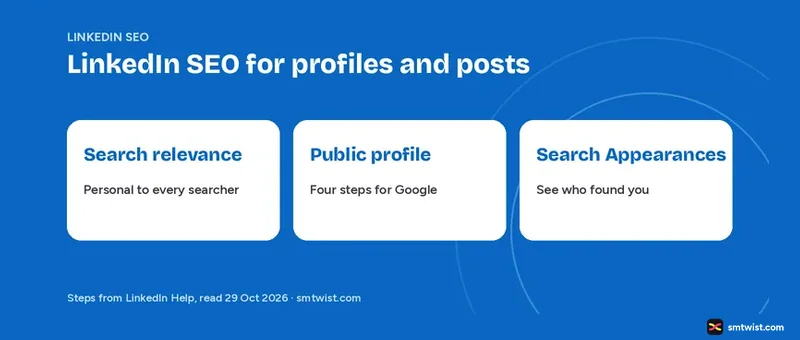
LinkedIn SEO is about being found, and LinkedIn Help is open about how little of it you control. This LinkedIn SEO guide covers how LinkedIn search treats profiles, which profile sections feed it, how Google sees a public profile and which practices LinkedIn lists as violations. Ten LinkedIn Help articles and one LinkedIn Business article supply the facts, all read on 29 October 2026.
What is LinkedIn SEO?
Put simply, it is the work of making a profile, a post or a company profile show up when someone searches. Two kinds of search matter for LinkedIn SEO. One happens in the LinkedIn search bar and the other happens in Google, Bing or another search tool.
Separate systems handle the two. The search bar finds people, jobs, companies, posts and more, and the public profile settings decide what outside search tools can show. Help lists ten result tabs, starting with People, Posts, Jobs and Companies and ending with Services, Courses and Products.
How does LinkedIn Order People Search Results?
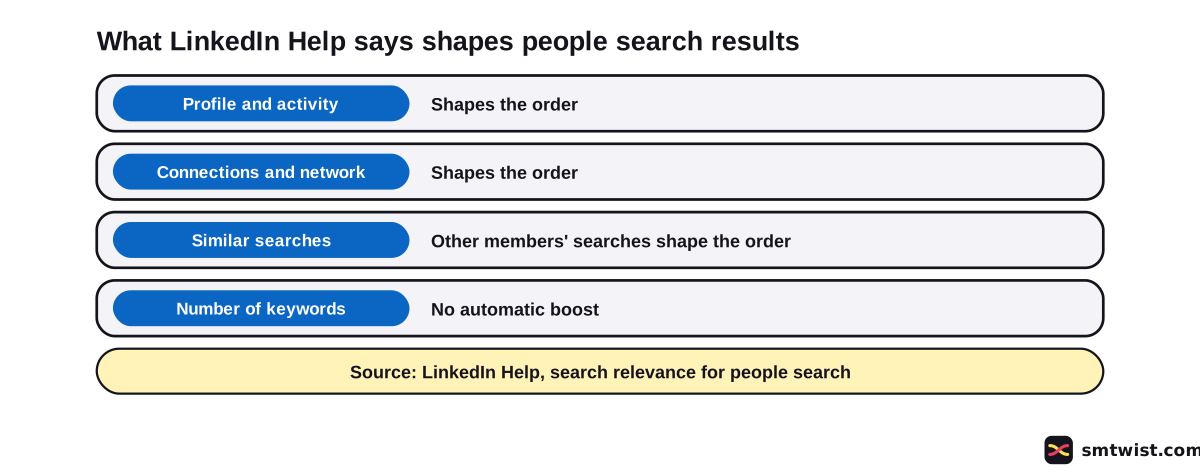
LinkedIn SEO for people search has no fixed order. LinkedIn Help says people search uses proprietary relevance algorithms that build a results order unique to each member. The same search looks different for different people.
Three things shape that order, according to Help.
- Your profile and activity on LinkedIn
- Your connections and network
- Other members' behavior on similar searches
Before results appear, LinkedIn also looks at the searcher's activity, the profiles that match the query and the searcher's past search history. Natural language works too. Type a role, a skill, a company or a full question.
Testing a query on a few accounts rarely represents the millions of searches run each day, says Help. It points to profile views as a more helpful indicator of visibility, which you can read in who viewed your LinkedIn profile.
How to Optimize Your Profile for LinkedIn SEO
No LinkedIn SEO ranking formula is published. The steps below are the actions the Help articles support. Follow these five in order.
- Choose a short list of keywords that accurately reflect your expertise and experience.
- Use several different keywords instead of repeating the same words or phrases.
- Add skills to your profile, up to 100.
- Fill in more sections and edit your profile regularly so it stays current.
- Set a custom address, which the LinkedIn URL guide explains.
Keywords come with a warning. LinkedIn Help says more keywords do not automatically improve your appearance in search results, and spam detection can lower the visibility of a profile that looks overly optimized.
Add Skills to Your LinkedIn Profile
Skills are the part of LinkedIn SEO you control fully. Click the Me icon, click View Profile, click Add profile section and choose Core. Select Add skills, type the skill or choose a suggestion, then click Save.
The limit is 100 skills. Once you list more than three, LinkedIn sorts them into Industry Knowledge, Tools & Technologies and Interpersonal Skills, and you cannot move a skill into a different category.
LinkedIn SEO for Google and Other Search Tools
For LinkedIn SEO on Google, every profile gets a public version in the LinkedIn member directory. Google and Yahoo review that directory from time to time and show what they find, which is how a profile becomes searchable on the web. You need to display your full last name to have a public profile.
Four actions for being indexed come from Help.
- Turn on Your profile's public visibility in your public profile settings.
- Invite and connect with at least one member.
- Add more sections and details to your profile.
- Edit your profile regularly to keep it current.
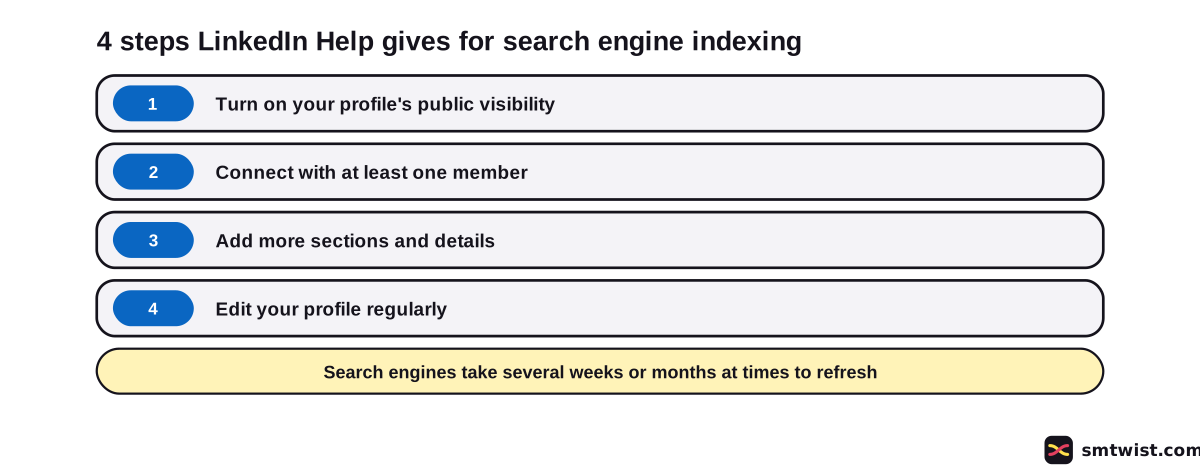
Two Help articles give different waits for changes to show, several weeks in one and several weeks or months at times in the other. LinkedIn controls neither number, which makes the longer wait the safer plan.
You also choose which sections are public. Your public profile can appear in Google, Yahoo, Bing and DuckDuckGo, on public profile badges and on partner services like Outlook. Switching the public profile off hides it from search tools and could block account recovery if you lose your email, because LinkedIn can require the public URL.
Practices LinkedIn Lists as Violations
Five practices appear in the Help list of what to avoid in LinkedIn SEO work on a profile. The list is not complete, and the Trust and Safety team reviews anything that breaks the User Agreement.
- Headline violations, since the name fields must hold only your first and last name
- Keyword stuffing and repeated information
- Inflating the Experience or Education fields
- Using a profile as an advertisement for a product or service
- Creating a profile for an organization, which belongs on a company profile
Three years have passed since that article was updated. Read the current Help text before you rely on it.
Posts and Search
LinkedIn SEO for posts starts with the Posts tab, where keyword searches return posts. Members can filter by Date posted, Content type, From member, From company, Mentioning company and more, and a deleted post disappears from results.
Suggested searches never offer hashtags, yet you can search one by typing it in, and the LinkedIn hashtags guide explains their use. No ranking rule for posts appears in Help. We make no claim that a keyword in a post lifts its reach.
Company Profiles and Search
LinkedIn SEO for a company profile starts with its own Search Appearances report for admins. It shows the total number of appearances in search, refreshed daily, the number of searches in the last seven days and the top keywords people used to find the company profile.
Starting a post with those same keywords is the Help tip. A LinkedIn Business article dated 7 September 2022, now over four years old, adds that Google displays up to 156 characters of text and advises placing keywords at the start of the tagline. The same article says companies with complete information see 30 percent more weekly views and that LinkedIn articles are crawled by search engines.
Setup details sit in our company profile optimization guide.
How to Check Your Search Appearances
Search Appearances is the closest thing to a LinkedIn SEO report, since it counts the people who found you through LinkedIn search. Open it in three steps.
- Click the Me icon at the top of your LinkedIn homepage.
- Click View profile.
- Scroll to the Analytics section and click Search Appearances.
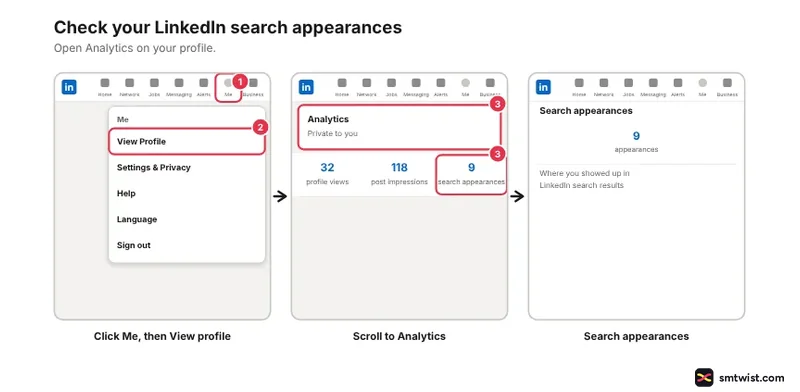
You can filter by where you appeared, the top companies and job titles of your searchers and the job titles you were found for. Profile engagement adds total impressions, total clicks, average viewing time and impressions per section. For the other reports, see how to see your LinkedIn analytics.
What is Still Unconfirmed
We tried nothing on a live account and the label is Checked. Menu labels on your own screen can differ from the Help wording.
None of the Help articles we read gives a LinkedIn SEO headline length or says how much weight the headline, About text or skills count for. Member posts and agency lists name ranking factors for posts, and LinkedIn does not confirm them in the sources above.
Where This Guide Fits
Growth and measurement topics sit together in LinkedIn Analytics and Growth inside the LinkedIn section.
Job seekers can pair it with the LinkedIn job search guide. The editorial policy defines the Checked label.
Sources
- LinkedIn Help: LinkedIn Search relevance for people search, read 29 October 2026, result ordering and the keyword warning.
- LinkedIn Help: Profile does or doesn’t appear after name search on web, read 29 October 2026, the four steps for indexing.
- LinkedIn Help: LinkedIn public profile visibility, read 29 October 2026, public sections and the refresh timing.
- LinkedIn Help: Practices to avoid when optimizing your profile for LinkedIn search, read 29 October 2026, the five practices.
- LinkedIn Help: View your profile Search Appearances, read 29 October 2026, the steps and the report.
- LinkedIn Help: Add and remove skills on your profile, read 29 October 2026, the 100 skill limit.
- LinkedIn Help: Display Order of Skills, read 29 October 2026, skill categories.
- LinkedIn Help: Search on LinkedIn, read 29 October 2026, result tabs and hashtag search.
- LinkedIn Help: Search for member posts, read 29 October 2026, the Posts tab filters.
- LinkedIn Help: Search Appearances analytics for a company profile, read 29 October 2026, keywords and search counts.
- LinkedIn Business blog: How to boost the SEO of your organization’s company profile, read 29 October 2026, dated 7 September 2022, tagline and About advice.
This guide is labelled Checked. We compared every step and figure with the articles above and did not test anything on a live account. How we label guides explains the three labels.
FAQ
What is SEO on LinkedIn?
It is the work of making a profile, a post or a company profile show up when someone searches on LinkedIn or in a search engine like Google. LinkedIn Help treats the two as separate, with different settings for each.
How do I SEO my LinkedIn profile?
Use keywords that accurately reflect your expertise, add skills, fill in more sections and edit your profile regularly. Then switch on public profile visibility if you want Google to index it.
Does LinkedIn show everyone the same search results?
No. LinkedIn Help says people search results follow a proprietary relevance algorithm and differ for each searcher. Your profile, activity, connections and similar searches by other members all shape the order.
Do more keywords improve my LinkedIn search ranking?
No. LinkedIn Help says adding more keywords does not automatically improve your appearance in search results. Spam detection can lower the visibility of profiles that look overly optimized.
How long does Google take to show changes to my LinkedIn profile?
Several weeks in one Help article and several weeks or months at times in another. LinkedIn does not control how quickly search engines refresh.
How many skills can I add to my LinkedIn profile?
100. LinkedIn Help says you need more than three skills for them to be sorted into categories.
Where can I see how often I appear in LinkedIn search?
Open Me, then View profile, scroll to the Analytics section and click Search Appearances. It shows your appearances and the top job titles and companies of the people who searched.
Can a company profile use LinkedIn SEO too?
Yes. Admins get a Search Appearances report with the top keywords people used to find the company profile. Starting a post with those same keywords is the Help tip.
Does posting on LinkedIn help your Google ranking?
LinkedIn Help does not say that posting raises any ranking. It does say members can search posts by keyword under the Posts tab. Clear wording in a post supports that search.
 Editor
Written by
Namrata Arora
Namrata Arora is a social media expert with two years of hands on experience on Instagram, Facebook and other platforms. She writes the how to guides on Social Media Twist and tries the steps on a real account for every guide marked Tested.
- Marks every guide Tested or Checked
- Writes about Instagram, Facebook, TikTok
- 43 guides on SMTwist
Guest posts are edited by SMTwist before they go live. Paid or affiliate links are labelled and carry rel="sponsored".