LinkedIn Automation: Rules, Risks and Tools
LinkedIn automation by outside software breaks the User Agreement. See what Section 8.2 bans, the penalties and the scheduling route LinkedIn allows.

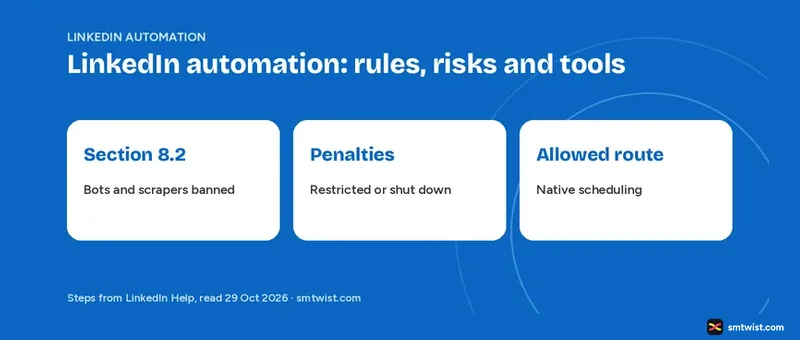
LinkedIn automation by outside software runs against the User Agreement, and LinkedIn Help says accounts that use it risk restriction or shutdown. This guide gives the LinkedIn automation rules, the risks, the tool types and the one allowed route. Every claim traces to the Help articles listed in Sources, opened on 29 October 2026, and we name no tool.
Is LinkedIn Automation Allowed?
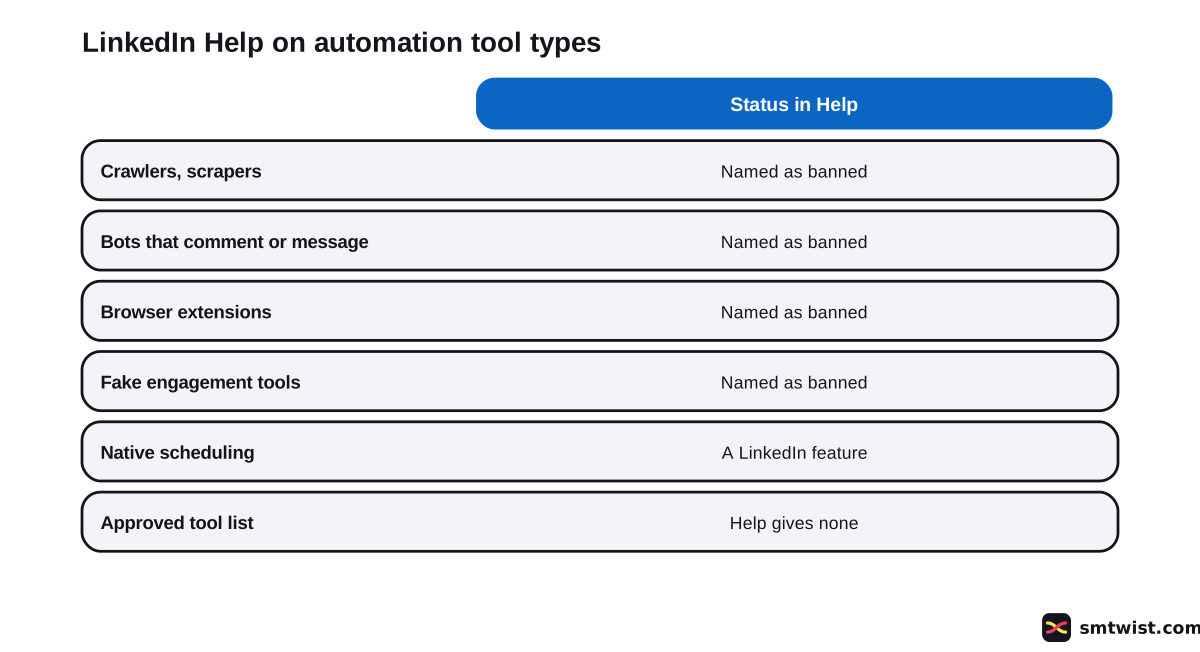
No. LinkedIn Help rules out outside software that scrapes data, alters how the site looks or automates activity on it. Crawlers, bots, browser plug-ins and browser extensions are all named.
Fake accounts and fake engagement fall under the same ban, and so does any service built to game the content algorithms. LinkedIn gives two reasons. It wants members' data safe and its website free from fraud and abuse.
What Section 8.2 Bans
Legal wording for the Help articles sits in the User Agreement under Section 8.2. It lists seven prohibitions, and four describe what LinkedIn automation tools do.
- Software, scripts, robots or plug-ins that scrape or copy profiles and other data.
- Bots or other unauthorized automated methods that grab contacts, forward messages, or create, comment on, like, share or re-share posts.
- Any means of overriding security features or use limits.
- Anything that places an unreasonable load on the service, including spam and gaming algorithms.
Overlays on the service, reuse of content and deep links make up the remaining three. The wording on bots is the clearest line. It names messages, comments, likes and shares, which are the actions most LinkedIn automation tools sell.
Which Tool Types does Help Cover?
Help never lists products and describes behaviours instead. Sorting by tool type works better. This table has five types and the Help position for every one.
| Tool type | What it does | Help position |
|---|---|---|
| Scraper or crawler | Copies profiles and data | Named as banned |
| Browser extension | Adds buttons or runs actions in your browser | Named as banned |
| Cloud outreach platform | Sends invitations and messages from a remote server | Falls under the ban on outside software that automates activity |
| Comment or engagement bot | Posts, likes or shares for you | Named in Section 8.2 |
| AI drafting tool | Writes text you post yourself | Not mentioned in the articles we read |
Where a tool only drafts text and you press the final button, Help is silent. Silence is not permission, which is why the LinkedIn auto comment guide treats that gap with care.
What Happens When LinkedIn Detects Automation?
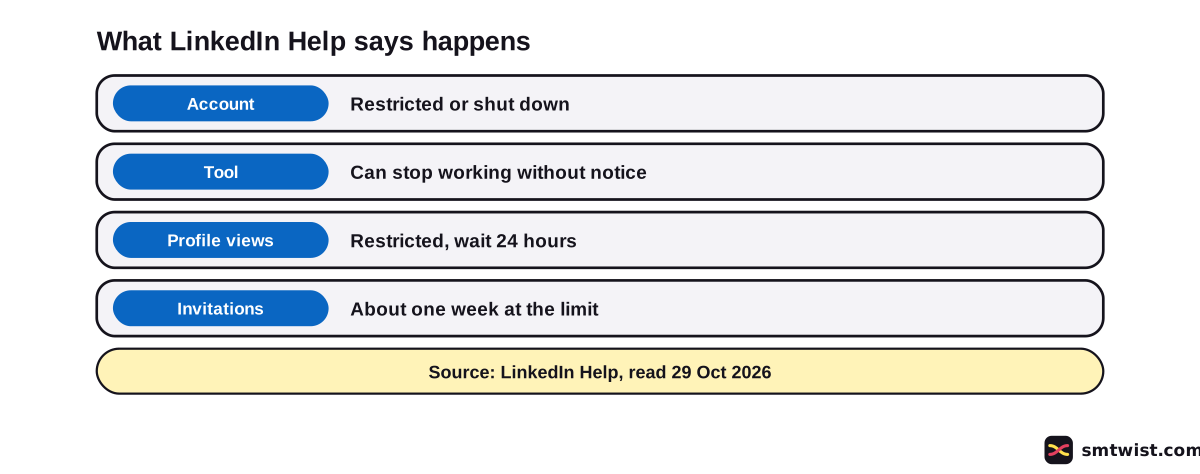
LinkedIn Help names three outcomes for LinkedIn automation. First comes a restricted or closed account for the member. Second comes a tool that stops working without notice.
Visibility is the third outcome. Comment counts get a ceiling per period for members and company profiles alike, and comments from excessive posting or a detected automation tool can show to fewer people.
Account restrictions list automated tools violations as one reason, next to content, profile and identity violations. LinkedIn also asks members to report third party software, and a dedicated team investigates every report. Help adds that it cannot give detailed updates on the outcome for legal reasons.
How to Recover From a LinkedIn Automation Restriction
Help gives a short route when LinkedIn automation gets an account restricted. It has three steps.
- Disable the software or extension that automates activity.
- Wait until the time printed on the suspension notification, when the account switches back on.
- Change your password on a regular basis.
You can log in and contact LinkedIn to ask for a second look, or to ask it to consider partnering with software you use for productivity. Help adds that only some members see that option so far. No fixed length of restriction is stated.
Limits That Apply Even Without a Tool
Heavy manual use can trip limits too, and Help ties some of them to LinkedIn automation. A profile view restriction appears after an unusually large number of views, and the User Agreement bars both automated and manual systematic viewing. Help recommends a 24 hour wait before viewing more profiles.
Invitations have a limit for every member, Basic and Premium alike. Reaching it restricts sending for about one week, and LinkedIn cannot shorten the wait. Withdrawing pending invitations does not lift it.
The commercial use limit covers searching and profile browsing that looks like hiring or prospecting. Free usage resets at midnight PST on the 1st of every month, and Premium Business, Recruiter Lite and Sales Navigator raise it. Sound networking habits, as in the LinkedIn networking guide, stay far from all three.
What LinkedIn Automation is Allowed?
Two routes for LinkedIn automation are documented. The first is post scheduling inside LinkedIn. The second is the Developer API Program, which the Violating Tools article names for integrating LinkedIn within your own application.
Scheduling follows five steps on desktop or mobile.
- From your LinkedIn homepage, click Start a post.
- Type your content in the What do you want to talk about? field.
- Click the Clock icon in the lower-right corner.
- Choose a date and time in the Schedule post window and click Next.
- Click Schedule.
Choose any time from 10 minutes to 3 months ahead. LinkedIn stores it as UTC using your device clock, and events and jobs cannot be scheduled. The schedule LinkedIn posts guide covers the queue, rescheduling and deleting.
Four Questions to Ask Before Connecting a Tool
Vendor sites call their products safe, but only LinkedIn sets the rules for LinkedIn automation tools. Ask four questions before connecting a tool to an account you cannot lose.
- Does it log in as you or read LinkedIn through your browser?
- Does it send, comment, like or share without you pressing the button?
- Does it copy profile data out of LinkedIn?
- Would you be comfortable if LinkedIn read its settings?
A yes to any of them puts the LinkedIn automation tool against Section 8.2 or the Help policy on third party software. For marketing teams, the safer plan is to automate the work around LinkedIn, like drafting and planning, and keep sending and posting inside the app. The LinkedIn marketing guide covers that wider plan.
What is Still Unconfirmed
We ran no step on a live account, which fits the Checked label. The Help articles show different ages, from 3 weeks to 4 years, and wording can have changed since the oldest ones.
Help names no approved tool, no daily action numbers and no detection method. AI tools that only draft text are not mentioned either.
Invitation limits bring a one week restriction in one Help article, while profile view limits bring a 24 hour wait in another. The two figures differ and neither applies to the other.
Where This Guide Fits
LinkedIn automation rules apply to every business account. Find the rest in LinkedIn Marketing for Business and the LinkedIn section.
Planning a posting routine? Start with the scheduler. Label definitions sit in the editorial policy.
Sources
- LinkedIn Help: Prohibited software and extensions, read 29 October 2026, the ban on bots and extensions, the Section 8.2 wording and the penalties.
- LinkedIn Help: Automated activity on LinkedIn, read 29 October 2026, the policy and the steps after a restriction.
- LinkedIn Help: Account restrictions, read 29 October 2026, automated tools violations as a reason for restriction.
- LinkedIn Help: Violating Tools, read 29 October 2026, the privacy reasons and the report process.
- LinkedIn Help: Restricted Action Message, read 29 October 2026, the profile view restriction.
- LinkedIn Help: Invitation limit reached, read 29 October 2026, the invitation limit.
- LinkedIn Help: Commercial use limit, read 29 October 2026, the search and view limit.
- LinkedIn Help: Comment on posts and reply to a comment, read 29 October 2026, the comment limit and visibility line.
- LinkedIn Help: Schedule posts, read 29 October 2026, the native scheduling steps.
This guide is labelled Checked. Every statement was compared with the nine Help articles above, and no step ran on a live account. The three labels are defined in the editorial policy.
FAQ
Is LinkedIn automation allowed?
No, not with third party software. LinkedIn Help does not permit bots, crawlers, browser plug-ins or extensions that scrape, change the look of or automate activity. LinkedIn's own scheduler is a documented feature and is a different case.
Is LinkedIn automation safe?
No. LinkedIn Help says members who use these tools violate the User Agreement and risk a restricted or closed account. The tools can also stop working without notice.
What happens if you use LinkedIn automation tools?
Your account risks restriction or shutdown. If a restriction hits, Help says to review and disable the software or extension, and the account is re-enabled at the time on the suspension notice.
Can LinkedIn detect automation?
Yes, in some forms. Help says LinkedIn works constantly on technical measures against scraping and automation, and it can limit the visibility of comments when it detects an automation tool. Help does not explain how detection works.
Is there an official way to automate LinkedIn?
Yes, in two narrow forms. Native post scheduling is a LinkedIn feature, and the Violating Tools article points to the Developer API Program for integrating LinkedIn into your own application.
Can I schedule LinkedIn posts without breaking the rules?
Yes. Click the clock icon in the Create a post window and choose a time between 10 minutes and 3 months ahead. Help says scheduling is not supported for events or jobs.
How long does a LinkedIn restriction last?
It depends on the restriction. Help puts an invitation limit restriction at about one week and a profile view restriction at a 24 hour wait. Help gives no fixed length for an automation restriction.
Does LinkedIn have a list of approved automation tools?
No. The Help articles we read name no approved tools. They only invite members using software for productivity reasons to contact LinkedIn about a possible partnership.
 Editor
Written by
Namrata Arora
Namrata Arora is a social media expert with two years of hands on experience on Instagram, Facebook and other platforms. She writes the how to guides on Social Media Twist and tries the steps on a real account for every guide marked Tested.
- Marks every guide Tested or Checked
- Writes about Instagram, Facebook, TikTok
- 43 guides on SMTwist
Guest posts are edited by SMTwist before they go live. Paid or affiliate links are labelled and carry rel="sponsored".