How to See Your LinkedIn Analytics
How to see your LinkedIn analytics for your profile, posts, followers and company profile, with desktop and mobile steps from LinkedIn Help.

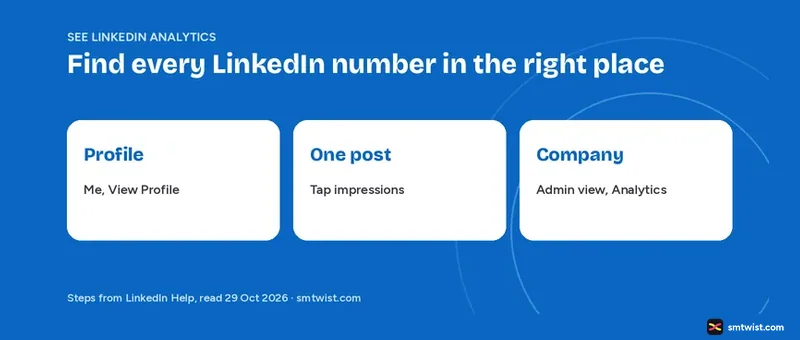
Knowing how to see your LinkedIn analytics starts with one fact. LinkedIn spreads its numbers over several screens and every screen answers a different question. You get the desktop and mobile route for profile views, one post, all posts, followers and a company profile, all taken from LinkedIn Help as it stood on 29 October 2026.
Where do LinkedIn Analytics Live?
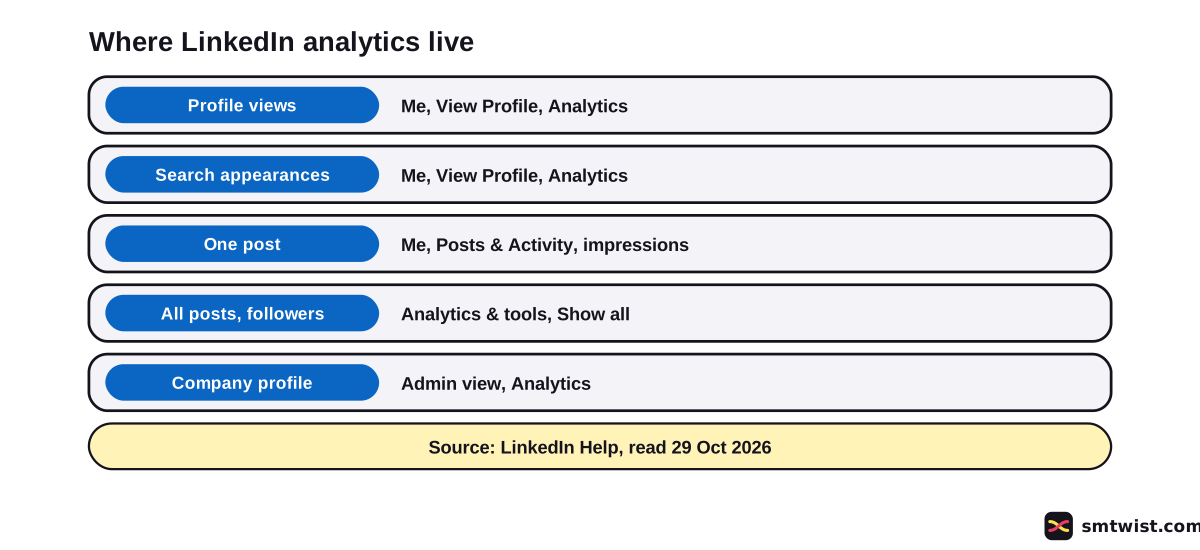
LinkedIn has one hub for a personal account, called Analytics & tools, plus separate post screens and a company profile view. The table links every question to its screen.
| Question | Where to look | Who can open it |
|---|---|---|
| Who viewed my profile? | Analytics on your profile | Every member, with limits on a free account |
| How did people find me? | Search appearances | Every member |
| What did one post do? | Post analytics | Every member |
| How are all my posts doing? | Combined post analytics | Members who have the feature, desktop only |
| Who follows me? | Audience analytics | Every member |
| How is my company profile doing? | Analytics in the admin view | Every admin role |
How to See Your LinkedIn Analytics for Your Profile
Profile analytics sit on your profile, below your intro. Desktop steps for the hub come from LinkedIn Help.
- Click the Me icon at the top of your LinkedIn homepage.
- Click View Profile.
- Scroll down to the Analytics section.
- Click Show all.
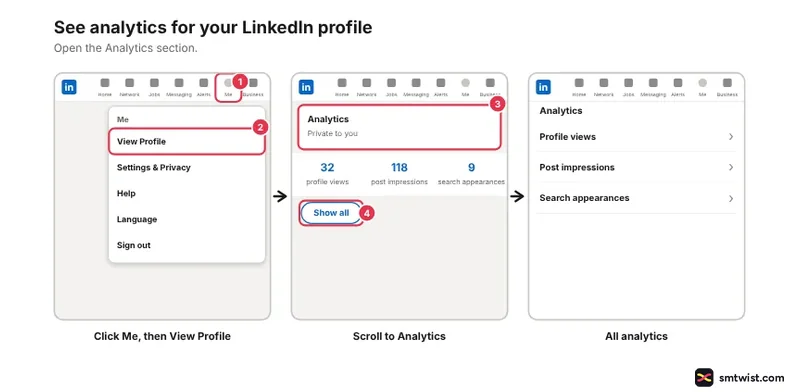
On a phone, tap your profile picture, tap your profile photo again, scroll to Analytics and tap Show all. The hub then lists creator analytics, profile insights and newsletter analytics, which only newsletter authors get.
For viewers, click the profile views number instead of Show all. A tab bar at the top of that screen switches between Search and Profile. Search appearances shows how many people found you through a LinkedIn search, plus the companies and job titles of those searchers.
A free account sees the last 90 days and the three most recent viewers, if your own viewing option shows your name and headline. Premium extends the window to 365 days and lists every viewer. The privacy settings behind both lists have their own walkthrough, in the viewers list on LinkedIn.
Analytics for One LinkedIn Post
Post analytics show what a single post did, and only you can see them. The desktop route has four steps.
- Click the Me icon.
- Under Manage, click Posts & Activity.
- Open the Post, Videos, Images, Articles or Newsletter tab.
- Click the impressions number in the lower left corner of the post, or click View analytics in the lower right corner.
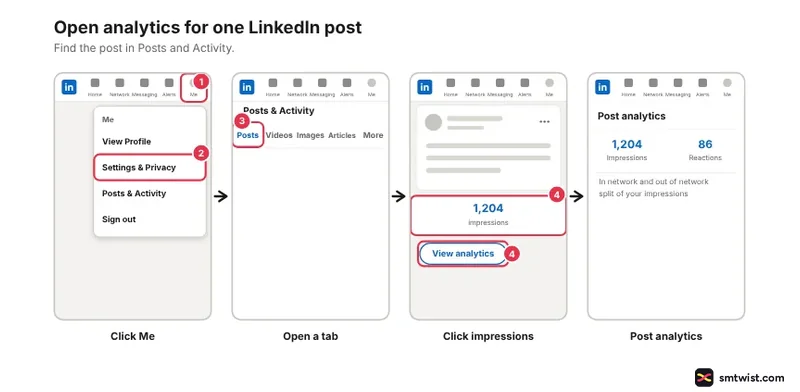
The mobile route differs. Tap your profile picture, tap your photo again, scroll to Activity and tap Show all posts. Open the same tabs, then tap the impressions number or View in the lower right corner.
Inside, the Post analytics screen sorts its numbers into four groups. Those are Discovery, Profile activity, Social engagement and Link engagement, and video or article posts add more. For the meaning of the discovery counts, read what impressions on LinkedIn are before you compare posts.
Combined Post Analytics and Audience Analytics
Both views live in Analytics & tools and both are open to all members, says LinkedIn Help. They answer two different questions.
- Combined post analytics shows all your posts over a date range from 7 to 365 days, with a switch between impressions and engagements.
- It exports to an .XLSX file and lists up to three top performing posts.
- Audience analytics shows your total followers, a graph of new followers and the top five demographics by job title, location, industry, seniority, company size or company.
- It uses the same 7 to 365 day range, and a custom range works only in the mobile app.
LinkedIn Help says combined post analytics is arriving gradually and some members cannot open it yet. Its Help article lists desktop only and says mobile support comes later. The audience analytics article is two years old and its labels can differ on your screen.
How to See Your LinkedIn Analytics for a Company Profile
A company profile has its own analytics, and only admins open them. LinkedIn Help uses an older name for a company profile, and it gives one route with no separate mobile steps.
- Go to the admin view of the company profile.
- Click Analytics in the left menu.
- Click the view you want.
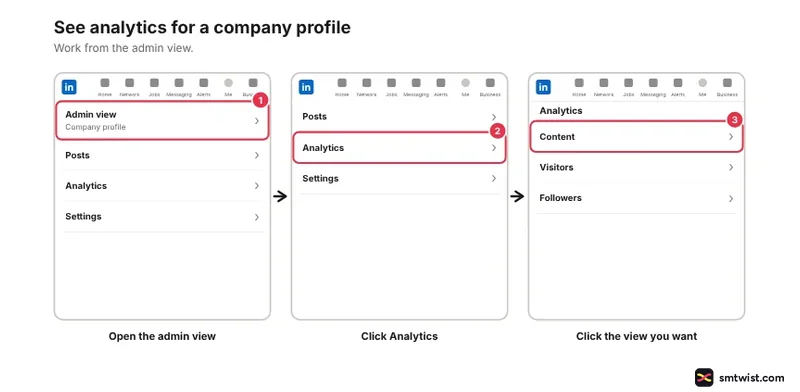
LinkedIn Help lists the views in two ways. The overview article names seven views and the access article names eight, because it adds Leads.
| View | What LinkedIn Help says it is for |
|---|---|
| Content | Judging the quality and topics of your posts |
| Followers | Understanding who follows you |
| Visitors | Learning how to convert visitors into followers |
| Search appearances | Seeing the keywords used to find you |
| Competitors | Comparing followers and content engagement |
| Employer brand | Engagement with career profiles |
| Newsletter | Trends, article totals and subscriber demographics |
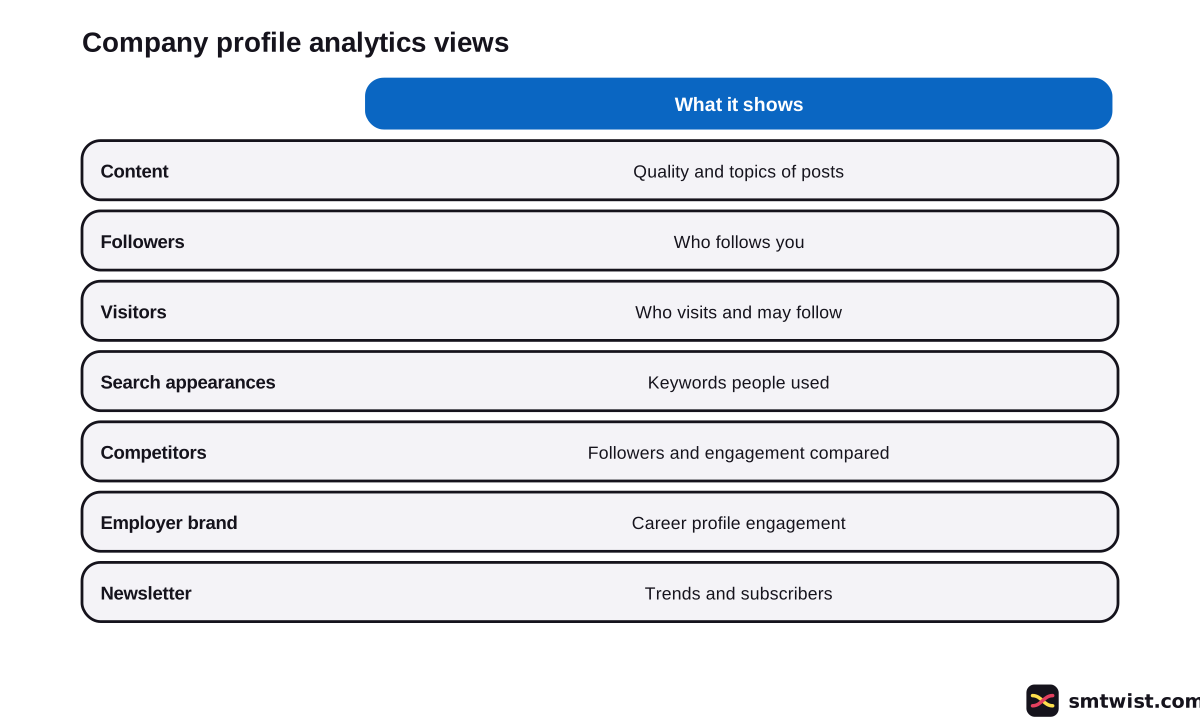
Every admin role can open analytics, and the Analyst role sees the analytics tab only.
To export, open the Content, Visitors, Followers or Competitors tab and click Export in the upper right. Choose a timeframe, click Export again and the file arrives as XLS. Admin roles and their edit rights are covered when you optimize your LinkedIn company profile.
What do the Company Profile Numbers Mean?
The content view totals likes, comments and reposts across a range of up to 365 days and shows the percent change against the previous period. Four definitions from LinkedIn Help cause the most confusion.
- Clicks count clicks on content, the company name or the logo by a signed in member. Reactions, comments and reposts are not clicks.
- Engagement rate is the ratio of interactions to impressions, and interactions include clicks, reactions, comments and shares.
- Click through rate is clicks divided by impressions.
- Video views count a view after more than 2 seconds of watching.
New posts take time to show up. Content analytics take up to 48 hours to reflect, except reactions and comments, which are real time. Follower totals update once a day.
How Long does LinkedIn Keep Your Analytics?
Every number has its own window. Discovery and social engagement counts last 1,000 days for most posts, members reached lasts 400 days and demographic breakdowns last 180 days. Article and newsletter analytics last two years.
Two LinkedIn Help articles disagree on video. One says video performance lasts 365 days and the other says 180 days. Both were updated two months before we read them.
Check the screen before you plan a yearly review.
Is My Number Good? A Way to Read Your LinkedIn Analytics
LinkedIn gives no benchmark for a good number of views, and we found none in LinkedIn Help. Round figures in blogs have no LinkedIn source behind them.
Use your own history instead of a blog figure.
- Set each new post against your ten latest of the same type.
- Check whether the out of network share rises or falls.
- Read engagements next to impressions.
Once you know how to see your LinkedIn analytics, feed what you learn into your LinkedIn content strategy. Timing questions have their own guide on posting frequency on LinkedIn.
What is Still Unconfirmed?
Nothing about how to see your LinkedIn analytics was tried on a live account here. Menus change. Check every step against your own screen, because the Help articles never explain how LinkedIn estimates the numbers.
The company profile articles are a year old and show no mobile route.
We did not read the visitor, competitor or newsletter analytics articles. The Help text we read also says nothing on whether an employer can see your activity. That question stays open here.
Where This Guide Fits
Reading your numbers is the first step in LinkedIn Analytics and Growth, part of the LinkedIn section. Labels follow the editorial policy.
Sources
- LinkedIn Help: View post analytics for your content, read 29 October 2026, the desktop and mobile steps for one post.
- LinkedIn Help: Post analytics for your content, read 29 October 2026, the metric list, the metric list and the data windows.
- LinkedIn Help: Combined post analytics, read 29 October 2026, the date range, toggle, export and desktop only note.
- LinkedIn Help: Analytics and tools on LinkedIn, read 29 October 2026, the Analytics & tools route on desktop and mobile.
- LinkedIn Help: Analytics for LinkedIn members, read 29 October 2026, which analytics every member has.
- LinkedIn Help: Audience analytics, read 29 October 2026, the follower graph, date range and export.
- LinkedIn Help: View your profile Search Appearances, read 29 October 2026, the search appearances route.
- LinkedIn Help: Access Who's Viewed Your Profile, read 29 October 2026, the profile views route and the 90 day rule.
- LinkedIn Help: Access your LinkedIn company analytics, read 29 October 2026, the click path in the admin view.
- LinkedIn Help: LinkedIn company analytics, read 29 October 2026, the analytics views and who can open them.
- LinkedIn Help: Export your LinkedIn company analytics report, read 29 October 2026, the export steps.
This guide is labelled Checked. We compared every step with the Help articles above and opened no live account. How we label guides explains the three labels.
FAQ
How do I see my LinkedIn analytics?
Click Me, then View Profile, and scroll to Analytics. Click Show all to open Analytics & tools. Posts open from Me, then Posts & Activity, and company profile analytics from the admin view.
How do I see analytics for one LinkedIn post?
Click Me, then Posts & Activity, open the post tab and click the impressions number in the lower left corner of the post. You can also click View analytics in the lower right corner.
How do I see my LinkedIn analytics on the mobile app?
Tap your profile picture and tap it again to open your profile. Scroll to the Analytics section and tap Show all. For one post, scroll to Activity, tap Show all posts and tap the impressions number.
Can I see the analytics of all my LinkedIn posts together?
Yes, in combined post analytics inside Analytics & tools. LinkedIn Help says it is rolling out step by step and it is desktop only for now. If the option is missing from your hub, you do not have it yet.
Who can see the analytics of a company profile?
Every admin role, says LinkedIn Help. The Analyst role sees the analytics tab only.
Do I need Premium to see LinkedIn analytics?
No for post, combined post and audience analytics, which LinkedIn Help gives to all members. Who viewed your profile differs, because a free account sees the three most recent viewers from the last 90 days and Premium shows the full list.
How long does LinkedIn keep my analytics?
It depends on the number. Discovery and social engagement counts last 1,000 days for most posts, members reached 400 days and demographic breakdowns 180 days. Video analytics last 365 days in one Help article and 180 days in another.
Are LinkedIn analytics exact?
No. LinkedIn Help says the numbers in post analytics are estimates and are not exact.
Is 5,000 views on LinkedIn good?
LinkedIn gives no benchmark. Compare the post with your ten latest posts of the same type and look at the out of network share.
 Editor
Written by
Namrata Arora
Namrata Arora is a social media expert with two years of hands on experience on Instagram, Facebook and other platforms. She writes the how to guides on Social Media Twist and tries the steps on a real account for every guide marked Tested.
- Marks every guide Tested or Checked
- Writes about Instagram, Facebook, TikTok
- 43 guides on SMTwist
Guest posts are edited by SMTwist before they go live. Paid or affiliate links are labelled and carry rel="sponsored".