How to Use LinkedIn to Get a Job
Learn how to use LinkedIn to get a job in 5 steps: search, job alerts, Easy Apply, Open to Work and what application updates mean, with the limits.

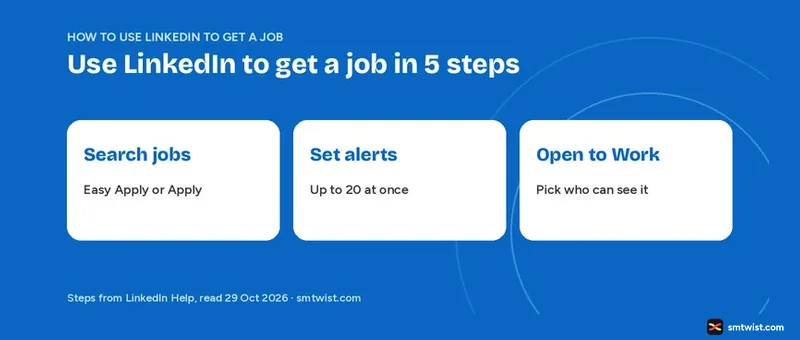
You can use LinkedIn to get a job in five steps, and LinkedIn Help covers every one of them. Most tip lists leave out limits like the 20 alert cap and the rule that you cannot edit an application. This guide puts the steps in order and adds those limits, all from six Help articles we opened on 29 October 2026.
How to Use LinkedIn to Get a Job in 5 Steps
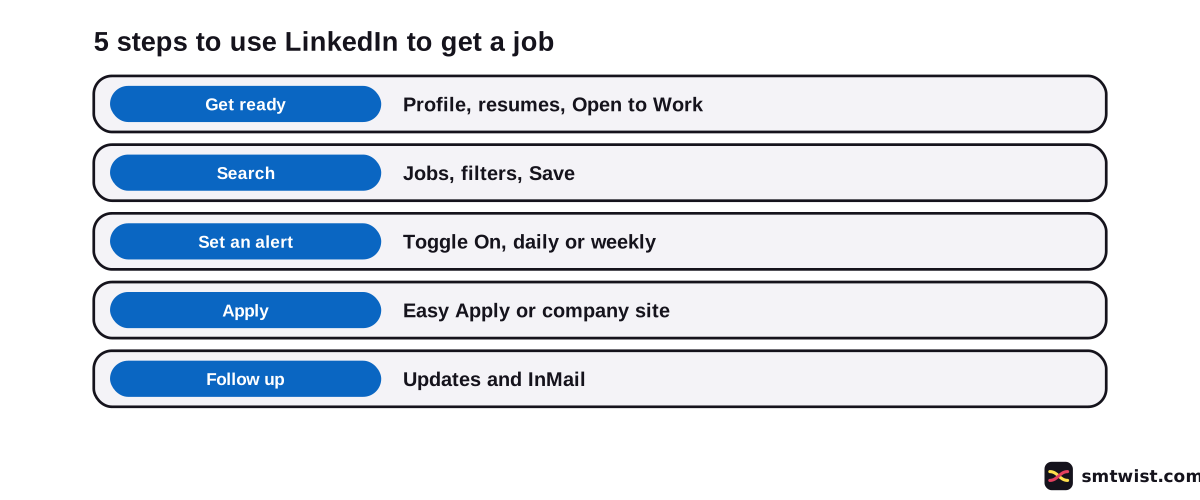
Follow these five steps in order.
- Get your profile, resumes and Open to Work setting ready.
- Search Jobs and save the postings you like.
- Switch on a job alert for the search.
- Apply with Easy Apply or on the company site.
- Follow up through application updates and InMail.
Steps 1 and 4 involve choices you cannot easily undo, like who sees your Open to Work status and an application you cannot edit. Read both sections before you click.
Get Your Profile and Resumes Ready
LinkedIn Help advises updating your photo, location, education and contact info before you apply. Use your summary to say what opportunities you want, and ask connections for endorsements and a recommendation. The LinkedIn for beginners guide walks through the profile basics in order.
Help also lets you upload a default resume and save up to four additional resumes for different job descriptions. That makes five in total. Match one resume to every type of role you apply for.
Keep a spreadsheet of your applications with dates and notes. The applications list on LinkedIn covers Easy Apply jobs only. A job you finish on a company site will not appear there.
How to Use LinkedIn to Get a Job While Employed
Open to Work tells recruiters you want a new role. You enable it from your profile or from the Jobs tab and then choose who sees it. LinkedIn Help offers three visibility choices.
| Choice | Who sees it | Catch |
|---|---|---|
| All LinkedIn Members | Everyone, including recruiters and people at your current company | Adds the #OpenToWork photo frame |
| Recruiters only | LinkedIn Recruiter users | LinkedIn tries to hide it from Recruiter users at your current company but cannot promise complete privacy |
| Visible only to you | Nobody else | Your preferences only tailor your recommendations |
Your current company is the one marked I am currently working here on your profile. If you work somewhere now, Recruiters only is the choice that tries to hide your status from colleagues who use Recruiter, and it still has that privacy limit.
In India you can add a notice period and an expected annual salary. Recruiters see both details whatever the visibility setting. If you stop responding to recruiter InMails, LinkedIn emails you and removes #OpenToWork automatically unless you confirm.
How do You Search for Jobs on LinkedIn?
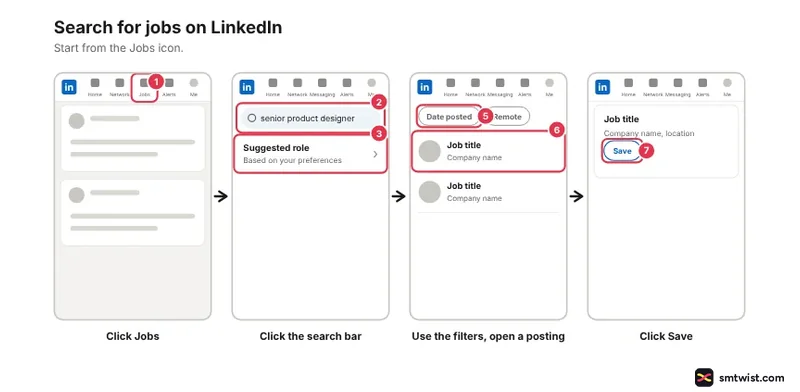
Easy Apply postings let you apply on LinkedIn, while Apply postings send you to a company or third party site. Follow these seven steps on desktop.
- Click the Jobs icon at the top of your homepage.
- Click the search bar and describe the job in your own words, like "senior product designer for fintech in California".
- Or choose one of the suggested roles based on your preferences and qualifications.
- Open Jobs, then Preferences, then Open to work to update your job preferences.
- Use the filters at the top of the results.
- Click a posting to read the description.
- Click Save on the job details to save it.
Search job related posts by changing the Jobs dropdown to Posts and choosing Job posts under the Content type filter. Help also mentions job insights that only Premium members see, and our LinkedIn Premium guide covers whether the plan fits a job search.
Job Alerts and Saved Jobs on LinkedIn
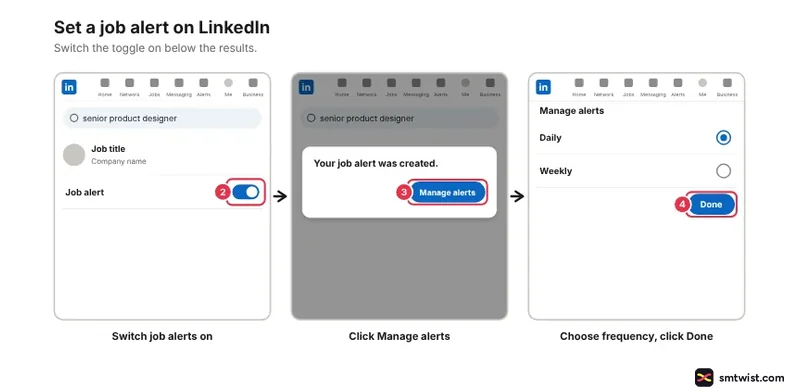
Job alerts repeat your search for you. LinkedIn Help allows up to 20 alerts at once, sent daily or weekly by email, app notification or both. Create one with these four steps.
- Search for a job.
- Switch the job alerts toggle On at the bottom of the results. A popup says "Your job alert was created."
- Click Manage alerts to choose the frequency and channel.
- Click Done.
Help also suggests setting alerts from previous searches, preferences and companies. You can find remote jobs and set an alert for that search too.
How do You Apply for Jobs on LinkedIn?
You must be signed in. Easy Apply works only from a desktop browser or the LinkedIn mobile app. Follow these five steps.
- Click the job title.
- Click Easy Apply.
- Enter the required info on the popup screens.
- Click Review.
- Click Submit application.
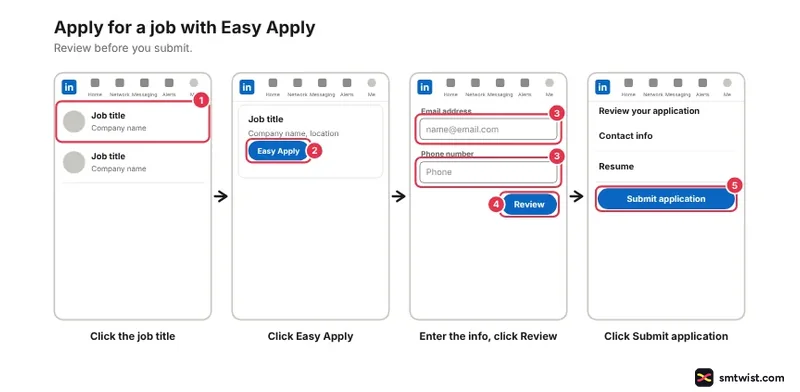
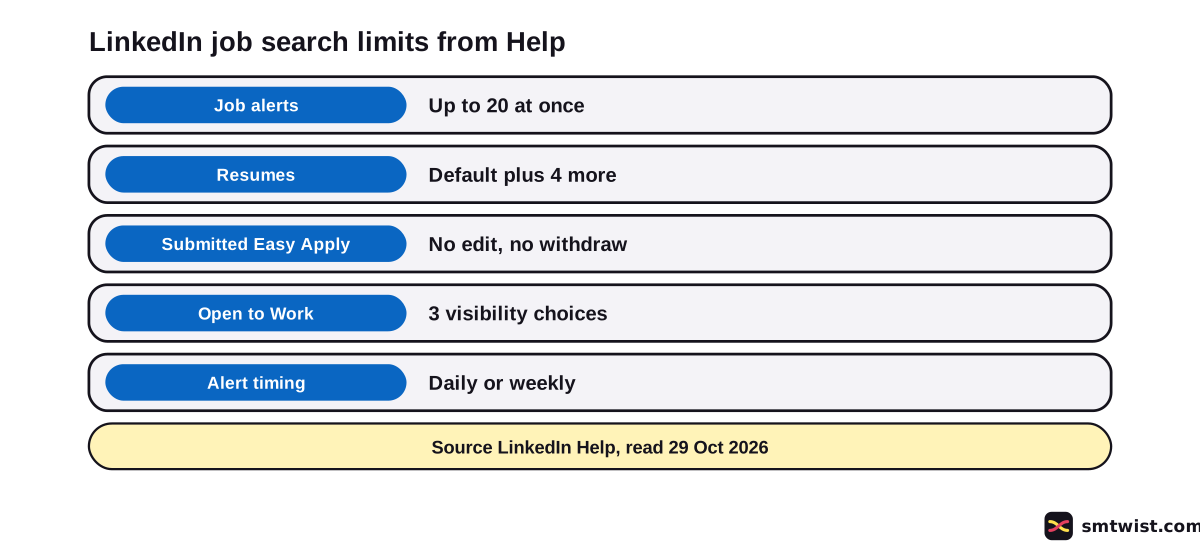
You cannot edit or withdraw an application once you submit it through LinkedIn. To make changes, contact the job poster by InMail. Read the Review screen closely before you click Submit application.
The Apply button routes you to the company site instead. Its own form takes over there, and LinkedIn will not list the application.
What Happens After You Apply?
An Easy Apply application on a LinkedIn hosted job gives you application updates. You get one when the poster views your application or downloads your resume. A view or download does not mean a message, an interview or an offer.
LinkedIn Help says you can InMail the poster to say thanks. It also suggests an InMail explaining why you want the job, when that option is available.
Connect with people you have a professional relationship with, join Groups, follow the company profile and engage with its content. Our LinkedIn networking guide covers the connection side.
How do You Check a Job Post Before You Apply?
Research a company before you apply and learn to spot fraudulent tactics, says LinkedIn Help. If a post looks wrong, you can report it, and how to report someone on LinkedIn lists the job report steps. The Help article names this habit but does not list the warning signs.
What is Still Unconfirmed?
No job application was sent and no Open to Work setting was changed, which gives this guide the Checked label. Four gaps remain in the Help articles we read.
- Help does not say how recruiters rank profiles or how many applications get a reply.
- One article puts the alerts toggle at the bottom of the results and another says to switch it on after you apply filters.
- The resume limit is clear, but the articles we read do not give the click path for uploading one.
- The article on application updates is the oldest of the six, so a label can differ on your screen.
Where This Guide Fits
Job hunting starts once your profile exists. The setup topics sit together under LinkedIn Account Setup and First Steps, part of the LinkedIn section.
Starting from zero? Create the account before step 1.
Sources
- LinkedIn Help: Search for jobs on LinkedIn, read 29 October 2026, the two posting types, the desktop search steps and the job posts tip.
- LinkedIn Help: Job alerts on LinkedIn, read 29 October 2026, the alert steps, frequency, channels and the limit of 20.
- LinkedIn Help: Apply for jobs on LinkedIn, read 29 October 2026, the Easy Apply steps and the rule on edits and withdrawals.
- LinkedIn Help: What to expect after you apply, read 29 October 2026, application updates and what they do not mean.
- LinkedIn Help: Find jobs on LinkedIn (tips article), read 29 October 2026, resume limits, tracking applications, profile advice and fake job warnings.
- LinkedIn Help: Let recruiters know you're Open to Work, read 29 October 2026, the three visibility choices and their privacy limit.
Checked is the label here. Every step was compared with the six Help articles above and no application was sent from a live profile. The editorial policy explains all three labels.
FAQ
How do I use LinkedIn to get a job?
Get your profile and resumes ready, search Jobs, switch on a job alert and apply with Easy Apply or on the company site. Then watch your application updates and message the job poster by InMail if you want to say thanks.
What is the difference between Easy Apply and Apply on LinkedIn?
Easy Apply lets you apply on LinkedIn. Apply sends you to a company or third party site. Only Easy Apply jobs appear in your applications list.
How many job alerts can you set on LinkedIn?
20 at once, says LinkedIn Help. Every alert is sent daily or weekly by email, app notification or both.
Can you edit or withdraw a LinkedIn job application?
No. Once an application is submitted through LinkedIn you cannot edit or withdraw it. For a correction, send the job poster an InMail.
How many resumes can you save on LinkedIn?
One default resume and up to four additional resumes, which makes five in total. LinkedIn Help suggests keeping extra resumes for different job descriptions.
Can people at my current company see my Open to Work status?
Yes, if you choose All LinkedIn Members, which includes people at your current company. Recruiters only hides it from Recruiter users at your current company, but LinkedIn says it cannot promise complete privacy. Visible only to you shows nobody else.
What do LinkedIn application updates mean?
They tell you the job poster viewed your Easy Apply application or downloaded your resume. Neither event promises a reply, an interview or an offer.
Do you need LinkedIn Premium to get a job on LinkedIn?
No Premium requirement appears in the Help steps for searching, alerts or applying. Help names only job insights as Premium-only. Our Premium guide covers whether the plan is worth the cost.
 Editor
Written by
Namrata Arora
Namrata Arora is a social media expert with two years of hands on experience on Instagram, Facebook and other platforms. She writes the how to guides on Social Media Twist and tries the steps on a real account for every guide marked Tested.
- Marks every guide Tested or Checked
- Writes about Instagram, Facebook, TikTok
- 43 guides on SMTwist
Guest posts are edited by SMTwist before they go live. Paid or affiliate links are labelled and carry rel="sponsored".