How to Use LinkedIn for Beginners
How to use LinkedIn for beginners: a 7 day plan to build your profile, connect or follow people, set Open to Work and post, using LinkedIn Help rules.

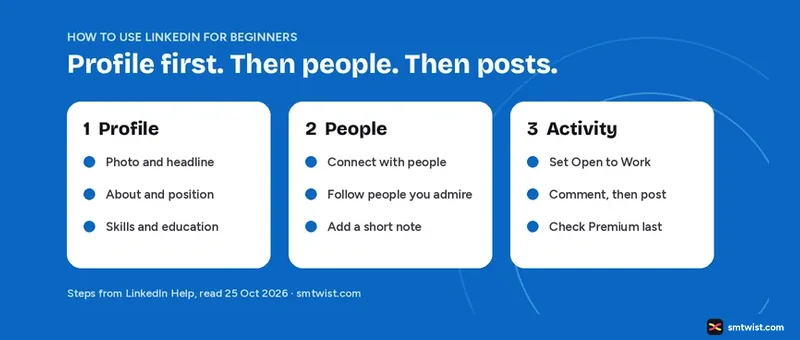
New to LinkedIn and not sure where to start? This guide on how to use LinkedIn for beginners gives a 7 day plan in the order that works: profile, then people, then activity. It uses LinkedIn Help for every rule, and it points to a longer guide whenever a step needs more detail. Facts were read on 25 October 2026.
How to Use LinkedIn for Beginners: A 7 Day Plan
The plan below keeps every day short. It is built for LinkedIn for beginners who have 20 minutes a day. Do not spend a full afternoon on any day. The figure shows the order, and the sections after it explain each step.
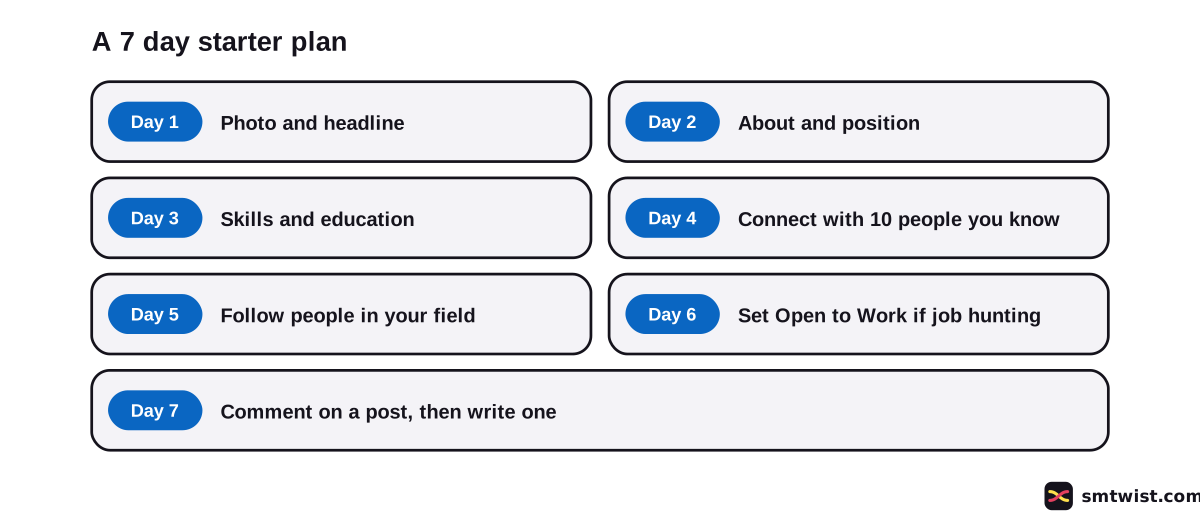
| Day | Task | Where it is explained |
|---|---|---|
| 1 | Add a profile photo and headline | Step 1 below |
| 2 | Write About and add your position | Step 1 below |
| 3 | Add education and skills | Step 2 below |
| 4 | Connect with people you know | Step 3 below |
| 5 | Follow people in your field | Step 3 below |
| 6 | Set Open to Work if you want a job | Step 4 below |
| 7 | Comment on a post, then write your own | Step 5 below |
Step 1: Build Your LinkedIn Profile First
Your profile is the first thing a person sees when you start using LinkedIn, so it comes before everything else. LinkedIn Help describes a profile level meter that only you can see. Every member starts as a Beginner, moves to Intermediate after four sections and reaches All-star after seven. The seven sections are profile photo, location, industry, education, position, skills and summary, which LinkedIn also calls About.
To add a section, click the Me icon, select View Profile and click Add profile section in the introduction. LinkedIn groups the choices as core (About, education, position, services, career break, skills), recommended (featured, licenses and certifications, projects, courses, recommendations) and additional (volunteer experience, languages and more). For a first week, the core group is enough.
Choose a Photo That Follows the Rules
Your photo helps people recognize you. LinkedIn may remove a profile photo that is only a company logo, an emoji, scenery, an animal, words, a flag, a childhood photo or someone else's likeness such as stock imagery. An illustration of yourself is allowed, but it must reflect your likeness. A background photo is optional and follows the same policies.
Write a Headline and About You can Defend
LinkedIn Help gives no formula for a headline and no length for About, so there is nothing official to copy. Our guide to the LinkedIn character limit shows which numbers LinkedIn confirms and which come from tool makers. Write in the first person, say what you do and what you want to be found for, and keep every claim true. Recruiters read the position entries under it, and they will notice a mismatch.
Step 2: Add Skills and Education to Your Beginner Profile
Skills are a core part of how to use LinkedIn well, because they help people understand your strengths and match you with opportunities, says LinkedIn Help. You can add up to 100. Open Add profile section, choose Core, select Add skills, type a skill and pick it from the list, or choose one under Suggested based on your profile. LinkedIn also asks where you used the skill, so tie each one to a position or school.
People often ask for the top five skills on LinkedIn. LinkedIn publishes no such list. A sounder rule is to add the skills that appear in the job titles you want, and to leave out any you could not talk about in an interview. Education takes a minute and counts toward the All-star level.
Step 3: Use LinkedIn to Connect With People You Know and Follow the Rest
LinkedIn Help treats connecting and following as two different tools.
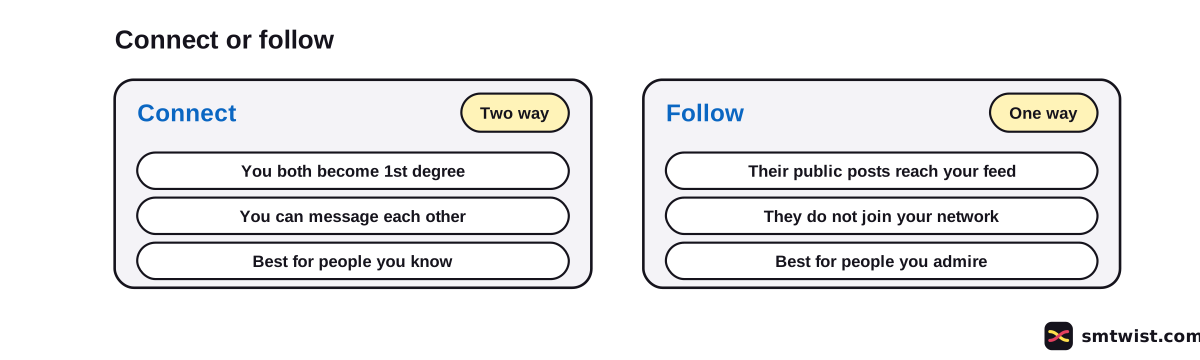
| If you | Action | Why |
|---|---|---|
| Know the person from work, school or community | Connect | You may want to message each other |
| Enjoy a stranger's posts | Follow | No invitation is needed |
| Met someone at an event | Connect with a note | The note reminds them how you met |
| Are exploring a new field | Follow | You can find voices to learn from first |
Start with people you already know, such as colleagues, classmates and mentors. LinkedIn Help asks you to send invitations only to people you know and trust. If a profile shows Follow as its main button and you connect through the menu instead, you follow them while the invitation is pending, and you keep following if they decline.
How Many Connection Notes can You Send?
A short note helps a stranger decide whether to accept. LinkedIn Help says a free account can send a personalized note on up to three requests a month, with up to 200 characters, in an article updated about six months ago. An older article, about two years old, says five. Both give 200 characters for free accounts. Plan for three and treat any extra as a bonus. Invitations sent from People You May Know in the mobile app cannot be personalized.
Step 4: Use LinkedIn Open to Work if You Want a Job
If you are job hunting, the next lesson in how to use LinkedIn for beginners is Open to Work. LinkedIn Help says Open to Work helps your profile show up when recruiters search, once you add the job types and locations you want. You control who sees it:
- All LinkedIn members: this includes recruiters and people at your current company, and it adds the Open to Work photo frame.
- Recruiters only: only people using LinkedIn Recruiter. LinkedIn tries to hide it from recruiters at your current company but says it cannot promise complete privacy.
- Visible only to you: the preferences only tailor your job recommendations.
Pick the setting on purpose. If you are still employed, the recruiters only choice carries a small risk that LinkedIn itself admits. If you stop answering recruiter InMails, LinkedIn can email you and remove the feature until you turn it on again.
Step 5: Comment First, Then Post as a LinkedIn Beginner
A first post feels risky for most beginners, and a comment is a gentler start. Reply with something useful to two or three posts in your field, then write your own. Our guide on how to post on LinkedIn covers the steps and settings, and how to schedule LinkedIn posts helps once you post often. You do not need Premium for any of this, and no part of how to use LinkedIn for beginners depends on it.
Do You Need to Pay to Use LinkedIn for Beginners?
No. LinkedIn Help says there is a basic free account and Premium subscriptions, and eligible users can try Premium free for one month. Prices vary by country and plan, so we publish no figure. Our guide on whether LinkedIn Premium is worth it lists what the paid plans add. If you do not have an account yet, read how to create a LinkedIn account first.
What is Still Unconfirmed
We did not test how to use LinkedIn for beginners on a new account, so the label is Checked. LinkedIn moves menu names often, and the Help articles on sections and photos are about two years old. LinkedIn Help states no headline or About length, no list of top skills and no posting time. The disagreement between three and five notes a month is unresolved, so check the box when you send one.
Where This Guide Fits
This guide on how to use LinkedIn for beginners belongs to our LinkedIn Account Setup and First Steps topic, inside the LinkedIn section. For a second profile, read Manage Multiple LinkedIn Accounts.
Sources
- LinkedIn Help: Use the profile level meter to update your profile, read 25 October 2026, the three profile levels.
- LinkedIn Help: Add sections to your profile, read 25 October 2026, core, recommended and additional sections.
- LinkedIn Help: Profile photo guidelines and conditions, read 25 October 2026, what a photo cannot be.
- LinkedIn Help: Add and remove skills on your profile, read 25 October 2026, the 100 skill limit.
- LinkedIn Help: Follow and connect on LinkedIn, read 25 October 2026, connect vs follow.
- LinkedIn Help: Personalize invitations to connect, read 25 October 2026, three notes a month.
- LinkedIn Help: Differences between InMail Messages and personalized invitations, read 25 October 2026, the older figure of five.
- LinkedIn Help: Let recruiters know you're Open to Work, read 25 October 2026, who can see it.
- LinkedIn Help: Difference between free LinkedIn and Premium accounts, read 25 October 2026, the free account.
The label on this guide is Checked, which means we compared the steps with these sources and have not tried them on an account yet. Read how we label guides.
FAQ
How do I start using LinkedIn?
Create a free account, then add a profile photo, headline, About, position, education and skills. Connect with people you know, follow people in your field and make your first comment or post once the profile is ready.
Which 5 skills should a beginner put on LinkedIn?
LinkedIn states no list of top skills. LinkedIn Help says you can add up to 100, so choose the ones that match the work you want and that you can prove in your position entries.
Is LinkedIn free for beginners?
Yes. LinkedIn Help describes a basic free account and Premium subscriptions, which eligible users can try free for one month.
What is the difference between connecting and following on LinkedIn?
Connecting is two way and lets you message each other. Following is one way and shows a person's public posts in your feed without adding them to your network.
How many personalized connection notes can a free account send?
LinkedIn Help says three a month with up to 200 characters in an article updated about six months ago. An older article, about two years old, says five. Plan for three.
How do I show recruiters I am looking for a job?
Turn on Open to Work from your profile or the Jobs tab and choose who sees it. Recruiters only does not promise full privacy, says LinkedIn Help.
What is an All-star LinkedIn profile?
It is the top level of the profile level meter. LinkedIn Help says you reach it by adding seven recommended sections, and the meter then disappears from your profile.
Do I need Premium to use LinkedIn?
No. The basic free account covers building a profile, connecting, following and posting. Our guide on whether Premium is worth it covers what the paid plans add.
 Editor
Written by
Namrata Arora
Namrata Arora is a social media expert with two years of hands on experience on Instagram, Facebook and other platforms. She writes the how to guides on Social Media Twist and tries the steps on a real account for every guide marked Tested.
- Marks every guide Tested or Checked
- Writes about Instagram, Facebook, TikTok
- 13 guides on SMTwist
Guest posts are edited by SMTwist before they go live. Paid or affiliate links are labelled and carry rel="sponsored".