How to Unblock Someone on LinkedIn
How to unblock someone on LinkedIn on desktop, iOS, Android and mobile browser, plus the 48 hour wait, what does not come back and the 2,000 limit.

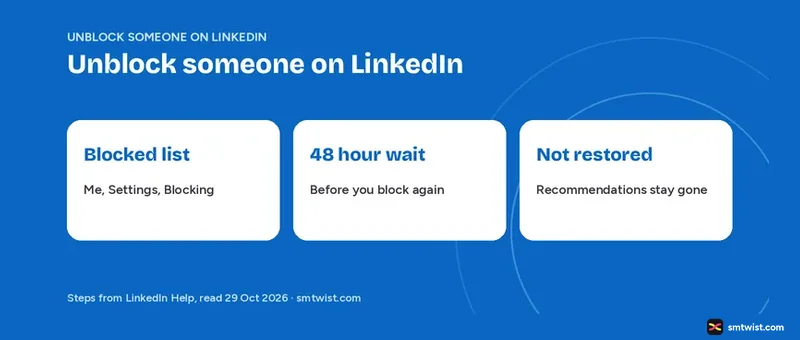
How to unblock someone on LinkedIn comes down to one screen, your blocked list, and the route to that list differs on desktop, in the apps and in a mobile browser. This guide gives all four routes, the 48 hour wait before you can block the same member again and what LinkedIn Help says does not return. The facts below come from four LinkedIn Help articles read on 29 October 2026.
Blocking has its own guide. Our steps and effects for how people block someone on LinkedIn sit there. This guide covers the undo only.
How to Unblock Someone on LinkedIn on Desktop
Your blocked list lives in your own settings. The steps never start from the member's profile. Follow these five steps on a computer.
- Click the Me icon at the top of your LinkedIn homepage.
- Select Settings & Privacy.
- In the Visibility section, select Blocking under Visibility of your profile & network.
- Find the person's name in your blocked list.
- Click Unblock.
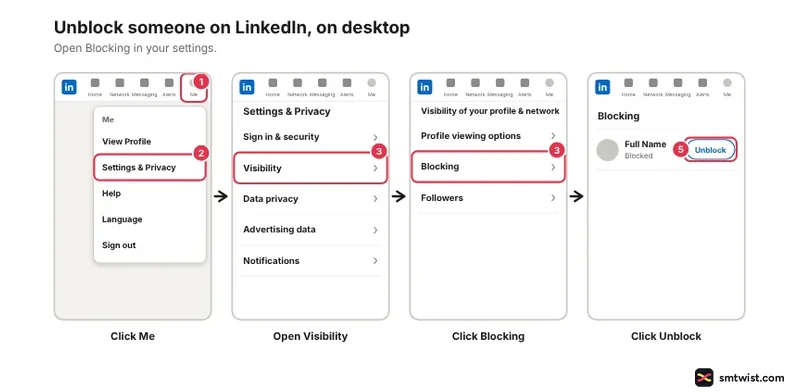
Help's older article on the blocked list words step 3 differently. It says to click the arrow next to Blocking in the Visibility section. Both articles end at the list of members you are blocking, and that list is where you make changes.
Unblock a Member in the iOS and Android Apps
LinkedIn Help gives the same five steps for iOS and Android. It words them with click, although you tap on a phone. Follow these five steps in either app.
- Tap your profile picture at the top of the homepage.
- Tap Settings & Privacy.
- Tap Visibility.
- Under Visibility of your profile & network, tap Blocking.
- Find the name in your blocked list and tap Unblock.
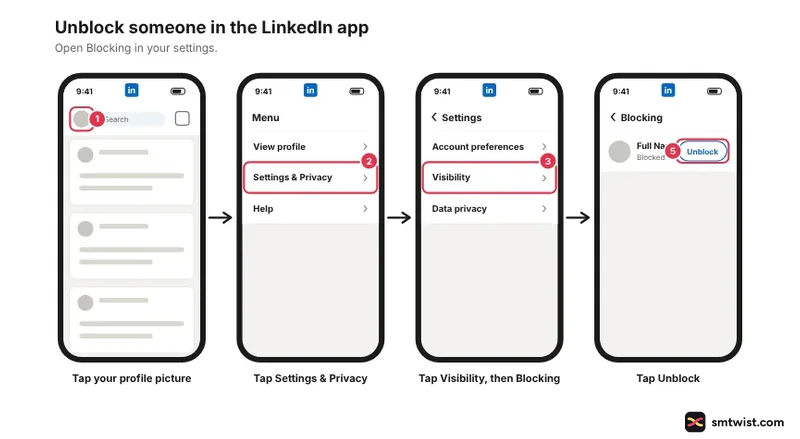
Help's older blocked list article uses shorter labels for the apps. It says to tap your profile picture, then Settings, Visibility and Blocking. Menu names in older articles can differ on your screen.
How to Unblock Someone on LinkedIn in a Mobile Browser
The mobile browser route has four steps and no Blocking label. Help sends you to a different Visibility label instead.
- Tap the Profile icon in the navigation bar.
- Tap the Settings & Privacy icon at the upper right corner.
- In the Visibility section, select Visibility of your LinkedIn activity.
- Find the name in your blocked list and tap Unblock.
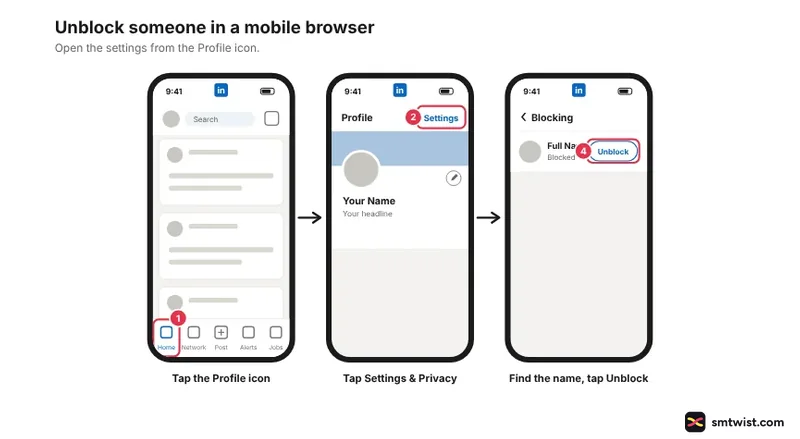
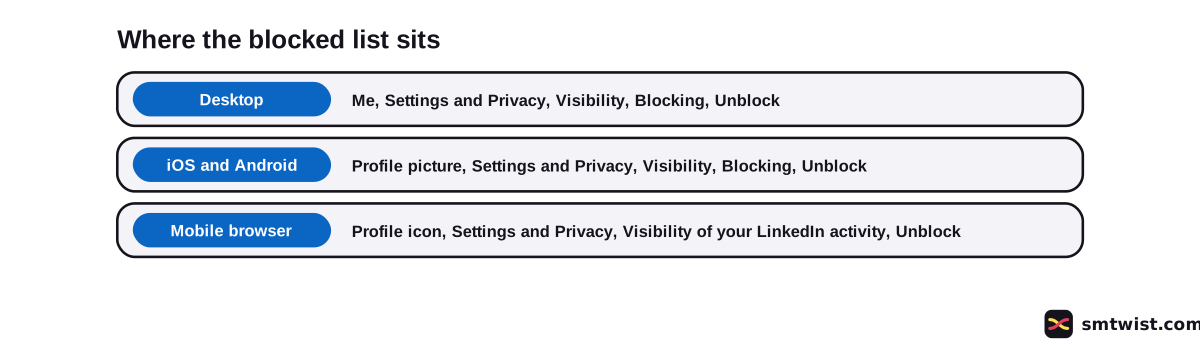
Both labels come from the same Help article, which puts the difference in the screen and not in the source. Open whichever label your screen shows. This table shows where every route starts and which label opens the blocked list.
| Where you use LinkedIn | First click or tap | Label before the list |
|---|---|---|
| Desktop | Me icon | Blocking |
| iOS | Profile picture | Blocking |
| Android | Profile picture | Blocking |
| Mobile browser | Profile icon | Visibility of your LinkedIn activity |
How Long is the Wait Before You Block the Same Member Again?
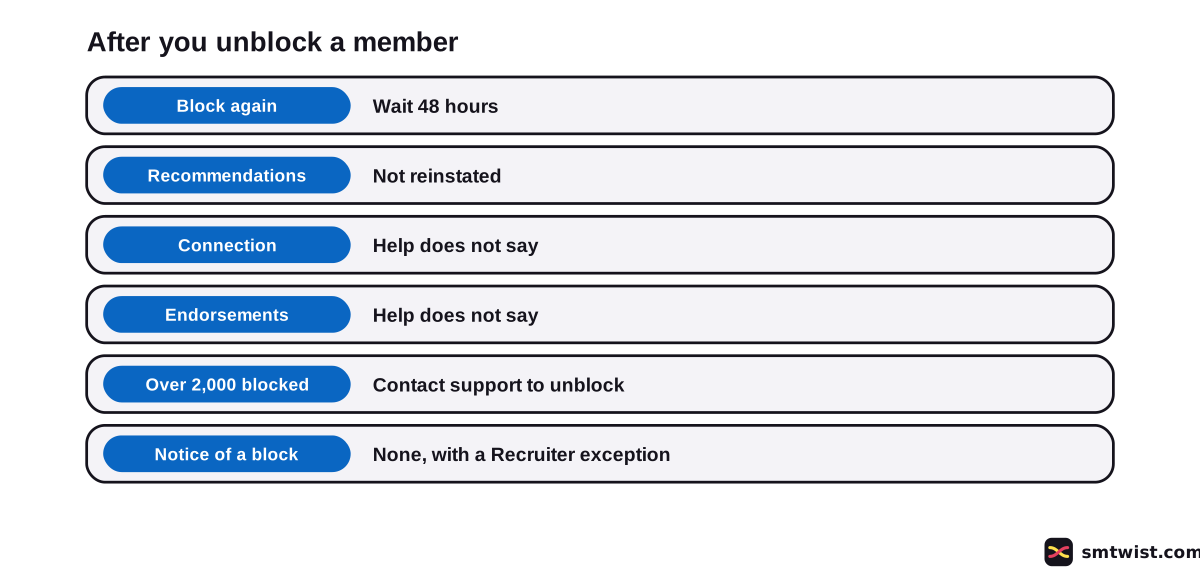
Two Help articles give the same figure. After you unblock a member you wait 48 hours before you can block that member again. Help names no wait before you unblock.
Unblocking also means planning around that gap. Unblocking for a quick look and blocking again straight away does not work, because the 48 hours must pass first. If the reason for the block was abuse, reporting is a separate action covered in our guide on how to report someone on LinkedIn.
What does Not Come Back After You Unblock Someone?
LinkedIn Help states one loss outright. Recommendations from a blocked member no longer appear on your profile, and Help says they cannot be reinstated if you unblock the member.
Help's overview article lists more effects of a block. It says the connection ends and that endorsements and recommendations from that member are removed.
Help does not say in words what returns on an unblock. This table sorts four items by what Help says about their return.
| Item | What a block does | Return on unblock |
|---|---|---|
| Recommendations from the member | Removed from your profile | Cannot be reinstated |
| Endorsements from the member | Removed | Help does not say |
| Connection | Ends | Help does not say |
| Profile access, messages and shared content | Stopped between you and the member | Help does not describe it |
Someone who viewed your profile before the block stays in your viewer count with the details hidden. Our guide to seeing who viewed your LinkedIn profile covers the viewer list.
Reconnecting After You Unblock Someone
Help does not say the connection returns. Its only reconnect article covers a connection you removed, and it gives two routes for that case. You go to the person's profile, click Connect, enter their email address and send an invitation, or you ask the member to send you one.
For removed connections, Help adds that recommendations and endorsements are not added back after you reconnect. It says nothing about that rule for a block. For more on building contacts, read about networking on LinkedIn.
How to Unblock Someone on LinkedIn After 2,000 Blocks
LinkedIn Help says there is no limit on how many members you can block. It also warns that with more than 2,000 blocked members you could be unable to unblock someone you blocked earlier. In that case Help tells you to contact support.
Help's article gives no support form or steps for this case. We list it under the open questions below.
Does LinkedIn Tell the Member When You Block or Unblock?
For a block, the answer is no in most cases. The block article, updated two months before we read it, says the blocked member will not receive any notification of the block.
One exception applies. If you currently or previously shared a LinkedIn Recruiter account with the person, LinkedIn reserves the right to notify that member of your block.
Help's overview article is two years old and words it more loosely. It says that in most cases LinkedIn will not notify the member that you blocked them. We use the newer wording and mention both.
For an unblock, no Help article we read gives a rule either way.
What is Still Unconfirmed?
The label is Checked because we unblocked no member on a live account. Seven points about unblocking have no answer in the four Help articles.
- Whether the member is told when you unblock them.
- Whether the connection returns after an unblock.
- Whether endorsements from the member return.
- Whether LinkedIn asks for a password when you unblock. Some video results say so and Help never mentions it.
- What the confirmation step looks like. The unblock steps in Help end at the click.
- How fast the unblock takes effect.
- What support does once you pass 2,000 blocked members.
Help shows the block article as updated two months before we read it, the blocked list and overview articles two years before and the reconnect article five years before. A menu name on your screen can differ from the text above.
Where This Guide Fits
Unblocking is the undo half of the block someone on LinkedIn guide, with the block steps and the effects of a block. Both belong in the LinkedIn section.
Setting up your first account? Read our LinkedIn beginner plan first. How we assign labels is in the editorial policy.
Sources
- LinkedIn Help: Block or unblock a member, read 29 October 2026, the unblock steps on four devices, the 48 hour wait, recommendations and the 2,000 member case.
- LinkedIn Help: See a list of who you blocked, read 29 October 2026, where the blocked list sits and the 48 hour rule.
- LinkedIn Help: Block a member - overview, read 29 October 2026, what a block removes and how notification is worded.
- LinkedIn Help: Reconnecting with a Member, read 29 October 2026, how to invite a removed connection again.
Checked is the label here. Every route above was compared with the four Help articles listed, and no member was unblocked on a live account. Our label rules explain all three labels.
FAQ
How do I unblock someone on LinkedIn?
Click the Me icon, choose Settings & Privacy and open Visibility. Select Blocking, find the name in your blocked list and click Unblock.
How do I unblock someone on LinkedIn on my phone?
In the iOS or Android app, tap your profile picture, then Settings & Privacy, Visibility and Blocking. In a mobile browser, tap the Profile icon, then the Settings & Privacy icon and Visibility of your LinkedIn activity. Tap Unblock beside the name in both cases.
Can you unblock someone on LinkedIn without visiting their profile?
Yes. The LinkedIn Help steps unblock a member from your blocked list in Settings & Privacy, and none of them opens the member's profile.
How long do you have to wait to block someone again after you unblock them?
48 hours. LinkedIn Help says you cannot block the same member again until that time has passed.
Do recommendations come back when you unblock someone on LinkedIn?
No. LinkedIn Help says recommendations from a blocked member no longer appear on your profile and cannot be reinstated if you unblock the member.
Does the connection come back when you unblock someone?
LinkedIn Help does not say. It states that a block ends an existing connection and gives no line on what an unblock restores.
Does LinkedIn tell someone you unblocked them?
LinkedIn Help does not say. It states that a blocked member receives no notification of the block, with an exception for a shared LinkedIn Recruiter account.
How many people can you block on LinkedIn?
There is no limit, says LinkedIn Help. Past 2,000 blocked members you could be unable to unblock someone you blocked earlier, and Help tells you to contact support.
 Editor
Written by
Namrata Arora
Namrata Arora is a social media expert with two years of hands on experience on Instagram, Facebook and other platforms. She writes the how to guides on Social Media Twist and tries the steps on a real account for every guide marked Tested.
- Marks every guide Tested or Checked
- Writes about Instagram, Facebook, TikTok
- 43 guides on SMTwist
Guest posts are edited by SMTwist before they go live. Paid or affiliate links are labelled and carry rel="sponsored".