How to Block Someone on LinkedIn
How to block someone on LinkedIn on desktop and mobile. See what blocking changes, who gets told and what to do when the Block option is missing.

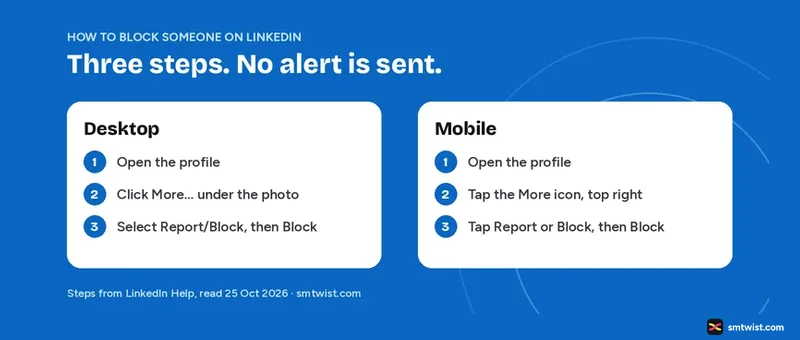
Block someone on LinkedIn when you want a member out of your profile views, your messages and your feed. This guide gives the steps for desktop and mobile, what changes after the block and what to do when the Block option is missing. Every step comes from LinkedIn Help, read on 25 October 2026.
How to Block Someone on LinkedIn
You can block a member from desktop or mobile. Both routes start on the member's profile. After the block, the member appears on your blocked list.
On Desktop
- Open the profile of the member you want to block.
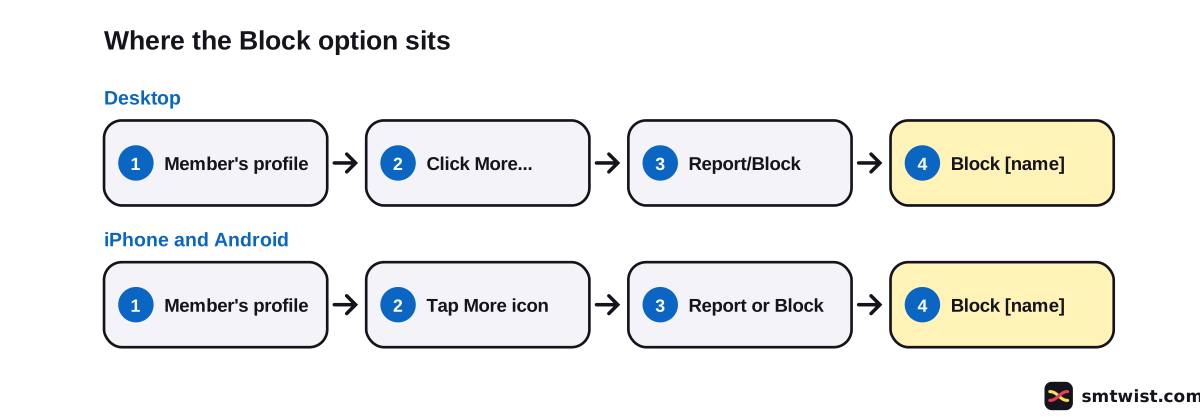
- Click More… below the member's profile picture and select Report/Block from the list.
- Select Block [member name] in the Report or block menu.
- Click Block to continue, or Back to review your options.
On iPhone and Android
- Open the profile of the member you want to block.
- Tap the More icon in the top right of the screen.
- Tap Report or Block from the dropdown menu. Android shows it as Report/Block.
- Tap Block [member's name].
- Tap Block in the confirmation pop up, or use the back arrow to review other options.
What Happens When You Block Someone on LinkedIn?
Blocking cuts the link between two members. You can no longer reach each other inside LinkedIn, and a connection between you ends. LinkedIn Help lists these changes.
| What changes | After you block |
|---|---|
| Profiles | You cannot open each other's profiles |
| Messages | You cannot message each other |
| Shared content | You do not see each other's shared content |
| Connection | A connection between you ends |
| Who's Viewed Your Profile | You do not appear in each other's list |
| Endorsements and recommendations | LinkedIn removes them |
| Suggestions | LinkedIn stops suggesting you to each other, like in People You May Know |
| Newsletter | A blocked subscriber stops receiving your newsletter |
| Events | You get no alerts about each other's events and cannot join an audio event the member hosts |
Recommendations are a special case. LinkedIn Help says recommendations from a member you block leave your profile and cannot be restored if you unblock the member.
What a Blocked Member can Still See
Blocking does not hide everything. A blocked member can still see information you make public. LinkedIn Help names your public profile, content in public (open) group discussions, your own public shares and comments on Top Voices posts. Mutual connections can also share your content into the member's feed.
You can see traces too. On mobile you can see cached data about the blocked member until you sign out and sign in again. Apps that use LinkedIn's tools can keep cached data, and then the app developer must remove it.
Will LinkedIn Tell Them You Blocked Them?
No, in most cases. LinkedIn Help says the blocked member receives no notification when you block them.
The exception is a shared LinkedIn Recruiter account. If you share or once shared one with the member, LinkedIn reserves the right to notify the member or the Recruiter admin so the account keeps working.
The member can still guess. If they search for you and find nothing, they will wonder why. LinkedIn Help lists a block as one reason a profile cannot be found, next to a closed or hibernated account.
What if You Cannot See the Block Option?
If the Block option does not appear on a profile, the cause is usually a shared event or group. LinkedIn Help lists these cases.
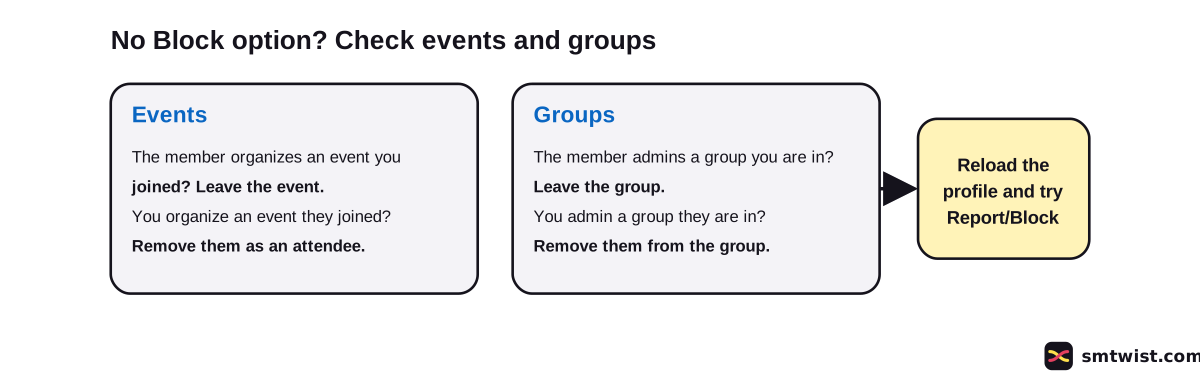
- The member organizes an event you attended or plan to attend. Leave the event. The same goes for an event organized by a company profile the member admins.
- You organize an event the member attended or plans to attend. Remove the member from the attendee list. The same goes for a company profile event you admin.
- The member is an admin or owner of a group you belong to. Leave the group, then block the member.
- You own or admin a group the member belongs to. Remove the member from the group, then block the member.
Open the profile again after the change and select More… and Report/Block once more. Group members cannot block group admins, because admins need control to moderate the group.
How to Unblock Someone on LinkedIn
Only you can unblock a member. Use the blocked list in your settings.
- Click the Me icon at the top of your LinkedIn homepage. On mobile, tap your profile picture instead.
- Select Settings & Privacy.
- Select Visibility.
- Under Visibility of your profile & network, select Blocking.
- Find the member's name in your blocked list and click Unblock.
Keep these limits in mind.
- You wait 48 hours before you can block the same member again.
- LinkedIn Help says a block ends a connection. It does not say an unblock brings the connection back, so plan to send a new invitation.
- If you blocked more than 2,000 members, you can be unable to unblock one. Contact LinkedIn support for help.
- There is no limit to how many members you can block.
Can You Block Someone Without Opening Their Profile?
No. LinkedIn Help starts every block on the member's profile and lists no other route. You can open the profile first and then block, and the member gets no notice in most cases. LinkedIn Help adds one limit. You cannot block members who view your profile in private mode, because their name is hidden from you.
Other Ways to Limit Someone on LinkedIn
A block is the strongest step. LinkedIn Help lists softer options for people who want less contact without a full block.
- Remove a connection. The member is not notified, and endorsements and recommendations between you are withdrawn.
- Hide the public version of your profile that search engines and signed out visitors see.
- Hide your profile photo or change your display name.
- Change who can send you invitations.
- Turn Open Profile on or off.
What is Still Unconfirmed
The block and unblock article was updated about two months before 25 October 2026. The overview article is about two years old. The two differ in one detail. The newer article says the member receives no notification, and the older one says no notification in most cases. We follow the newer article and keep the Recruiter exception.
We did not try a block on a live account, so the label on this guide is Checked. Menu names move between app versions, so compare every step with the screen LinkedIn shows you.
Where This Guide Fits
This guide on how to block someone on LinkedIn belongs to our LinkedIn Blocking Rules and Effects Explained topic, inside the LinkedIn section. To control who can comment on your own posts, read How to Post on LinkedIn. For spam in comments, read LinkedIn Comment Settings, Moderation and Automation Rules. For a duplicate profile, read Manage Multiple LinkedIn Accounts.
Sources
- LinkedIn Help: Block or unblock a member, read 25 October 2026, the steps, the 48 hour wait and the notes.
- LinkedIn Help: Block a member overview, read 25 October 2026, what changes and what a blocked member can still see.
- LinkedIn Help: Unable to block a member, read 25 October 2026, the event and group causes.
- LinkedIn Help: See a list of who you blocked, read 25 October 2026, the blocked list.
- LinkedIn Help: Remove a connection on LinkedIn, read 25 October 2026, the softer option.
The label on this guide is Checked, which means we compared the steps with these sources and have not tried them on an account yet. Read how we label guides.
FAQ
How do I block someone on LinkedIn?
Open the member's profile and click More… below the profile picture, or tap the More icon on mobile. Select Report/Block, choose Block [member name] and confirm. LinkedIn Help lists the same path for desktop, iPhone and Android.
Does LinkedIn tell someone you blocked them?
No, not in most cases. LinkedIn Help says the blocked member receives no notification. The exception is a shared LinkedIn Recruiter account, where LinkedIn reserves the right to notify the member or the Recruiter admin.
Can a blocked person still see my LinkedIn profile?
They can still see what you make public. LinkedIn Help names your public profile, public group discussions, your own public shares and comments on Top Voices posts. They cannot open your profile while signed in.
Why can't I block someone on LinkedIn?
LinkedIn Help links the missing Block option to shared events and groups. Leave events the member organizes, leave groups the member admins, or remove the member from events and groups you manage. Then try again.
How long do I wait to block someone again after I unblock them?
You wait 48 hours. LinkedIn Help states this in the block article and again in the blocked list article.
Can I block someone on LinkedIn without opening their profile?
No. LinkedIn Help starts every block on the member's profile. It also says you cannot block members who view your profile in private mode, because LinkedIn hides their name from you.
Is there a limit to how many people I can block on LinkedIn?
No. LinkedIn Help says there is no limit. It adds that after you block more than 2,000 members you can be unable to unblock one, and then you contact support.
 Editor
Written by
Namrata Arora
Namrata Arora is a social media expert with two years of hands on experience on Instagram, Facebook and other platforms. She writes the how to guides on Social Media Twist and tries the steps on a real account for every guide marked Tested.
- Marks every guide Tested or Checked
- Writes about Instagram, Facebook, TikTok
- 13 guides on SMTwist
Guest posts are edited by SMTwist before they go live. Paid or affiliate links are labelled and carry rel="sponsored".