How to Delete Spam Comments on LinkedIn
Learn how to delete spam comments on LinkedIn, then report, hide or block the commenter and use the company profile admin route when deleting is not enough.

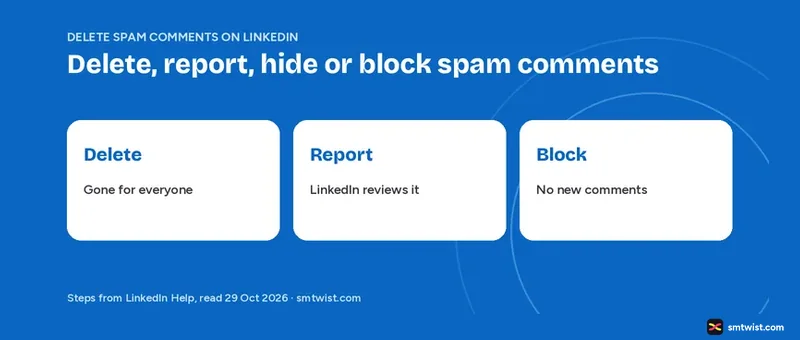
Spam under your LinkedIn post needs a different answer than a comment you wrote yourself. This guide on how to delete spam comments on LinkedIn starts with how to recognise spam, then covers deleting, reporting, hiding and blocking, plus the extra route for company profile admins. Every step below comes from LinkedIn Help, opened 29 October 2026.
How do You Recognise a Spam Comment?
LinkedIn Help defines spam in its article on recognising and reporting bad content. Spam means someone advertises a product for monetary gain or posts irrelevant content for high visibility. LinkedIn updated that article three months earlier.
Help splits bad content into three kinds, and the report reason you choose depends on which one you see.
- Spam covers product ads and irrelevant content posted for visibility.
- Scam covers requests for personal information or money and suspicious links.
- Fake account covers a phony profile or an impersonation.
The separate Spam article, two years old, lists five examples of content built to inflate engagement. Excessive, irrelevant or repetitive comments or messages is the one aimed at your comment section. Chain letter content asking for likes, reactions and shares is another on that list.
If a comment seems to be missing, sort the comments by Most recent. LinkedIn Help says some comments show only in that sorting.
Four Ways to Handle a Spam Comment
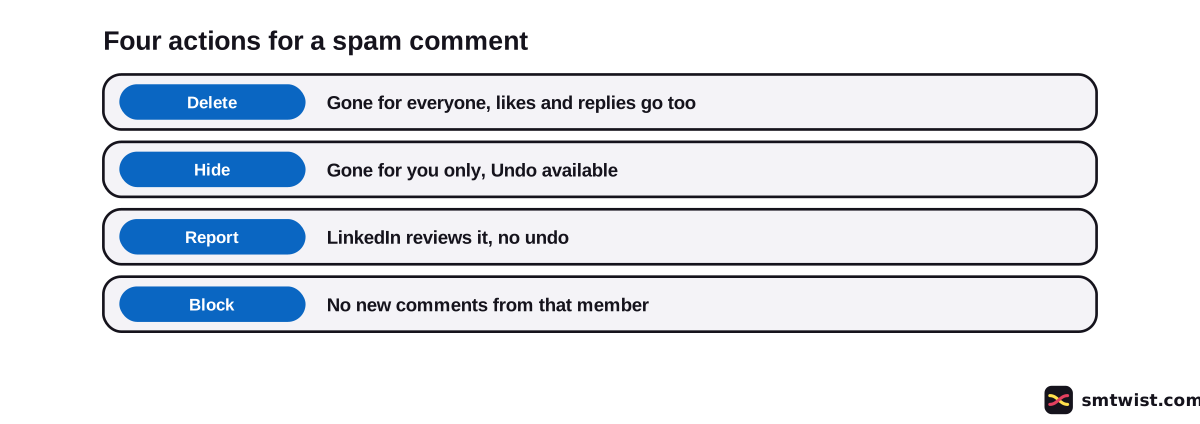
Help offers four actions, and the table shows what changes with every one.
| Action | Who sees the change | Undo |
|---|---|---|
| Delete | Everyone, and likes and replies on it go too | Not stated in Help |
| Hide | You only | Yes, with Undo |
| Report | LinkedIn reviews it | No |
| Block | The member cannot add new comments | Unblock, then wait 48 hours to block again |
How to Delete Spam Comments on LinkedIn Under Your Own Post
Open the post, click More on the spam comment, click Delete and confirm with Delete in the pop-up. On mobile, tap More, Delete and Delete again. The full walk through sits in our guide to deleting a comment on LinkedIn.
Deleting clears the comment but not the account behind it. The same member can write again, which is where reporting and blocking come in.
Report a Spam Comment to LinkedIn
Reporting is the second route in how to delete spam comments on LinkedIn and sends the comment to LinkedIn for review. Help gives different paths by device, and the three below are the ones it prints for a comment.
- On desktop, click the More icon on the right of the comment, click Report this post and choose a reason under Why are you reporting this? Then click Submit.
- On iOS, tap the number of comments below the post, tap More on the comment, tap Report and choose a reason.
- On Android, follow the same path and tap Report comment.
The two articles differ on the label. The desktop one is newer by about 21 months. Trust the menu on your own screen.
Help says the member never sees your name. You should stop seeing the reported content in your feed or inbox.
LinkedIn removes content only if it finds a break of the User Agreement, and a report cannot be undone. Help lists a warning or a suspension as outcomes for the author. To report the account behind the comment, the steps for a profile are in our guide to reporting someone on LinkedIn.
Can You Hide a Spam Comment Without Deleting It?
Knowing how to delete spam comments on LinkedIn includes hiding, which works under any post, including posts you do not own.
On desktop, click More at the top right of the comment and click I don't want to see this. On mobile, tap More beside the comment and tap the same option. A confirmation appears, and Undo reverses it.
Only you lose sight of it. The comment count does not change and other members are not told.
Help adds that your hide action can influence how comments are ordered for others. LinkedIn last updated that article three years earlier.
Block or Limit the Commenter
Blocking is the step in how to delete spam comments on LinkedIn that stops the next one. LinkedIn Help names spamming and rude or abusive comments as the reason to block a member or a company profile.
The profile block steps differ by device, and Help prints three versions.
- On desktop, open the member's profile, click More, click Report/Block, click Block with the member's name and click Block again.
- On iOS, tap More, tap Report or Block and tap Block with the member's name.
- On Android, tap More, tap Report/Block and tap Block.
A block works at once and the member is not notified. They cannot add new comments to your posts, reshare your posts or message you.
Comments and messages made before the block stay visible. Delete or report them yourself. The wider picture of blocking is in our guide to blocking someone on LinkedIn.
Comment control is the milder option, because it limits who can write under a post instead of blocking one account. It has three settings.
- Anyone leaves comments open to all members.
- Connections only limits comments to your connections.
- No one switches comments off.
After sharing a post on desktop, open its More menu and click Who can comment on your post? Choose a setting and click Save. Existing comments are not deleted.
Our guide on limiting who can comment on a LinkedIn post has the steps before sharing and on mobile.
Blocking is reversible. Help sets a 48 hour wait before you block the same member again. Our unblock guide covers the path.
Delete and Block Spam Comments as a Company Profile Admin
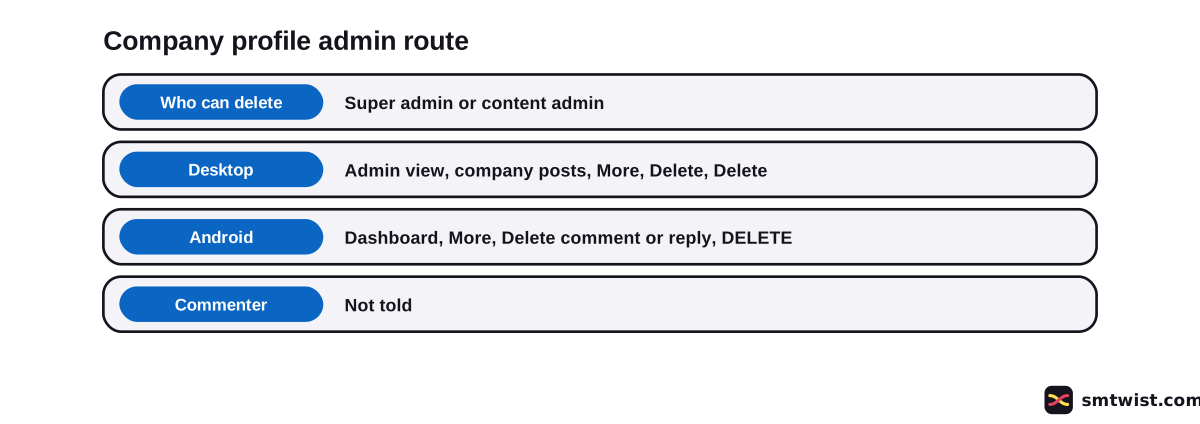
A company profile admin handles spam from the admin view. Super admins and content admins find the post, use the More icon on the comment and choose Delete, with a second Delete to confirm. The desktop and phone routes are written out in the guide to deleting a comment on LinkedIn.
The Android route differs in its labels. From the Dashboard, find the post, tap More on the comment, choose Delete comment or Delete reply and tap DELETE. The iOS line in Help reads oddly, so use the menu on your screen.
Likes and replies on the comment go with it. Help says the commenting member is not told.
Members have a separate tool for a company profile that spams their own post. Open a comment from that company profile, click More and choose the block comments option. On mobile, tap More and choose the same option.
Blocking a company profile works at once, sends no notification and has no limit. You can still view that company profile and comment on its posts. To undo it, open Me, then Settings & Privacy, then Visibility, and use the blocked company profiles list under Visibility of your profile & network.
Can You Delete Many Spam Comments at Once?
No bulk tool for how to delete spam comments on LinkedIn appears in LinkedIn Help. It describes no mass action, no auto delete and no keyword filter for spam. The Activity list shows comments you wrote, not the comments on your posts.
Google results include third party moderation tools for company profiles. We read none of them and SMTwist links none. Help also names two triggers for reduced comment visibility, which are excessive commenting and automation tools.
What is Still Unconfirmed?
Six points stay open, and a menu on your screen can differ from the Help text.
- Blocking one member from commenting only. Help says members can block members and company profiles from commenting, but we found click steps for company profiles and for a full profile block only.
- Whether the comment block is live for you. Help says the feature rolls out gradually.
- Whether a commenter is told when you delete their comment under a personal post. Help says nothing.
- Whether Undo exists after a delete.
- How fast LinkedIn acts on a report and whether an outcome email arrives.
- How to delete a spam repost. We found no Help article.
No live account was used for any step here.
Where This Guide Fits
Spam handling is one part of comment moderation. The LinkedIn Comments and Moderation Tools topic gathers delete, hide, report and block together in the LinkedIn section.
Blocking a whole account has its own block guide. The editorial policy defines what Checked means here.
Sources
- LinkedIn Help: Delete comments in your LinkedIn feed, read 29 October 2026, the delete steps and what goes with a deleted comment.
- LinkedIn Help: Spam, read 29 October 2026, the spam examples.
- LinkedIn Help: Recognize and report spam, inappropriate, and abusive content, read 29 October 2026, the definitions and what a report does.
- LinkedIn Help: Report inappropriate or offensive updates in your LinkedIn Feed, read 29 October 2026, the report steps on iOS and Android.
- LinkedIn Help: Hide comments in LinkedIn posts, read 29 October 2026, the hide steps.
- LinkedIn Help: If you block a member or a LinkedIn company profile, read 29 October 2026, what a block does.
- LinkedIn Help: Block or unblock a member, read 29 October 2026, the profile block steps.
- LinkedIn Help: Delete comments on a company profile post, read 29 October 2026, the admin delete steps.
- LinkedIn Help: Block a LinkedIn company profile from commenting on your posts, read 29 October 2026, the comment block for company profiles.
- LinkedIn Help: Unblock a LinkedIn company profile from commenting on your posts, read 29 October 2026, the unblock path.
- LinkedIn Help: Comment on posts and reply to a comment, read 29 October 2026, comment sorting and the limits on excessive commenting.
- LinkedIn Help: Turn off and limit comments on posts, read 29 October 2026, the comment control settings.
SMTwist marked this guide Checked after comparing every step with the twelve Help articles above. Nothing was tried on a live account. Our editorial policy explains all three labels.
FAQ
How do I delete spam comments on LinkedIn?
Click the More icon in the upper-right corner of the comment, click Delete and click Delete again in the pop-up. On mobile, tap More, tap Delete and tap Delete. This works on comments under content you shared.
Can I delete a spam comment on someone else's post?
No. LinkedIn Help lets you delete comments you wrote and comments on content you shared. Under another member's post you can hide the spam comment for yourself or report it.
Is there a way to delete all spam comments at once?
No. LinkedIn Help describes no way to delete many comments in one action and no auto delete or keyword filter. You remove spam one comment at a time.
Does the spammer know when I delete their comment?
On a company profile post, no. LinkedIn Help says the commenting member is not notified. For posts on a personal profile, Help does not say.
Does hiding a spam comment remove it for other people?
No. Hiding with I don't want to see this removes the comment from your view only, and the comment count stays the same. Other members are not told.
What happens when I report a spam comment?
LinkedIn reviews it and removes it only if it breaks the User Agreement. Your name is not shown to the member and a report cannot be undone.
Does blocking a member delete their old comments?
No. LinkedIn Help says comments and messages made before the block stay visible. You can delete or report them yourself.
How do I stop a company profile from commenting on my posts?
Open a comment from that company profile, click the More icon in its upper-right corner and choose the block comments option. On mobile, tap More and choose the same option. LinkedIn Help says it works at once and the company profile is not told.
What counts as spam on LinkedIn?
LinkedIn Help says spam means someone advertises a product for monetary gain or posts irrelevant content for high visibility. Excessive, irrelevant or repetitive comments are one listed example.
 Editor
Written by
Namrata Arora
Namrata Arora is a social media expert with two years of hands on experience on Instagram, Facebook and other platforms. She writes the how to guides on Social Media Twist and tries the steps on a real account for every guide marked Tested.
- Marks every guide Tested or Checked
- Writes about Instagram, Facebook, TikTok
- 43 guides on SMTwist
Guest posts are edited by SMTwist before they go live. Paid or affiliate links are labelled and carry rel="sponsored".