How to Delete a Comment on LinkedIn
How to delete a comment on LinkedIn on desktop and mobile, find old comments in Activity and remove comments under your post or company profile.

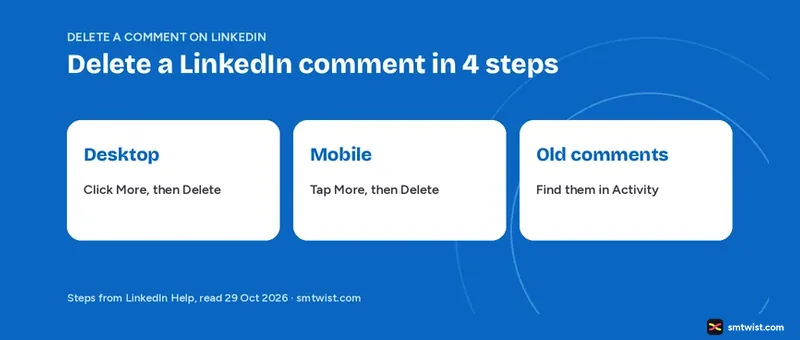
You can delete a comment on LinkedIn from the comment in your feed, from your Activity section or from the admin view of a company profile. Here is how to delete a comment on LinkedIn, with the desktop and mobile steps, the two year limit for old comments and what goes with a deleted comment. Every step comes from LinkedIn Help articles opened on 29 October 2026.
How to Delete a Comment on LinkedIn on Desktop
LinkedIn Help says you can delete comments you made on other members' posts and comments on content you shared. Both cases use the same route. Use these four steps on a computer.
- Go to the comment you want to delete.
- Click the More icon in the upper-right corner of the comment.
- Click Delete.
- Click Delete in the confirmation pop-up.
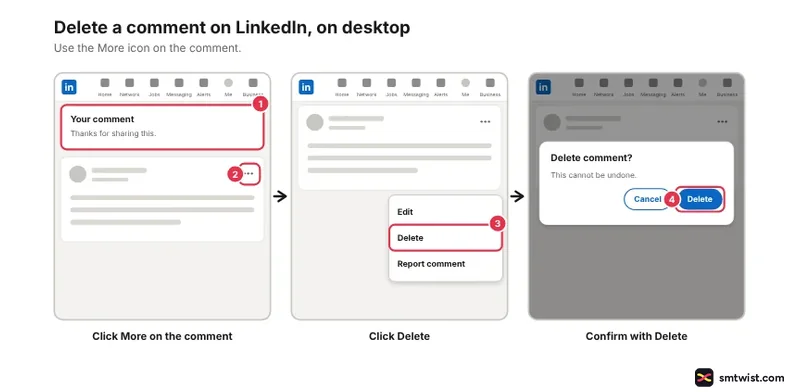
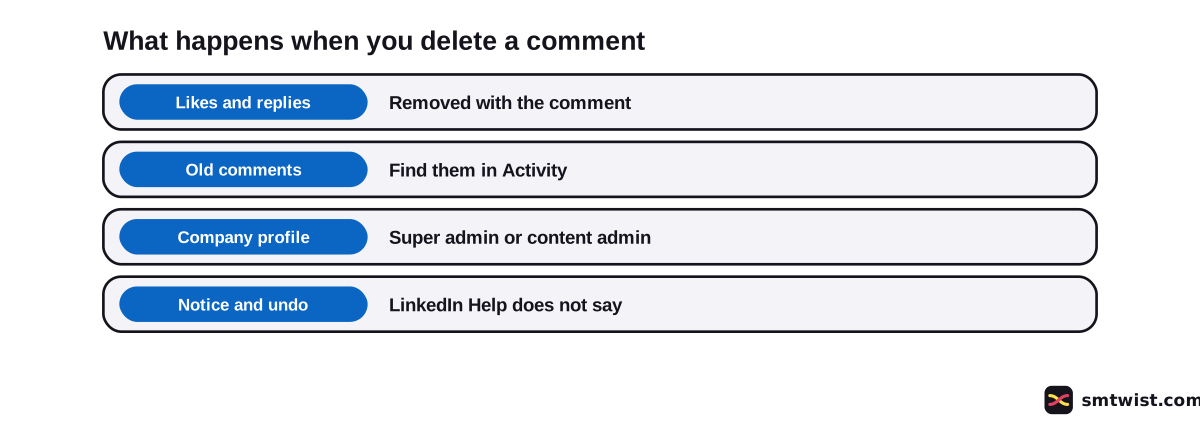
Deleting removes all likes and replies on the comment. Check the comment and the replies under it before you confirm.
Delete a Comment on the LinkedIn Mobile App
Mobile follows the desktop route with taps in place of clicks. LinkedIn Help lists four taps for the app.
- Go to the comment you want to delete.
- Tap the More icon in the upper-right corner of the comment.
- Tap Delete.
- Tap Delete in the confirmation pop-up.
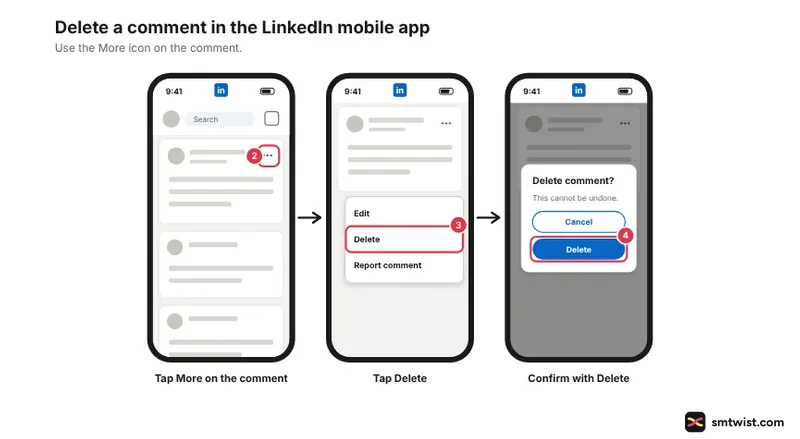
Help gives one set of mobile steps. We could not confirm whether iOS and Android word the menu differently for a personal comment. Follow the label your own menu shows.
How to Delete a Comment on LinkedIn From Your Activity Section
Scrolling a busy post to find an old comment wastes time. Your profile lists your comments in one place, and LinkedIn Help words these eight steps for desktop.
- Click the Me icon or your profile picture at the top of the homepage.
- Click your Profile card.
- Go to the Activity section.
- Click Comments to see your comments.
- Locate the comment and click it.
- Click the More icon in the top right of the comment.
- Click Delete in the dropdown.
- Click Delete again to confirm.
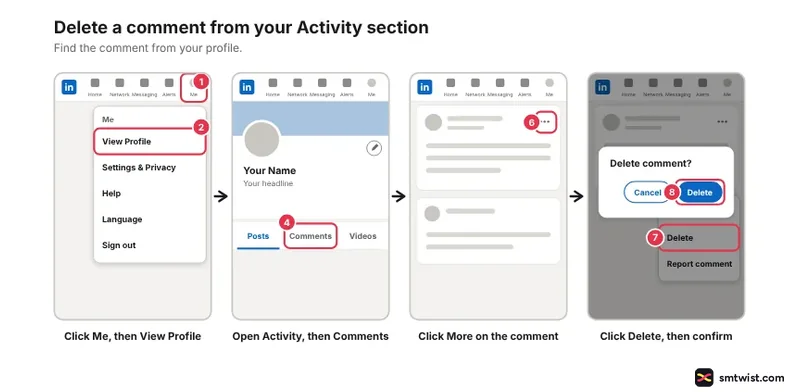
The Comments option does not show if you have none, and the Activity section is hidden after 360 days without activity.
Help also sets a limit, because you can view and delete content up to two years old there. Older content sits in the data archive, which the same article points to.
When a comment is hard to spot under a post, check the sort order. LinkedIn Help says comments sort by Most relevant or Most recent and some comments show only in Most recent.
What Happens When You Delete a Comment on LinkedIn?
The result reaches past your own comment. LinkedIn Help names three facts about it.
- Deleting removes all likes and replies on the comment.
- Deleting a comment is separate from switching off or limiting comments on your posts, which has its own steps in our guide to switching off comments on a LinkedIn post.
- The delete article says nothing about telling the post owner and nothing about an undo.
Comment volume is a different matter. LinkedIn Help says LinkedIn can limit how many comments a member posts in a period and who sees comments written in excess or with an automation tool.
The rules for LinkedIn auto comment tools cover that side.
Delete Comments Under Your Own LinkedIn Post
Your own post collects comments you did not write. LinkedIn Help covers comments on content you shared in the same article. You delete them the same way.
Open your post, find the comment and click or tap the More icon. Choose Delete and choose Delete again in the pop-up. The likes and replies on that comment go with it.
Deleting works one comment at a time. If you want to stop new comments on a post instead, change who can comment rather than deleting.
Delete Comments on a Company Profile Post
Company profiles follow a separate Help article. Super admins and content admins can delete comments on their company profile posts. These six steps are for desktop.
- Open the super admin or content admin view.
- Open the posts list from the left menu.
- Locate the post.
- Click the More icon on the comment.
- Click Delete.
- Click Delete to confirm.
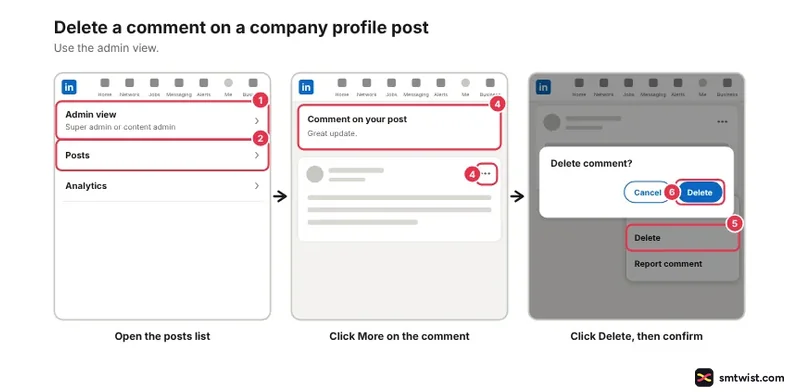
On mobile, open the admin view, tap Dashboard in the upper-left corner and choose the posts option from the dropdown. Find the post and the comment next.
Android users tap More, then Delete comment or Delete reply, then DELETE. Help lists its own delete wording for iOS. Follow the label your menu shows.
Likes and replies on the comment are removed. The desktop tab of the article says the commenting member is not notified.
Should You Delete, Hide or Report a Comment on LinkedIn?
Three actions look alike in the More menu and do different jobs. This table lists the three with the facts LinkedIn Help gives.
| Action | What happens | Undo |
|---|---|---|
| Delete | The comment goes with its likes and replies | Help names none |
| Hide | The comment is hidden from you only and the count does not change | Yes, Undo |
| Report | LinkedIn reviews the comment and removes it only if it breaks the User Agreement | No |
Hiding uses I don't want to see this in the More menu, and no other member is told. Reporting uses Report this post on desktop, Report on iOS and Report comment on Android. Our guide on how to report someone on LinkedIn covers the full route.
What About Spam Comments Under Your Post?
Spam under your post follows the delete steps above. Reporting and hiding are separate tools, and the guide to deleting spam comments on LinkedIn covers report, block and hide in detail. If one member posts again and again, block someone on LinkedIn explains the full profile block.
What is Still Unconfirmed?
The label is Checked because we deleted nothing on a live account. Help last updated the Activity article two days before our reading, and the company profile article is two years old. Your screen can show a different label or step.
Five points stay open because the Help articles are silent on them.
- Whether the post owner or the person you replied to is told when you delete.
- Whether an undo exists after you confirm, and whether a deleted comment comes back.
- Whether iOS and Android show different menu wording for a personal comment.
- Whether the Activity route works the same in the mobile app.
- Whether editing a comment is available, since the articles we read do not cover it.
Where This Guide Fits
Deleting is one of several moderation tools. It sits with the other tools in LinkedIn Comments and Moderation Tools in the LinkedIn section.
New to posting? Read how to post on LinkedIn first. The Checked label is explained in our editorial policy.
Sources
- LinkedIn Help: Delete comments in your LinkedIn feed, read 29 October 2026, the desktop and mobile steps and what goes with a deleted comment.
- LinkedIn Help: Manage shared content and profile activity, read 29 October 2026, the Activity section steps and the two year limit.
- LinkedIn Help: Comment on posts and reply to a comment, read 29 October 2026, comment sorting and the limits on comment volume.
- LinkedIn Help: Hide comments in LinkedIn posts, read 29 October 2026, how hiding differs from deleting.
- LinkedIn Help: Delete comments on a company profile post, read 29 October 2026, the admin steps for a company profile.
- LinkedIn Help: Report inappropriate or offensive updates in your LinkedIn Feed, read 29 October 2026, the report steps and the note that a report has no undo.
Six Help articles back these steps. A comment was not deleted on a live account while writing, so the guide is Checked, a label our editorial policy describes.
FAQ
How do I delete a comment on LinkedIn?
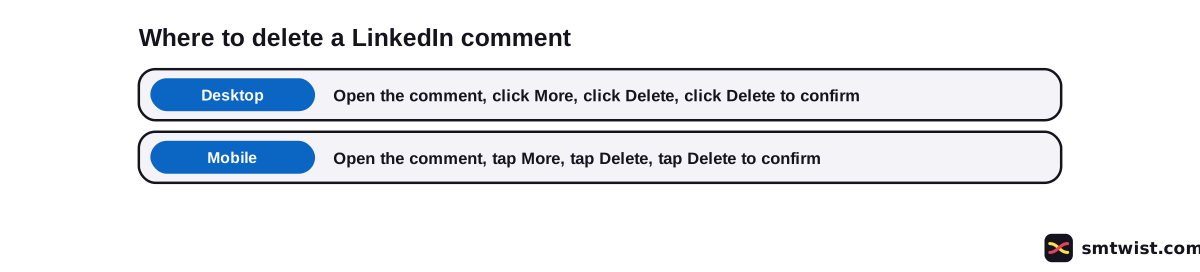
Go to the comment and click the More icon in its upper-right corner. Click Delete and click Delete again in the confirmation pop-up.
How do I delete a LinkedIn comment on my phone?
Go to the comment and tap the More icon in the upper-right corner. Tap Delete and tap Delete in the confirmation pop-up.
Will someone know if I delete a comment on LinkedIn?
LinkedIn Help does not say whether the post owner or the person you replied to is told. For comments a company profile admin deletes, the desktop steps in Help say the commenting member is not notified.
Can I delete my comment on someone else's post?
Yes. LinkedIn Help says you can delete comments you made on other members' posts. The steps are the same as for any other comment.
Can I delete a comment on my own LinkedIn post?
Yes. LinkedIn Help covers comments on content you shared, and the steps are the same. Click or tap the More icon on the comment and choose Delete.
What happens to likes and replies when I delete a comment?
They are removed too. LinkedIn Help says deleting a comment removes all likes and replies on it.
How far back can I delete comments from my Activity section?
Two years. LinkedIn Help says you can view and delete content up to two years old there, and older content sits in the data archive.
Can I delete comments on a company profile post?
Yes, if you are a super admin or a content admin. Open the admin view, find the post, click the More icon on the comment and click Delete.
Does deleting a comment switch off comments on my post?
No. LinkedIn Help treats deleting a comment as a separate action from switching off or limiting comments on your posts.
 Editor
Written by
Namrata Arora
Namrata Arora is a social media expert with two years of hands on experience on Instagram, Facebook and other platforms. She writes the how to guides on Social Media Twist and tries the steps on a real account for every guide marked Tested.
- Marks every guide Tested or Checked
- Writes about Instagram, Facebook, TikTok
- 43 guides on SMTwist
Guest posts are edited by SMTwist before they go live. Paid or affiliate links are labelled and carry rel="sponsored".