Pinterest topic
Pinterest Pin Rules: Create, Schedule and Delete
You post on Pinterest by publishing a Pin, which is an image or a video saved to one of your boards. This topic gathers what Pinterest Help says about how to post on Pinterest, how to schedule a Pin, what you can edit afterwards and how to delete one. No guide in this topic is published yet. Four are planned. They cover how to post on Pinterest, how to delete a Pin, how to schedule Pins and how to use Idea Pins. The facts below come from Pinterest Help. We have not posted a Pin on Pinterest ourselves.
How to Post on Pinterest
Two routes appear in Pinterest's help articles. Web users click Create and choose Create Pin. Mobile users tap the add icon and then Pin. The limits below come from the same help articles.
- Open Create Use Create on the web or the add icon in the app.
- Choose your files Choose an image or a video. Add more if you want.
- Fill in the details Add a title, a description, a link and a board.
- Publish Review the design and details, then publish.
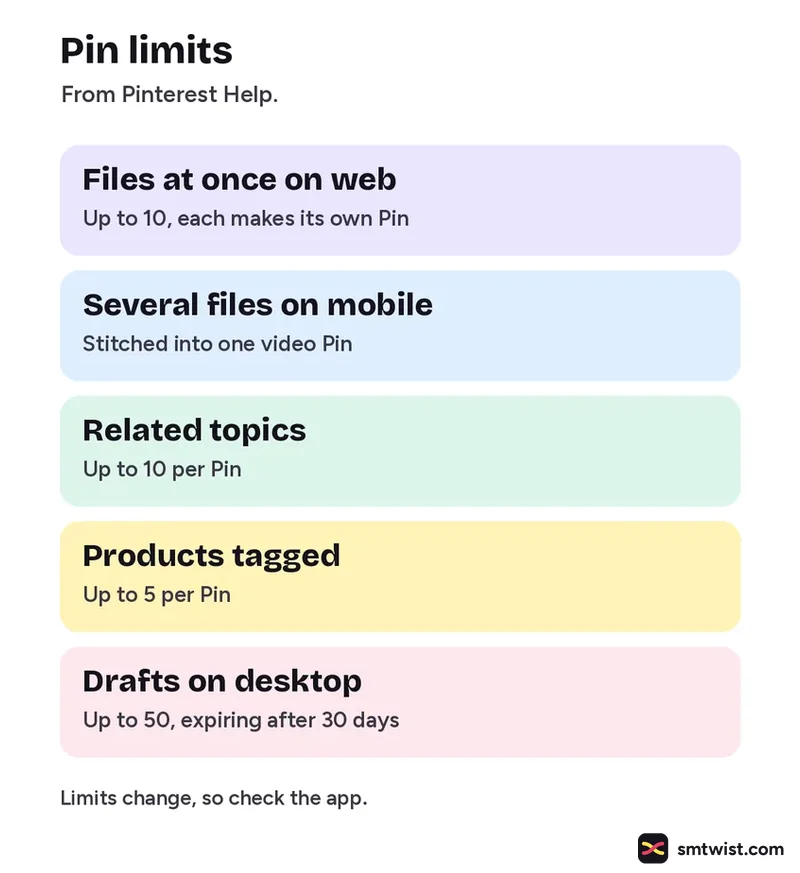
| Item | Limit from Pinterest Help |
|---|---|
| Files at once on web | Up to 10, and every file makes its own Pin |
| Several files on mobile | Stitched into one video Pin |
| Related topics | Up to 10 per Pin |
| Products tagged | Up to 5 per Pin |
| Drafts on desktop | Up to 50, expiring after 30 days |
Design Tools Before You Publish a Pin
Tools are available before you publish, per Pinterest Help. Add a text layer and set its font, size, alignment and color. A Canvas section holds controls for orientation, aspect ratio and background color. On mobile you can also add a filter and draw on the Pin. Pinterest Help says more design tools are in the Pinterest app on Android or iOS. It describes no templates. Several images or videos can also be uploaded to make a step by step guide.
How to Schedule Pinterest Pins
Scheduling needs a business account, says Pinterest Help. You can schedule a standard Pin up to 30 days ahead. Only one Pin can be scheduled at a time and up to 10 can wait in the queue.
- Start a Pin Log in to a business account and open Create Pin or tap the add icon in the app.
- Add the details Choose the image or video and fill in the Pin details.
- Set the date Choose to publish at a later date and choose a day and time.
- Schedule On mobile tap Done, then Schedule, then confirm the date and time.
Scheduled Pins show on your profile above published Pins. It can take a few minutes for them to appear. Before one goes live its publish date, title, board, description and link can change. Its image and video cannot.
What You can Edit on a Pin
On the web, open the Pin from your profile, click the ellipsis icon and choose Edit Pin. Click Save when you are done. The app route is the ellipsis icon, then the edit option, then Done. The details you can edit vary by how the Pin was created. A published Pin keeps its image, video and audio.
Deleting a Pin on Pinterest
Deleting a Pin is permanent, per Pinterest Help. Web users open the edit view, click Delete at the bottom left corner and click Delete again. In the app, open the edit option, tap Delete this Pin or the trashcan icon and tap Delete to confirm. To remove a scheduled Pin, go to your profile, use the ellipsis icon on it and choose Delete.
What is Still Unconfirmed
The Pinterest Help articles we read carry no dates. The article we found about creating Pins covers no Idea Pins, so we cannot say how they work today or what their limits are. The delete article does not say what happens to copies other people saved. The scheduling article does not mention time zones. The limits above change, so check the Create screen in your own account.
Where This Topic Fits
This topic sits inside our Pinterest section, next to Pinterest Marketing for Business, Selling and Creators and Pinterest Ads: Formats, Video Specs and Setup. A guide appears here the day it goes live and is marked Tested or Checked, as our editorial policy explains. Changes are logged on our change log. Namrata Arora edits this section. To look up a term, use the social media glossary or our site search.
Sources: Pinterest Help on creating a Pin, Pinterest Help on scheduling Pins, Pinterest Help on editing or deleting a Pin, Pinterest Help on designing a Pin and Pinterest Help on the Pin guide.
FAQ
How do I post on Pinterest from my phone?
Tap the add icon and then Pin, says Pinterest Help. Then choose one or more images or videos and fill in the Pin details. Several items chosen on mobile are combined into a single video Pin. We have not tried these steps ourselves.
Can I edit a Pin after I post it?
Partly. The image, video and audio of a published Pin are locked, per Pinterest Help. The other details you can edit depend on how the Pin was created. To change the picture itself you need to create a new Pin.
Can I get a deleted Pin back?
No. A deleted Pin cannot be recovered, per Pinterest Help. Check that you no longer want it on your profile or board before you delete it.