Pinterest topic
Claim Your Instagram Account on Pinterest: What It Does
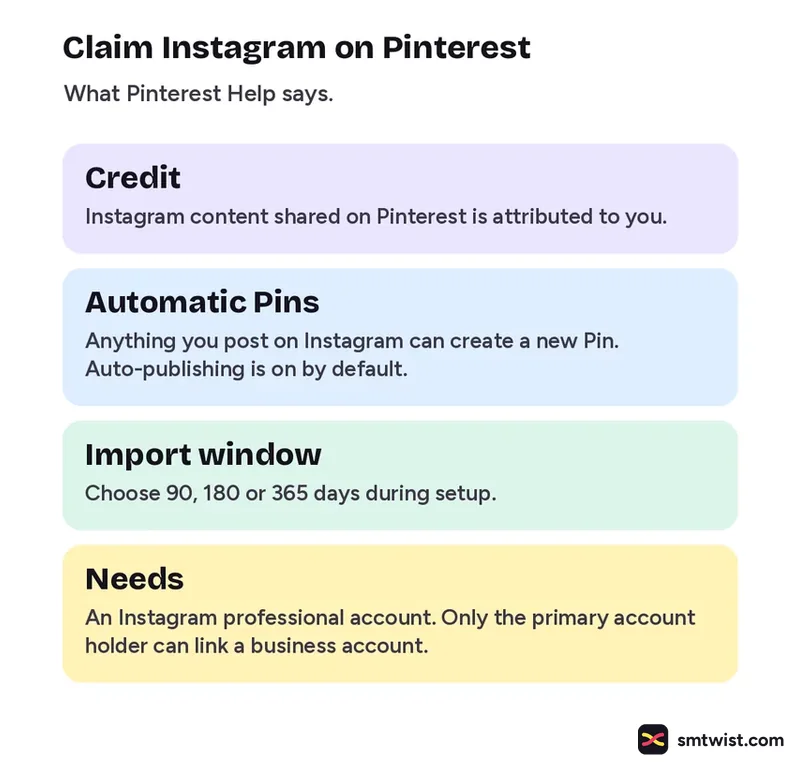
You claim your Instagram account on Pinterest by linking the two accounts so that Instagram content shared on Pinterest is credited to you. This topic gathers what Pinterest Help says about what linking does, what you need first and how to undo it. No guide in this topic is published yet. One explainer is planned. It covers why you should claim it. The facts below come from Pinterest Help. We have not linked an account ourselves.
Claim Your Instagram Account: What It Does
Two effects come from Pinterest Help. If anyone shares your Instagram content on Pinterest, it is attributed to you. And anything you post on Instagram can automatically create a new Pin. During setup you choose a board for those Pins and an import window of 90, 180 or 365 days. Auto publishing is on by default.
What You Need Before You Link
Three conditions appear in Pinterest Help:
- An Instagram professional account. A personal account is prompted to convert during setup.
- A public Instagram account is recommended. It is not required.
- Only the primary account holder can link a business account.
How to Link Instagram to Pinterest
The desktop order below is paraphrased from Pinterest Help. It was not tried on an account. The mobile route differs slightly. In the app you open your profile, go to Link to Pinterest and tap Link next to Instagram.
- Open Link to Pinterest Log in and choose Settings from the menu in the bottom left corner. Then choose Link to Pinterest.
- Link Instagram Click the link option next to Instagram. Sign in to Instagram in the pop up and allow Pinterest access.
- Choose your options Choose the board and the import window of 90, 180 or 365 days. Switch auto publishing off here if you do not want it.
- Finish setup Complete the setup. New posts can then become Pins.
Unclaim or Pause the Link
Pinterest Help says you can remove a claimed account by choosing Unclaim. Pins already made from your Instagram posts stay. To stop new Pins and keep the link, switch off auto publishing in your import settings.
What is Still Unconfirmed
The Pinterest Help article for linking Instagram shows no date, so we cannot say when it was last updated. A second Pinterest Help article about importing content says a business account is needed and gives desktop steps only. The linking article gives mobile steps too. Neither article says which kinds of Instagram posts become Pins. Check the setup screens on your own account before you rely on the steps.
Where This Topic Fits
This topic sits inside our Pinterest section. A guide appears here the day it goes live and is marked Tested or Checked, as our editorial policy explains. Changes are logged on our change log. Namrata Arora edits this section. To look up a term, use the social media glossary or our site search.
Sources: Pinterest Help on linking your Instagram account and Pinterest Help on importing content.
FAQ
Do I need an Instagram professional account to link it to Pinterest?
Yes, according to Pinterest Help. If your Instagram account is personal, you are prompted to convert it during setup. Pinterest also recommends a public account but says this is not required.
Does unclaiming my Instagram account delete my Pins?
No. Pinterest Help says unclaiming will not delete Pins that were already created from your Instagram posts. To stop new Pins without unclaiming, switch off auto publishing in your import settings.