Other platforms topic
How to See Unsent Messages on an iPhone: Can You?
Unsent messages on iPhone are texts that a sender pulled back with Undo Send in Messages. This topic gathers what published sources say about whether you can see them and how the unsend and edit tools work. No guide in this topic is published yet. One is planned. It covers how to see unsent messages on an iPhone. The facts below come from iPhone Life, iGeeksBlog, Wikipedia and Apple Support. We have not tried these steps on our own phones.
Can You See Unsent Messages on iPhone?
Sources say generally not. iPhone Life, in an article last updated in March 2025, says you cannot see an unsent message unless you have a device on iOS 15 or older. It adds that the message is also removed from the Notification Center. The recipient cannot read the content but is told that something was unsent. iGeeksBlog, updated in August 2025, says recipients on older software see the original message instead.
How Unsend and Edit Work on iPhone
iGeeksBlog describes the steps for iMessage. Long press the message in the thread, then tap Undo Send or Edit. The limits below come from iGeeksBlog, iPhone Life and Wikipedia.
| Action | Time limit | What the recipient sees |
|---|---|---|
| Unsend | 2 minutes | The message disappears and a notice says a message was unsent |
| Edit | 15 minutes, up to 5 times | An Edited label. Tapping it shows the earlier versions |
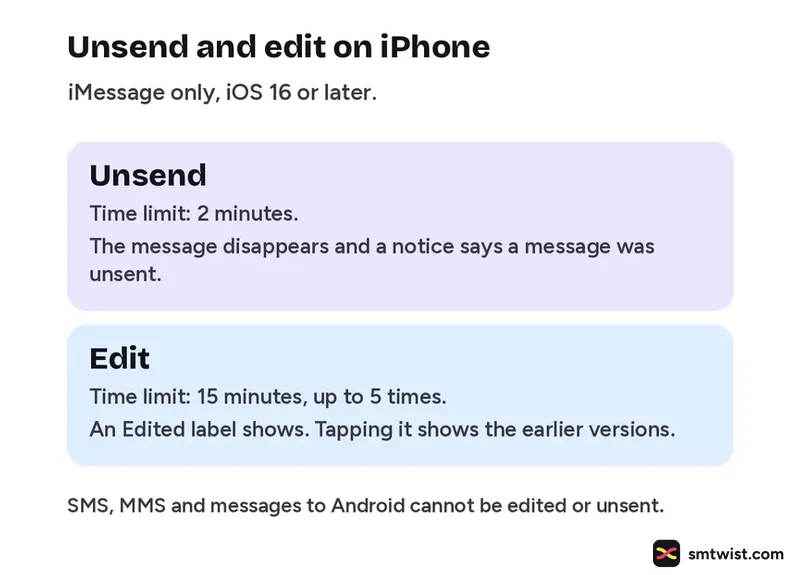
Three requirements come up in the sources:
- Both phones need iOS 16 or later for it to work as described.
- Only iMessage works, which means blue bubbles. SMS and MMS do not.
- Messages sent to an Android phone cannot be edited or unsent, says iPhone Life.
Recover Deleted Messages on iPhone
Apple Support covers something different, which is messages you deleted yourself. Its article does not mention unsent messages. The steps below are paraphrased from Apple Support.
- Open Filters In Messages, tap the Filters button. On iOS 18, tap Edit instead.
- Tap Recently Deleted The list shows conversations you deleted.
- Select and recover Choose the conversations and tap Recover.
- Confirm Tap Recover Message or Recover with the number of messages.
Apple Support says you can only recover messages and conversations deleted in the last 30 to 40 days. It also says you need iOS 16 or iPadOS 16.1 or later.
What is Still Unconfirmed
Our tools could not read Apple's own article on unsending messages in full. The unsend and edit steps here come from iGeeksBlog, a third party, not from Apple. The sources also differ in small ways. iPhone Life's FAQ says a message cannot be unsent after it has been read. The other sources do not say this. Check what Messages shows on your own iPhone before you rely on either claim.
Where This Topic Fits
This topic sits inside our Other Platforms section, next to Can You Change Your Gmail Name and What Is Clubhouse. A guide appears here the day it goes live and is marked Tested or Checked, as our editorial policy explains. Changes are logged on our change log. Namrata Arora edits this section. To look up a term, use the social media glossary or SMTwist search.
Sources: iPhone Life on unsent messages, iPhone Life on why you cannot unsend, iGeeksBlog on editing and unsending, Wikipedia on iMessage and Apple Support on recovering deleted messages.
FAQ
Can I see a message the sender unsent?
Generally no. iPhone Life says you cannot see them unless a device uses iOS 15 or older. iGeeksBlog says a recipient on older software sees the original message. We have not tested this on our own phones.
How long do you have to unsend a message on iPhone?
Two minutes after sending, according to iPhone Life and Wikipedia. Wikipedia and iGeeksBlog give 15 minutes for editing a message.