How to Hide Likes on Instagram
How to hide likes on Instagram with three settings for posts you scroll past, a new post or one you already shared. Steps for iPhone, Android and web.

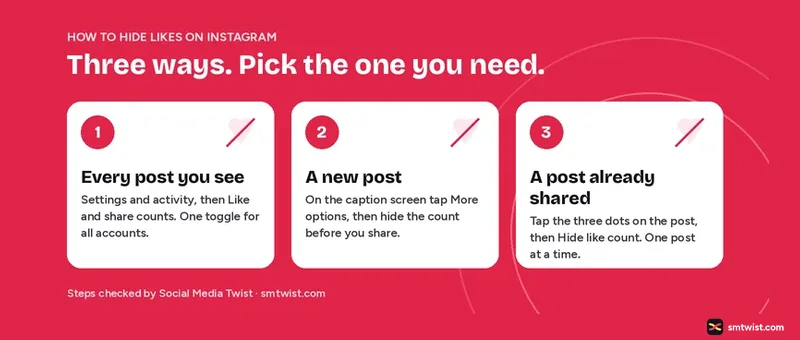
Hide likes on Instagram with a setting that removes the like count from view. The setting works in two directions. One account toggle, under Settings and activity, hides like and share counts on the posts you scroll past. A per post option, in the three dot menu or under More options before you share, hides the count on your own post, so followers see “Liked by [name] and others” instead of a number. The steps below cover iPhone, Android and the web. More on account safety is in our Instagram privacy and safety guides.
Why would You Hide Likes on Instagram?
Instagram announced the option for everyone on 26 May 2021, after testing hidden like counts for a while. People switch it on for a few common reasons:
- Personal accounts that do not want friends comparing numbers.
- Creators and brands testing a new format without a low count putting people off.
- Anyone who finds the feed calmer without a score under every photo.
The count never disappears for you. You still see the real number on your own posts. Only other people see it hidden.
How to Hide Likes on Instagram: Three Settings
The three settings below are separate switches. Use one or all of them.
Posts You Scroll Past
This is one account setting. It hides like and share counts on posts from other accounts while you scroll and leaves your own posts alone.
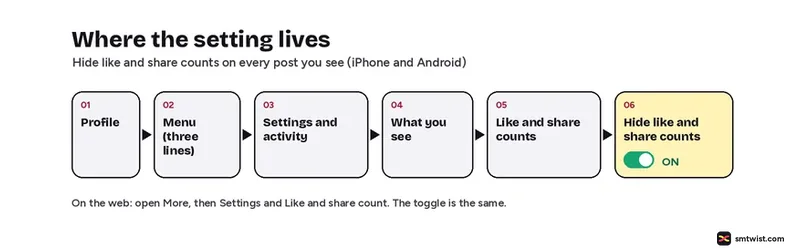
On iPhone and Android
- Open Instagram and tap your profile picture at the bottom right.
- Tap the menu icon (three lines) at the top right.
- Tap Settings and activity.
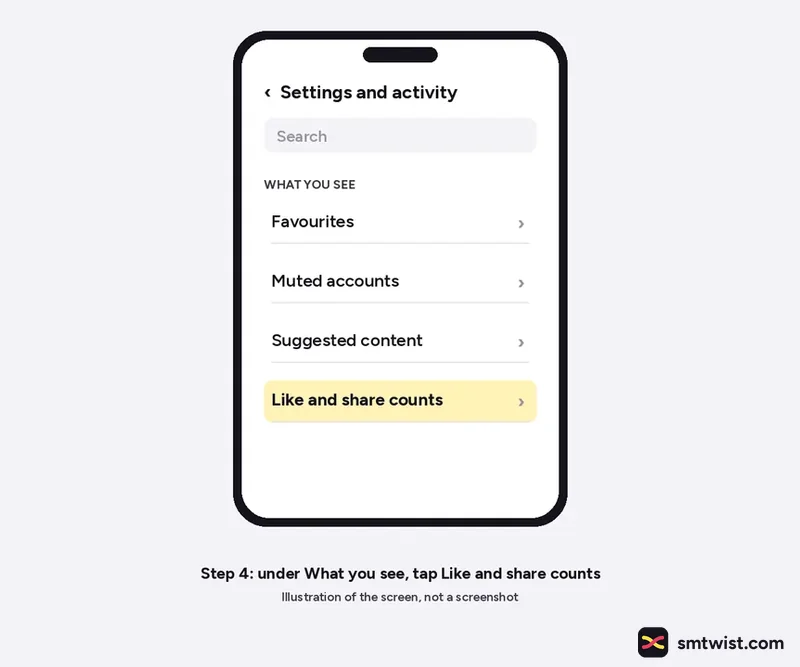
- Scroll to the What you see section and tap Like and share counts.
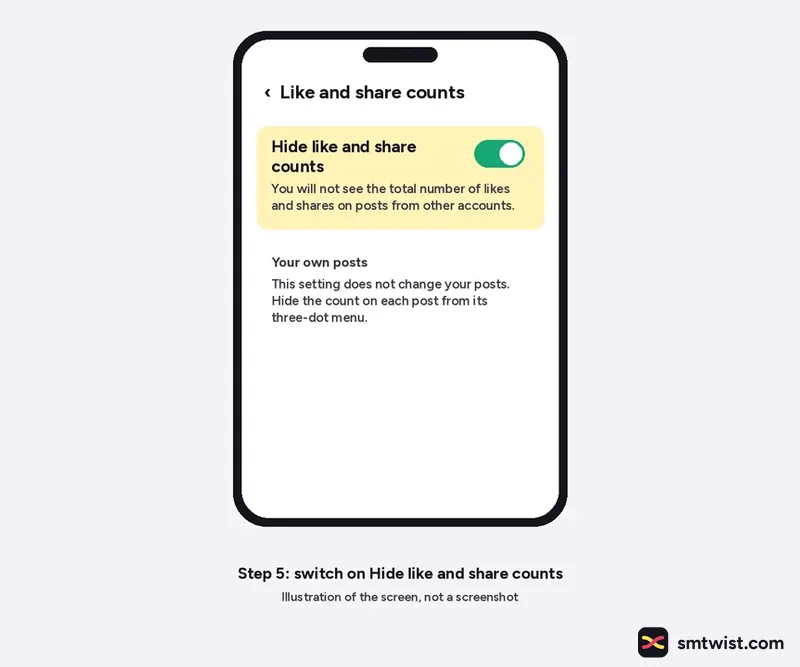
- Switch on Hide like and share counts.
On the Web
- Go to instagram.com and click More at the bottom left.
- Click Settings.
- Under What you see, click Like and share count.
- Switch the Hide like and share counts toggle on.
As an account level setting, it applies on every phone and browser you use with that account once you switch it on. To see counts again, switch the same toggle off.
A New Post, Before You Share It
Use this when you want one post to go out without a visible count.
- Create your post as usual: choose the photo or video, edit it and tap Next.
- On the caption screen, scroll down and tap More options.
- Under Like and share counts, switch on Hide like count on this post.
- Go back and tap Share.
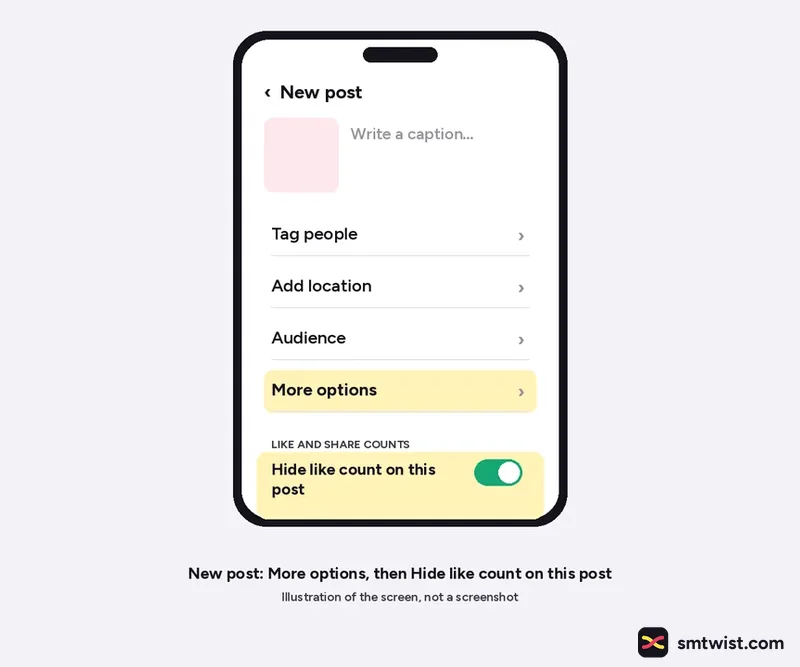
On some app versions this section is called Advanced settings instead of More options. The toggle inside is the same.
A Post You Already Shared
You can still remove the number after posting, one post at a time.
On iPhone and Android
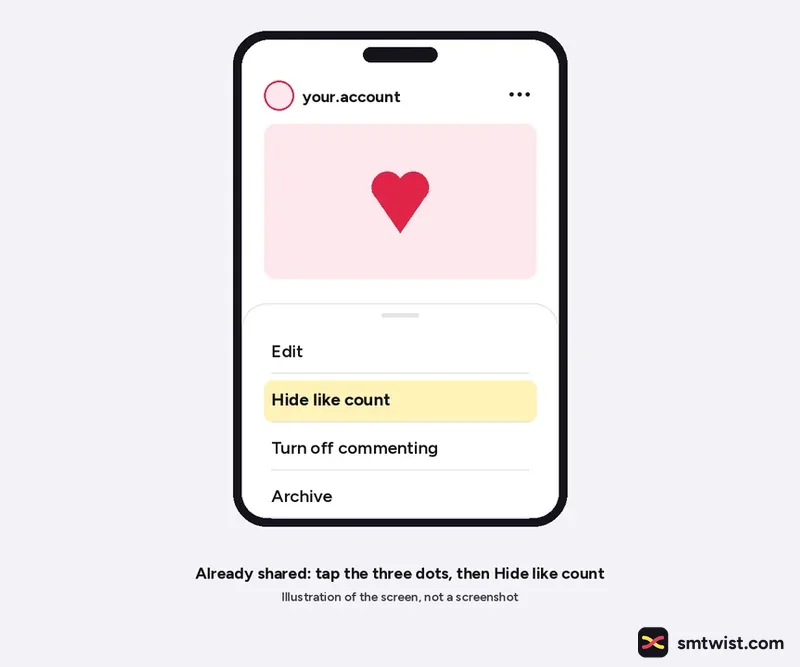
- From your profile, open the post.
- Tap the three dots at the top right of the post.
- Tap Hide like count.
On the Web
- On the web, open the post and click the three dots at the top right.
- Click Hide like count to others.
- A "Like count hidden" message confirms it.
The sources list no setting that hides likes on every old post at once. For a clean grid, go through the posts one by one.
What Changes When Likes are Hidden?
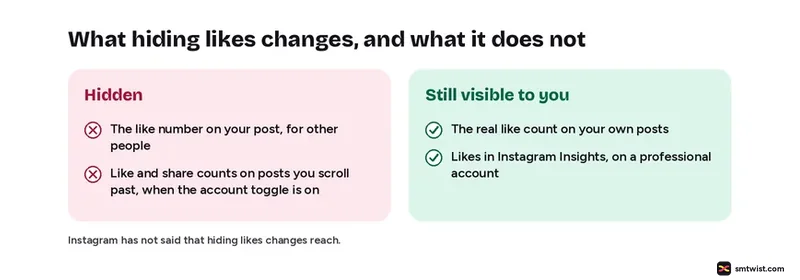
The table shows what hiding changes and what stays the same, based on Instagram's announcement and the guides listed under Sources.
| What | After you hide likes |
|---|---|
| Like number on your post | Hidden from other people. Followers see "Liked by [name] and others" instead of a number. |
| Your own view of the count | Unchanged. You still see the real number on your own post. |
| Share counts | The account toggle hides share counts too. The per post option names only the like count. |
| Reach and ranking | Instagram has not said that hiding likes changes reach. |
| Notifications | Not documented in the sources we read. |
If you manage an account for a client, tell them before you switch it on, because a missing number is easy to notice.
How to See Your Own Likes When They are Hidden
Open your post to see it, because only other people see the count hidden. To follow how a post performs over time, use Instagram Insights, which is available on professional accounts.
How to Unhide Likes on Instagram
- One post: open it, tap the three dots and tap Unhide like count.
- Posts you scroll past: go back to Like and share counts under Settings and activity and switch the toggle off.
Both can be reversed at any time through the same menus.
If You Cannot Find the Setting
Instagram moves menu names between app versions. If the steps above do not match your screen:
- Update the Instagram app from the App Store or Play Store.
- On older app versions open Settings, then Privacy, then Posts and switch on Hide Like and View Counts. That is the older name for the same toggle.
- If the option still does not show, log out and back in.
More fixes like this are in our Instagram troubleshooting guides.
Sources
- Instagram: Giving People More Control on Instagram and Facebook, 26 May 2021, the announcement that gave everyone the option to hide like counts.
- Beebom: How to Hide Likes on Instagram, updated 11 February 2025, the menu names and web steps used in this guide.
- How-To Geek and Hootsuite, the older Settings, Privacy and Posts path and the Insights note.
- Instagram Help Centre, where Instagram lists its current menu names.
The label on this guide is Checked, which means we compared the steps with these sources and have not tried them on a device yet. Read how we label guides.
FAQ
Will my followers know if I hide likes?
They will see “Liked by [name] and others” instead of a number, so a missing number can be noticed. No source we read says Instagram sends a notification when you hide a count.
Can I still see likes on my own posts after hiding them?
Yes. Only other people see the count hidden, and your own post still shows you the real number.
Can I hide likes on all my old posts at once?
We found no setting for that. The account toggle hides counts on posts you see from other people. For your own posts you hide the count one post at a time.
Does hiding likes on Instagram affect reach?
Instagram has not said that it does. Hootsuite notes that Instagram still counts hidden likes. The setting changes what people see on the post.
How do I unhide likes on Instagram?
Open the post, tap the three dots and tap Unhide like count. For other people's posts, switch off Hide like and share counts in Settings and activity.
 Editor
Written by
Namrata Arora
Namrata Arora is a social media expert with two years of hands on experience on Instagram, Facebook and other platforms. She writes the how to guides on Social Media Twist and tries the steps on a real account for every guide marked Tested.
- Marks every guide Tested or Checked
- Writes about Instagram, Facebook, TikTok
- 13 guides on SMTwist
Guest posts are edited by SMTwist before they go live. Paid or affiliate links are labelled and carry rel="sponsored".